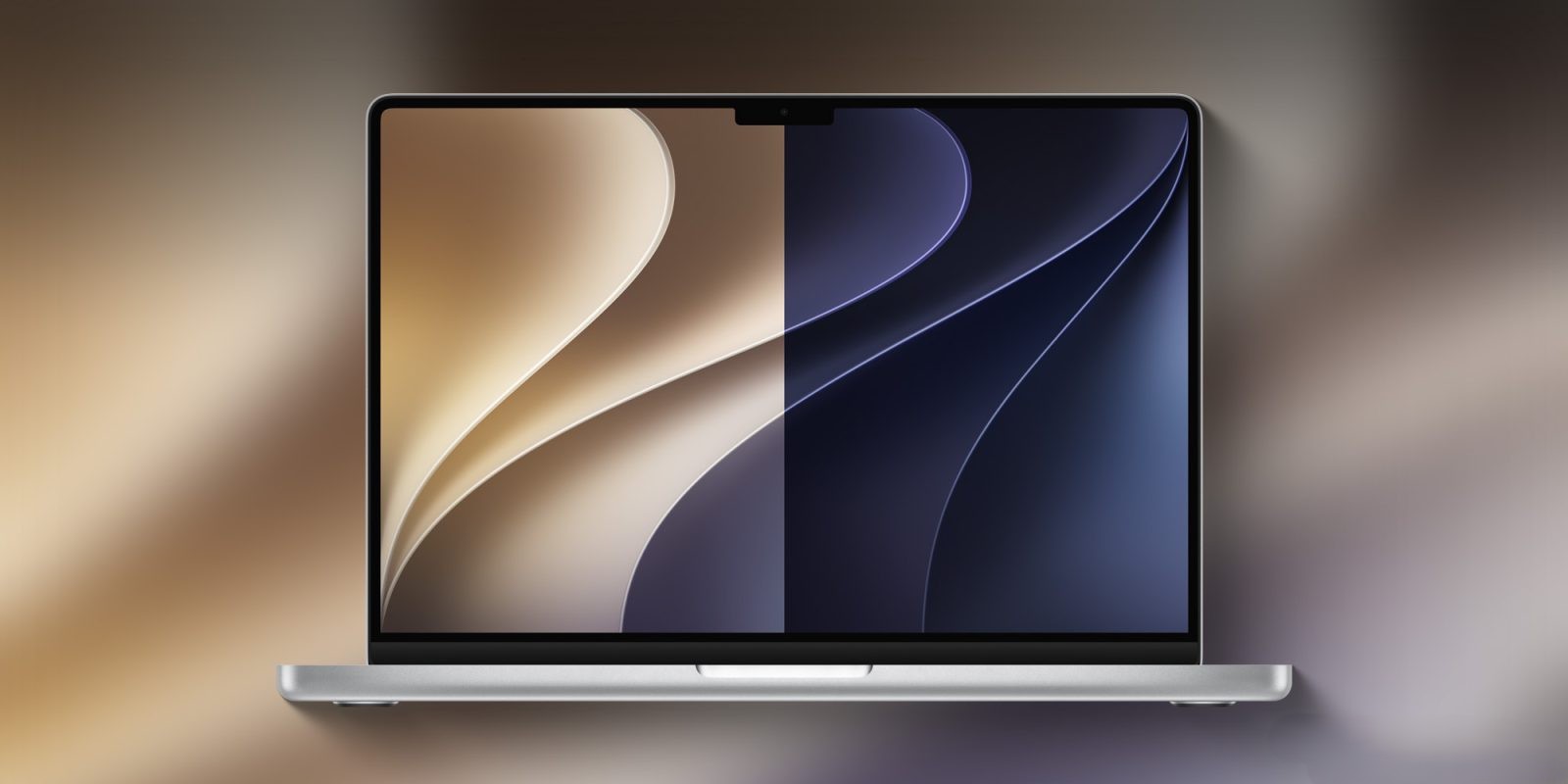
Elevate Your Mac’s Aesthetic with macOS 27 Golden Gate Wallpapers
Apple’s latest operating system, macOS 27 Golden Gate, pays homage to San Francisco’s iconic Golden Gate Bridge, marking a departure from its tradition of naming releases after natural landmarks. This version introduces a cohesive design across iOS 27, iPadOS 27, and macOS 27, featuring stylized 27 artwork with curved shapes, available in both light and dark themes.
While macOS 27 Golden Gate includes dynamic wallpapers that change throughout the day, these are exclusive to the system. However, users can now download the full-resolution static versions of these wallpapers to personalize their desktops.
How to Download and Set the Wallpapers:
1. Download the Wallpapers:
– Click on the provided images to access the full-resolution versions.
– Right-click on the image and select Save Image As… to save it to your desired location.
2. Set as Desktop Background:
– Navigate to ‘System Settings’ > ‘Wallpaper’.
– Scroll down to ‘Your Photos’ and click the ‘Add Photo’ button.
– Choose one of the following options:
– From Photos Library: Click ‘Choose from Photos’ and select your desired image.
– From File: Click ‘Choose File’, select the saved image, and click ‘Open’. Alternatively, drag the image from its location onto the thumbnail at the top of the Wallpaper settings.
– From Finder Folder: Click ‘Choose Folder’, select the folder containing your image, and click ‘Open’.
– From Photos App Album/Folder: Select an album or folder under ‘Photo Sets’.
Alternative Methods to Set Custom Wallpapers:
– From Photos Library: Open the Photos app, select an image, click the share button, and choose ‘Set Wallpaper’.
– From Web Images: In Safari, control-click the desired image and select ‘Use Image as Desktop Wallpaper’.
– From Saved Images: Locate the image file in Finder, control-click it, and choose ‘Set Desktop Picture’.
Beyond the new wallpapers, macOS 27 Golden Gate introduces several enhancements:
– Liquid Glass Refinements: The visual overhaul introduced in macOS Tahoe 26 receives significant improvements, offering a more polished and consistent user interface. Users can now adjust the intensity of the Liquid Glass effect to suit their preferences.
– Siri AI Assistant: A dedicated Siri app provides a more interactive and intelligent assistant experience, leveraging advanced AI capabilities.
– Advanced Shortcuts: The Shortcuts app now supports natural language processing, allowing users to create and execute complex workflows more intuitively.
– iPhone Mirroring Enhancements: Users can resize the iPhone Mirroring window with additional aspect ratios, offering greater flexibility in their workflows.
For a comprehensive list of compatible Mac models and detailed installation instructions for macOS 27 Golden Gate, refer to the official Apple documentation.
Stay updated with the latest developments from WWDC26 by visiting our news hub.