OpenAI recently rolled out a feature called Computer History in the ChatGPT desktop app for macOS. Launched in mid-August 2026, it’s designed to help the assistant maintain persistent context of your work: actions like mouse clicks, typed text, keyboard shortcuts, and app switching are tracked. Importantly, it doesn’t capture screenshots, screen recordings, system audio, or mic input.
Researchers say the system logs thousands of events over just a couple of hours of use, demonstrating the level of detail being recorded. These raw activity logs are stored locally for up to 48 hours. During this time, background processes running under the same user account condense these events into plain-text summaries—diary-style recaps that (once generated) are saved back to the Mac in Markdown format in a directory called ~/.codex/memories/extensions/skysight/. After summarization, the original raw logs are deleted.
Unencrypted Logs = New Weakness
The summaries, however, are not encrypted. Security analysts warn that any other process under the same macOS user account could access those files, including sensitive snippets of email, chat, or browsing activity. While they don’t contain passwords or payment info, the contextual detail could fuel convincing phishing attacks.
OpenAI flags another risk: prompt injection. Malicious content embedded elsewhere (in web or app usage) could wind up being treated as context by the system, later influencing the AI’s behavior.
Infostealers Are Already Hunting macOS
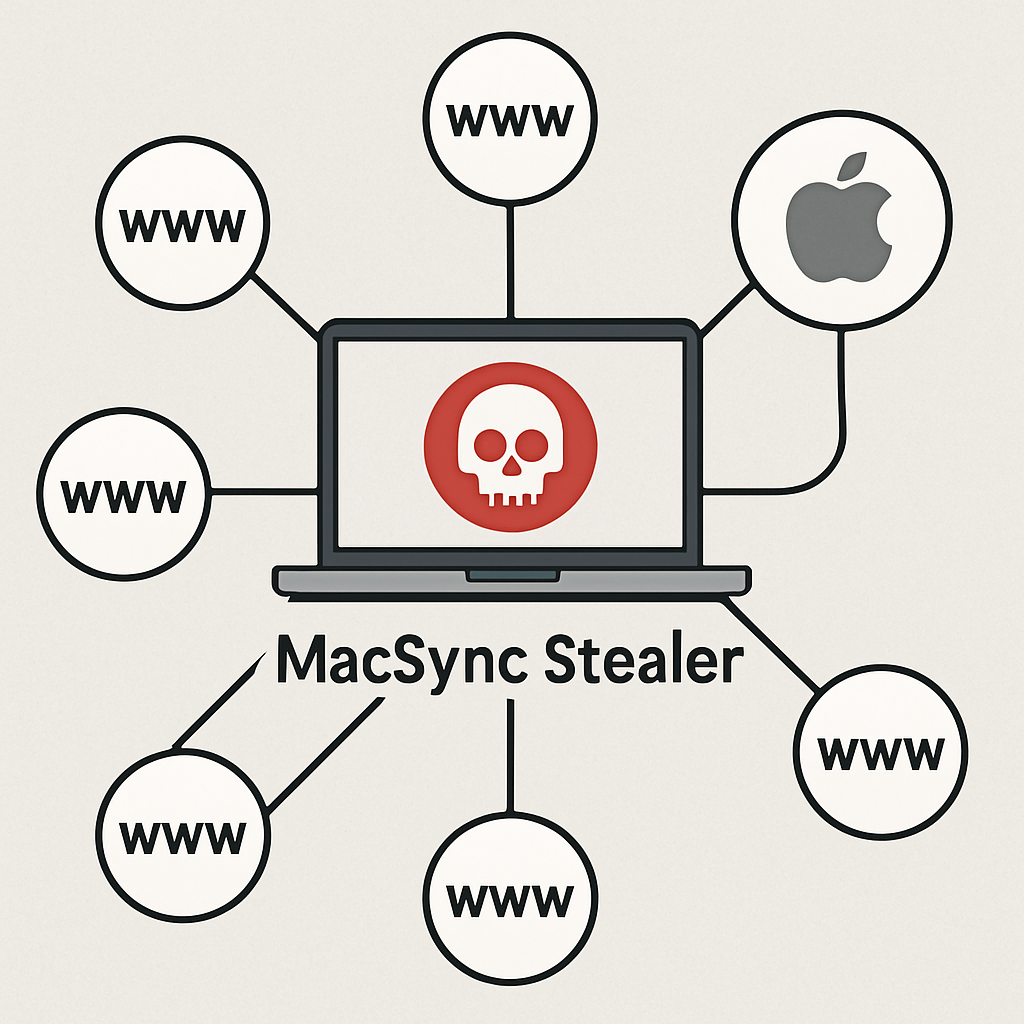
Threat researchers trace infostealer activity on macOS rising sharply since 2023 and accelerating through 2025. Strains like Atomic macOS Stealer (AMOS), MacSync, and DigitStealer are targeting browser credentials, keychain secrets, crypto assets, developer tokens, and more. A revived version of MacSync discovered in September 2026 combines a backdoor with an infostealer and spreads via trojanized tools posing as crypto or sharing apps.
The worry is that an unencrypted plain-text log of your digital actions—already distilled into narrative form—gives attackers clear, searchable insight into what you’ve done and when. From there it becomes easier to phish, impersonate someone in your contacts, or socially engineer victims.
Controls, Caveats, and Advice
Computer History won’t turn on by itself. It’s off by default, accessible only to Pro, Business, or Enterprise users with Memories enabled. Activating it requires navigating through Settings → Integrations → Computer History, giving explicit permissions via macOS, and (for business tier) potential administrative approval. Users can exclude apps or sites, restrict tracking via allow-lists, pause collection, or erase recent records (last ten minutes, hour, day, or all history).
For those handling sensitive material, it may make sense to disable Computer History entirely. Other safer practices: enable Mac login locking, require a password on wake, turn on FileVault encryption, and place any finance/messaging/sensitive apps into exclusion lists. Regularly review which sources are being logged.
This discovery underscores how quickly convenience features can open attack vectors—especially when data is stored in unencrypted form on shared accounts. Computer History may offer powerful context capabilities, but the risks for individuals and organizations—especially those under regulatory or confidentiality pressures—are significant. Keep tabs on updates, audit settings carefully, and don’t assume “opt-in” means “safe by default.”