Apple’s newest desktop release, macOS 27 “Golden Gate,” is now available and brings over 50 tweaks and enhancements. While a lot of the update focuses on performance gains and bug fixes, many of the changes will also sharpen your Mac’s usability, especially if you make heavy use of Apple Intelligence, Photos, Safari, or shared workflows.
Biggest System & AI Refreshes
Siri AI has been reworked so it no longer lives in a separate app—it now integrates into Spotlight via a “Search or Ask” bar. From there, you can interact with Siri, search your apps like Mail or Photos, or trigger supported app actions directly. There’s also a dedicated Siri app that stores past conversations, lets you search through them, and pin your favorites—all synced across your Apple devices.
Visual Intelligence is another headline addition. You can hit Shift-Command-Space to grab what’s on screen (text, images, etc.), then ask for a translation, explanation, related search, or even extract event details to drop into your Calendar. Voice updates include more expressive options and improved dictation, though the richer voice features need newer Macs (Apple silicon, M3 or beyond, with 12GB RAM minimum).
Photos, Safari & Shared Content Upgrades
Photos gets several new AI-powered tools: Reframe lets you shift perspective using spatial-aware imaging, Extend expands the image canvas filling gaps with generative AI, and Clean Up has been upgraded to handle more complex scene reconstruction. You can also save any video frame as a still photo. Ratings (1-5 stars) and keyword tagging round out better organization.
Shared Albums now support full-resolution photos and videos—but with a catch: content added by anyone in the album now eats into your iCloud storage. Also new is cross-platform contribution: folks on Android or Windows can join and add to Shared Albums via iCloud.com. You can also set expiry dates, filter media, view latest activity, or even react with emojis.
User Interface & App Tweaks
Apple has softened its visual language in settings: the Liquid Glass effect now features a slider to adjust transparency from clear to tinted. Toolbars are more consistent, sidebars stretch to window edges, and window shadows and contrast are tuned for easier readability. Icon redesigns make the Liquid Glass effect sharper across light and dark modes.
Other enhancements: widgets now support an “Extra-Large Portrait” size. The Dock will show a light gray indicator when an app is running a background process, letting you right-click and terminate it. Finder columns are easier to resize or reset. And Sidecar gains richer touch control—if you use an iPad as your second display, you can tap and scroll directly on the screen, instead of relying on mouse or trackpad input.
Smarter Browsing, Organizing & Automating
Safari’s Start Page includes a new “Recently Viewed” section to pick up tabs and browsing topics across all devices. Tabs can auto-group by topic, and a visual notification system (“Notify Me”) keeps watch on webpage changes like price drops. Plus, you can create a Safari extension simply by describing what you want it to do—no coding required.
Apps like Calendar, Reminders, and Shortcuts are more conversational. Type or say what you need and let the system fill in times, locations, or actions. Shortcuts can now also trigger based on screenshots or incoming notifications, in addition to location, app, or time-based triggers. Smart Replies in Mail try to mimic your usual tone, and Call Context links phone numbers to relevant info in Mail to help you prep for the call.
Hardware & System Limitations
macOS Golden Gate requires Apple silicon, so Intel Macs are no longer supported. This version also marks the final macOS release with general-purpose Rosetta support—for Intel-only apps running on Apple silicon—though some older games will still function. So if you rely on legacy Intel-only apps, this is a turning point.
Support for external displays has been beefed up: more resolution and refresh-rate options (including 5K at 120Hz on certain ultrawide monitors), and better recall of window layouts and Spaces when a monitor is disconnected and reconnected.
Other Key Enhancements
- Swipe-down gestures bring pull-to-refresh to apps like Mail, News, Calendar, and Safari.
- Weather gets a layout makeover with standout daily/weeks forecasts and a Highlights section (currently U.S. English only).
- Freeform allows drawing directly on Mac boards, makes collaborative folders, and adapts canvas shadows for Dark Mode.
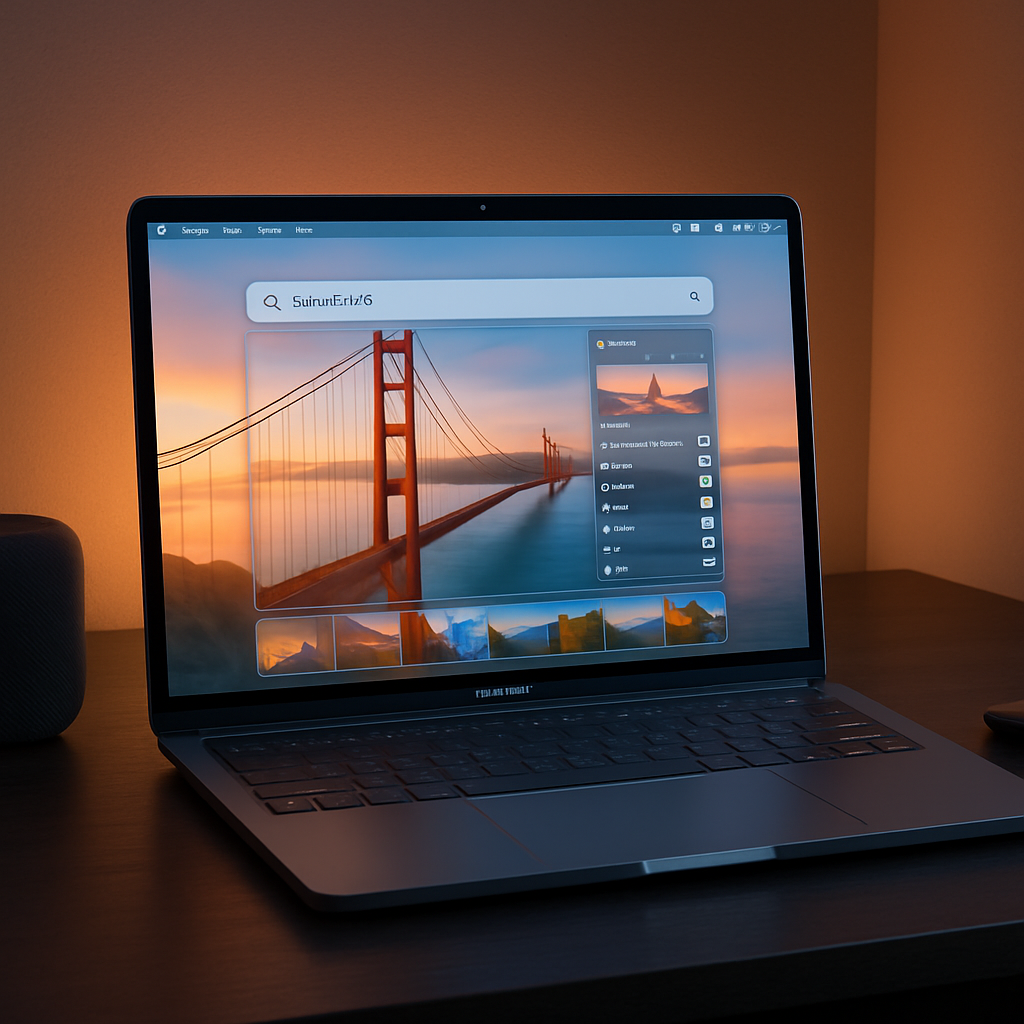
- New wallpapers added: animated Golden Gate Bridge scenes at sunset and night, plus an abstract new option.
All told, Golden Gate isn’t a huge overhaul like transitioning to Apple silicon, but it’s substantial. It refines the core OS, binds together its smart features, and leans heavily into Apple Intelligence. Users hoping for sweeping design changes won’t find them—but if you value polish, productivity, and smarter tools, this release delivers.
Why this matters: Golden Gate signals Apple doubling down on integrating AI and context into everyday computing. For users, the shift means less friction—conversational actions, smarter defaults, and fluid cross-device syncing. Going forward, the big questions are: how users adapt to replacing legacy app support, whether voice and AI features feel natural, and how Apple handles storage trade-offs with features like Shared Albums. Apple has sketched a clear direction. Now it must deliver.