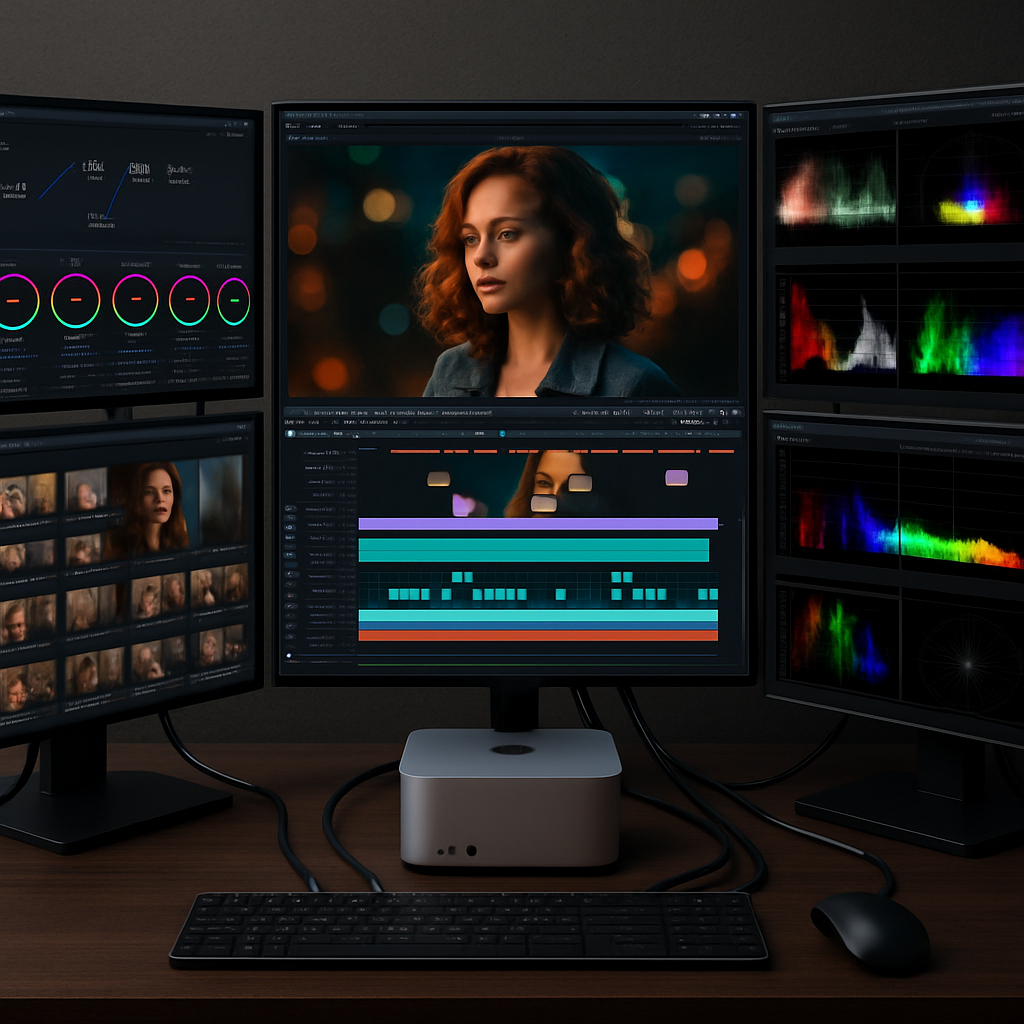
Apple’s latest Mac Studio models, powered by the new M5 Max and M5 Ultra chips, can drive up to eight external screens — a feature most users won’t use, but one that unlocks serious potential for professionals in creative, live-production, or AI workflows. The exact display support depends on chip selection, port layout, and display resolutions. Here’s a breakdown of how Apple delivers multimonitor power, who can benefit, and why this matters.
What the Display Limits Actually Are
The M5 Max variant supports up to five external displays. That’s via the Thunderbolt/USB-C and HDMI ports: you can connect four displays at up to 6K at 60Hz (or 4K at 144Hz) over the Thunderbolt ports, plus a fifth display over HDMI at up to 4K at 60Hz. The front USB-C ports on the M5 Max units don’t handle video output, so those are off-limits for connecting additional displays. (Technical Specifications: Display Support)
Move up to the M5 Ultra version, and the total climbs to eight displays. This is contingent on using a mix of the rear Thunderbolt/USB-C ports and the HDMI port, along with carefully choosing display resolutions and refresh rates. To reach the full eight-display configuration, all displays’ll need to stay within moderate resolution/refresh settings — for example, up to 6K at 60Hz or 4K at 144Hz. Going beyond that (for example, using 8K displays or 4K at very high refresh rates) may force the system to use multiples of what’s normally assigned bandwidth, eating up available “display slots.”
Why Almost Nobody Needs All of Them — But It Helps If You Do
For most users, having one or two high-quality external monitors will satisfy everything — email, design work, video playback. But for video editors, color grading pros, live-performance or stage-bio-tech setups, architects, or AI researchers the ability to spread tools, previews, scopes, and reference materials across many screens is a big deal. Drawing tablets, for example, are treated like displays under these rules, meaning you likely need a separate monitor for grading, another for review, and perhaps a third for your tablet surface.
Then there are power users in non-traditional setups: presentation stage walls, AV control panels, film sets or auditorium displays. In those cases, the difference between five displays (as with M5 Max) and eight (with M5 Ultra) isn’t just bragging rights — it can be essential to the workflow.
Technical Foundations: Ports, Resolutions & Bandwidth
Physical port types are critical. The Mac Studio models include Thunderbolt 5 (USB-C) ports and an HDMI 2.1 port. DisplayPort 2.1 is supported over USB-C, opening higher bandwidth and newer display standards. HDMI allows up to 8K at 60Hz or 4K at 240Hz when supported. Each Thunderbolt video connection shares display engines (graphics pipelines) that can constrain how many high-resolution displays you can run simultaneously without reducing refresh rate or resolution.
In “eight-display” mode on the Ultra chip, most displays will need to stay at more modest settings (for example, 4K at 60Hz) or use lower bandwidth paths. Pushing higher tier resolutions or refresh rates essentially halves available display capacity. Apple’s documentation lays out precisely how many displays at which specs your Mac Studio can handle depending on chip, port, and resolution choices.
Front ports matter too. On M5 Ultra Mac Studios, the front Thunderbolt 5 ports support video output. In contrast, on M5 Max machines the front USB-C ports do not support display, so external outputs must use rear ports.
Big Picture: Why This Display Limit Design Matters
Apple’s push to up the display ceiling to eight external monitors on its top-end Mac Studio reflects trends in high-bandwidth workflows — live graphics, AI inference, panoramas, multiscreen video walls. It’s not just about pushing pixels, but also about how creators partition work: one monitor for tools, another for preview, another for reference. In sessions where physical collaboration happens, multiple displays mean more control.
That said, higher display counts bring cost: buying and powering low-latency, accurate, quality panels isn’t cheap. Also, performance can drop if you overload the display engines with high resolution + high refresh demands. Most users will be fine with fewer, higher-quality screens.
For those thinking of upgrading, it matters which chip you choose, how many and what kind of displays you need, and whether your use case justifies dealing with power, desk space, and accessory costs. The difference between five and eight displays may seem marginal, but for film sets, AI visualization, or complex design studios, it can be the difference between smooth workflow and constant juggling.