With the release of iOS 27, Apple has introduced a comprehensive overhaul of the system’s indexing process, enhancing search capabilities and integrating advanced Apple Intelligence models. This significant update necessitates a complete reindexing of your iPhone’s content, which can vary in duration depending on the volume of data and device usage patterns.
Upon updating to iOS 27, users may notice a banner in the Settings app stating: “Indexing in Progress. You can use your iPhone as you normally would. Indexing improves search and can take a while. Longer charging sessions help indexing go faster.” This message indicates that the system is actively reindexing your data to optimize search functionality.
For some users, this process completes swiftly. However, others might find the “Indexing in Progress” notification persisting for an extended period. This duration is influenced by factors such as the amount of content to be indexed and the frequency of prolonged charging sessions, which can expedite the process.
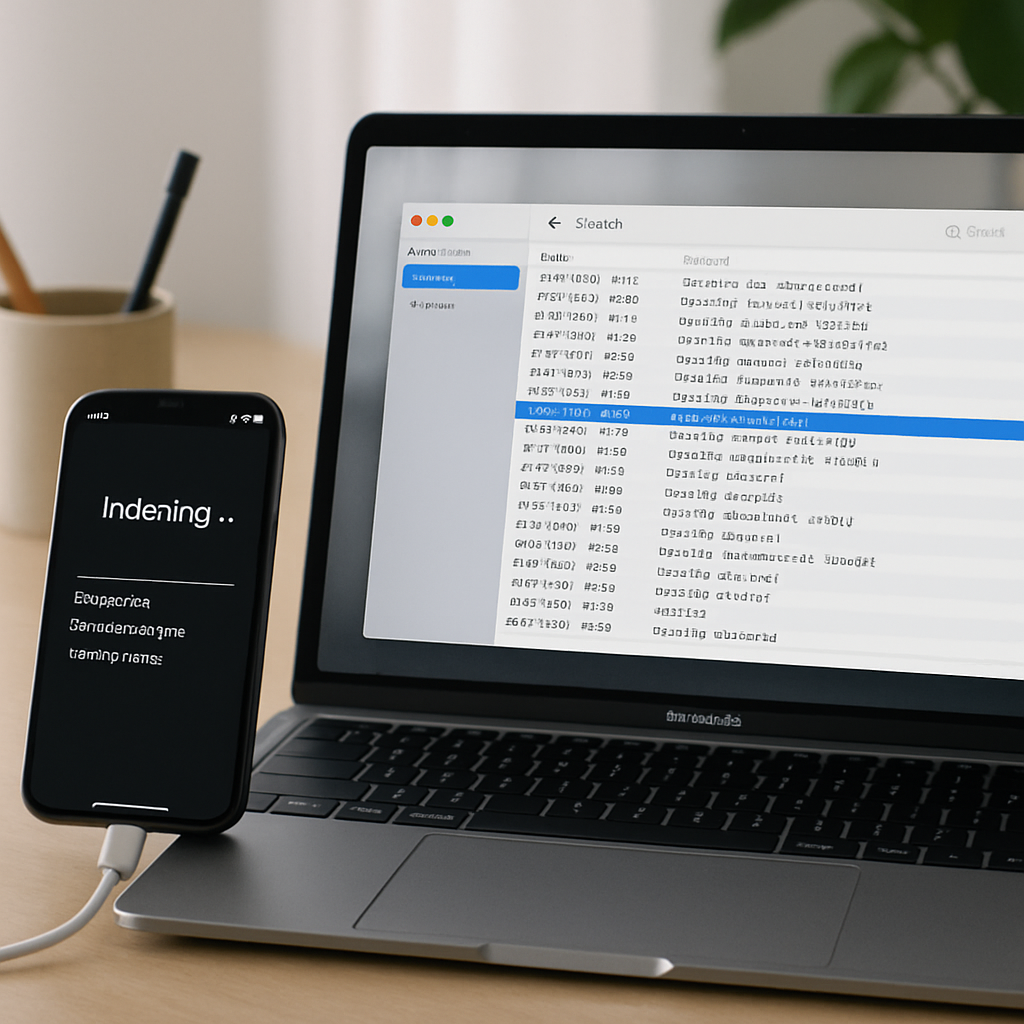
Currently, iOS does not provide a direct method to monitor the exact progress of indexing on the device itself. However, if you’re experiencing prolonged indexing and wish to check its status, you can do so using a Mac. Here’s how:
Checking Indexing Progress via Mac
- Connect your iPhone to your Mac using a compatible cable.
- Open the Console app on your Mac. You can find it by searching for “Console” in Spotlight or navigating to Applications > Utilities > Console.
- In the Console app, go to the “Action” menu and ensure that “Include Debug Messages” is enabled.
- In the sidebar, select your connected iPhone under the “Devices” section.
- Use the search field in the top-right corner of the Console window to search for the term:
spotlight indexing progress. - Click the “Start” button to begin monitoring the logs.
- On your iPhone, open the Settings app to trigger activity.
- Observe the Console logs on your Mac. You should see entries indicating the indexing progress, such as:
PipelineCompleteness: XX%, where “XX” represents the percentage completed.
This method allows you to monitor the exact progress of the indexing process, providing clarity on how much longer it might take. If you find that indexing is taking an unusually long time, consider keeping your iPhone connected to a charger during periods of inactivity, as extended charging sessions can facilitate faster indexing.
Understanding and monitoring the indexing process in iOS 27 is crucial for users who rely heavily on their device’s search functionality. By ensuring that your iPhone completes this process efficiently, you can take full advantage of the enhanced search capabilities and the integration of Apple’s advanced intelligence models introduced in this update.