For owners of older Intel-based Macs no longer supported by Apple—some dating back to 2007—new life is now possible thanks to OpenCore Legacy Patcher (OCLP) version 3.0.0, which introduces support for macOS Tahoe on machines Apple has officially left behind. While this isn’t a flawless solution, it offers a remarkable way to bring modern features and performance to hardware that’s well past its official end-of-life.
What OpenCore Legacy Patcher 3.0 Adds & Which Macs Qualify
OpenCore Legacy Patcher has allowed unsupported Macs to run Big Sur through Sequoia in prior builds; with 3.0.0, Tahoe joins the list. It supports macOS Tahoe versions 26.7, 26.7.1, and 26.7.2. Apple’s newer OS, Golden Gate, remains out of reach because it requires Apple Silicon chips.
Models eligible include a wide swath of Macs dating from mid-2007 through to 2019, including MacBooks, MacBook Pros, Mac minis, iMacs, and even Mac Pros and Xserves. Specific limitations apply, however: Macs from 2018–2019 with T2 security chips are excluded, as are some iMac Pros. Pre-2012 machines are unlikely to have Metal-capable graphics by default, so while they can run Tahoe via OCLP, they’ll suffer reduced graphics performance and missing features. Some machines may need hardware upgrades, such as swapping in a Metal-compatible GPU.
Installation Steps & Key Preparations
Before diving in, certain preparations are essential:
- Back up all important data; updating to your Mac’s last officially supported macOS version first is advised.
- If possible, upgrade hardware—specifically RAM (8 GB minimum) and install an SSD in place of a Fusion Drive, as Tahoe and OCLP do not work with Fusion Drives.
- Use wired keyboard and mouse for the installation on older MacBook Pros (2008–2009), because internal trackpad and keyboard won’t be functional under Tahoe during setup.
- Secure a download of both OCLP 3.0.0 (from Dortania’s GitHub) and the appropriate Kernel Debug Kit (KDK) matching the version of Tahoe you plan to install.
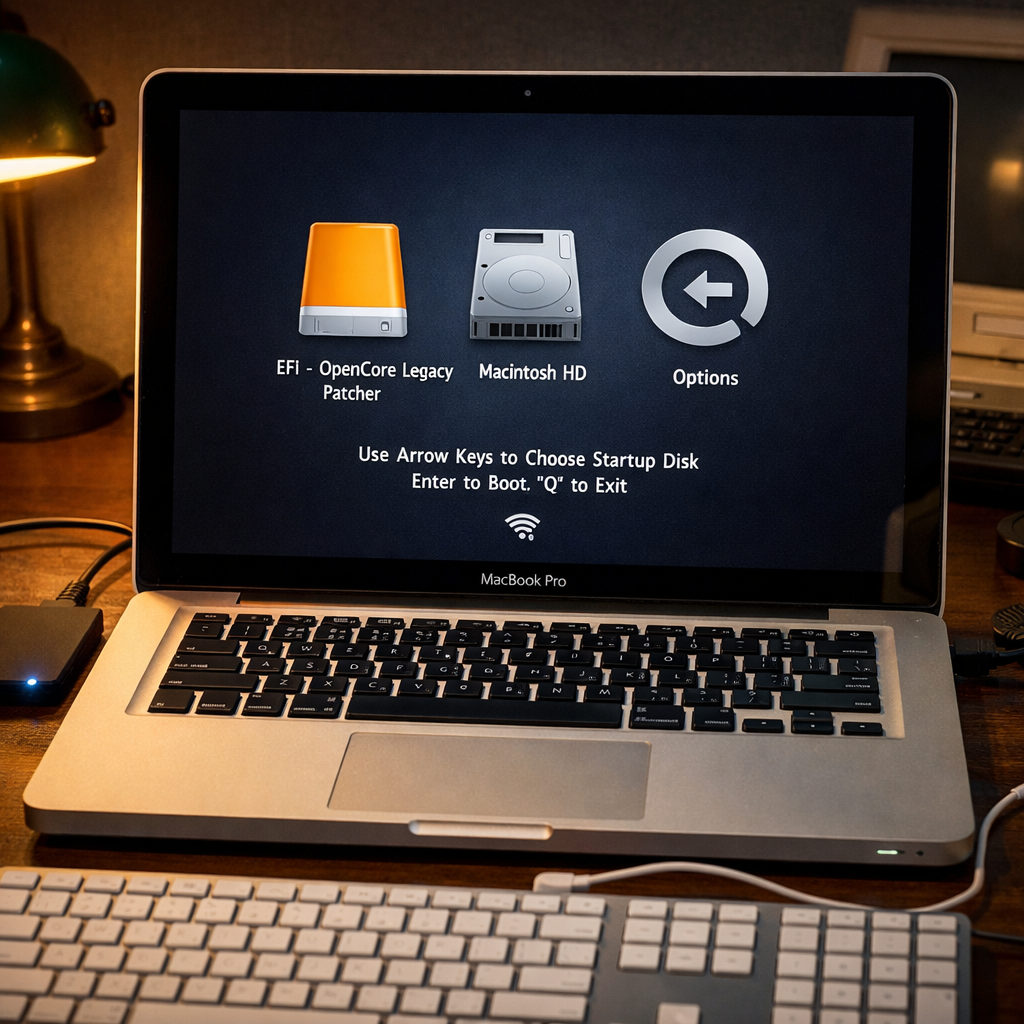
Create a bootable macOS Tahoe installer using a flash drive or external SSD (at least 32GB), via the patcher app. After formatting the external drive and installing OpenCore’s EFI, reboot holding the Option/Alt key, select “EFI Boot,” then “Install macOS Tahoe.” Choose your internal drive as the install destination—or partition or erase it first if doing a fresh install.
Post-Install Fixes & What to Expect
After installation, you’ll want to install root patches that enable key features like graphics acceleration, keyboard/trackpad functionality, and Wi-Fi. Installing the KDK is necessary for enabling root patching. In some cases OCLP will prompt automatically; in others you’ll need to open the app and run “Post-Install Root Patch.”
Older Macs—especially those without Metal-capable GPUs—will run Tahoe, but with long load times (from minutes to several minutes), laggy user interface elements, and limited or non-existent support for apps like Maps, Journal, Games, or other graphics-heavy or hardware-accelerated features. Even newer supported hardware will see a learning curve during setup, and temporary freezes or slowdowns after sleep may occur.
Features Available & What’s Still Missing
Some of macOS Tahoe’s newer UI changes, like the Liquid Glass look—rounded corners, redesigned menus, overhauled dock—are visible even on unsupported hardware, though slower to render on Macs without modern graphics. New apps like Journal, Games, and Phone are included. Note that Journal and Games generally require Metal GPUs; the Phone app works even without Metal support.
Apple’s latest AI suite, called Apple Intelligence, along with Siri AI features introduced in macOS 27, remain unavailable without Apple Silicon or the security/coprocessors it requires. Nor is iPhone Mirroring supported on Macs that lack the T2 security chip, which rules out many legacy machines.
Should You Do This?
If your Mac from 2012 or later has Metal-capable GPU, upgrading via OCLP to macOS Tahoe gives you access to newer browser versions, UI overhauls, and useful apps. For many, it means reviving their machine for modern use. For much older Macs, especially without Metal, the experience is rough—with slow app launches, absent features, and frequent workarounds. Running Tahoe on a separate volume may help avoid disrupting your existing setup.
Every piece of this is still part of a beta-stage (release candidate) project, so expect glitches, missing support, and imperfect compatibility. But as a way to extend the usable life of legacy Macs, OpenCore Legacy Patcher 3.0 offers perhaps the most viable path yet.
What this means is that while Apple may have moved on to Apple Silicon and the Golden Gate era, the community patching scene keeps the door open for older hardware. If you care about performance, hardware compatibility, and stability, start with checking whether you have Metal graphics, upgrading RAM/SSD, and ensuring backups. Watch for updates to OCLP, which will almost certainly refine compatibility, fix bugs, and maybe even broaden what’s possible.