Paying Adobe monthly might feel like signing an electronic lease—but there’s a free escape route. PhotoGimp is a patch for GIMP that reshapes the free, open-source editing tool to look and feel remarkably like Photoshop. It won’t clone Adobe’s entire feature set, but for Photoshop users, it cuts down the learning curve and spares the subscription fee indefinitely.
What PhotoGimp Is and Why It Matters
GIMP, which stands for GNU Image Manipulation Program, runs on macOS, Windows, and Linux. It’s powerful, open-source, and completely free. The major trade-off: its interface, tool placements, and keyboard shortcuts differ significantly from Photoshop’s. That means getting comfortable with GIMP often requires relearning where everything lives and how to access common functions—hard through muscle memory built in Photoshop.
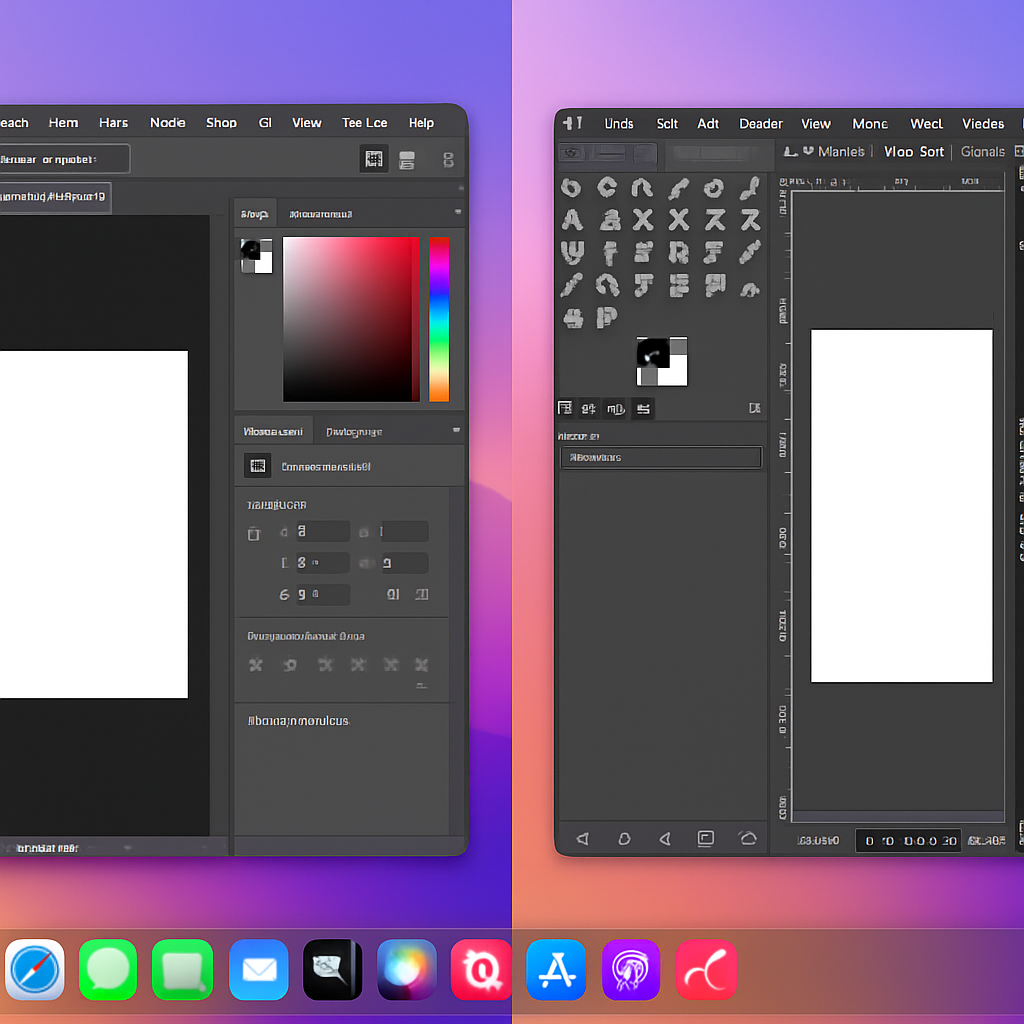
PhotoGimp is a GitHub-sourced patch that reconfigures GIMP’s layout, icons, and keyboard mappings so they more closely resemble Photoshop’s default setup (Windows version). For example, tool locations are rearranged, and shortcut keys are remapped—Ctrl on Windows becomes Command on Mac—to match what Photoshop pros are accustomed to.
How to Apply PhotoGimp Patch on macOS
Getting PhotoGimp working involves tweaking files in GIMP’s Application Support folder on a Mac, but anyone willing to take a few steps can see familiar Photoshop-like layouts the next time they open GIMP:
- Download GIMP from its official site—choose the latest stable build whether on Apple Silicon or Intel.
- Install GIMP: open the disk image and drag the app into Applications, then launch it once so macOS allows it.
- Download the PhotoGimp patch from GitHub and unzip it.
- Go to ~/Library/Application Support/GIMP, note the versioned folder (e.g. “3.2”), and make a backup.
- Rename the PhotoGimp folder to match GIMP’s version number, then replace or merge it with the folder in Application Support.
- Open GIMP again. If the patch has been applied successfully, a new loading screen appears and the layout should resemble what Photoshop users expect.
Even with everything matching visually and functionally, it’s important to remember PhotoGimp doesn’t change how GIMP works under the hood. Some core behaviors, tools, and workflows will still behave differently than Photoshop—expect subtle differences.
This patch won’t instantly bridge all gaps between GIMP and Photoshop, but what it does do well is shrink the friction. For creatives tired of subscription plans, it lets them keep more of their existing workflow, muscle memory, and interface expectations.
Why This Matters
Adobe’s suite has long been an industry benchmark—but it comes with a recurring cost. As software costs climb, tools like GIMP paired with patches like PhotoGimp are becoming more relevant, especially for freelancers, hobbyists, or smaller studios for whom Adobe’s fees are a burden. The ability to shift without a total reset of one’s workflow offers meaningful savings and greater choice.
What to Watch
Keep an eye on updates: when GIMP releases a new version, the PhotoGimp patch may need revisions to remain compatible. Also observe user feedback and stability—patching system folders always poses some risk. For anyone hesitant to leave Adobe, testing PhotoGimp on non-critical work could be the smartest way to try before fully switching.
What this means: PhotoGimp doesn’t simply give GIMP a Photoshop cosplay makeover—it lowers the barrier for creatives fed up with subscription fatigue. By injecting familiarity into GIMP’s interface and shortcuts, it offers a real alternative. The path away from Adobe just got less steep—and potentially much more affordable.