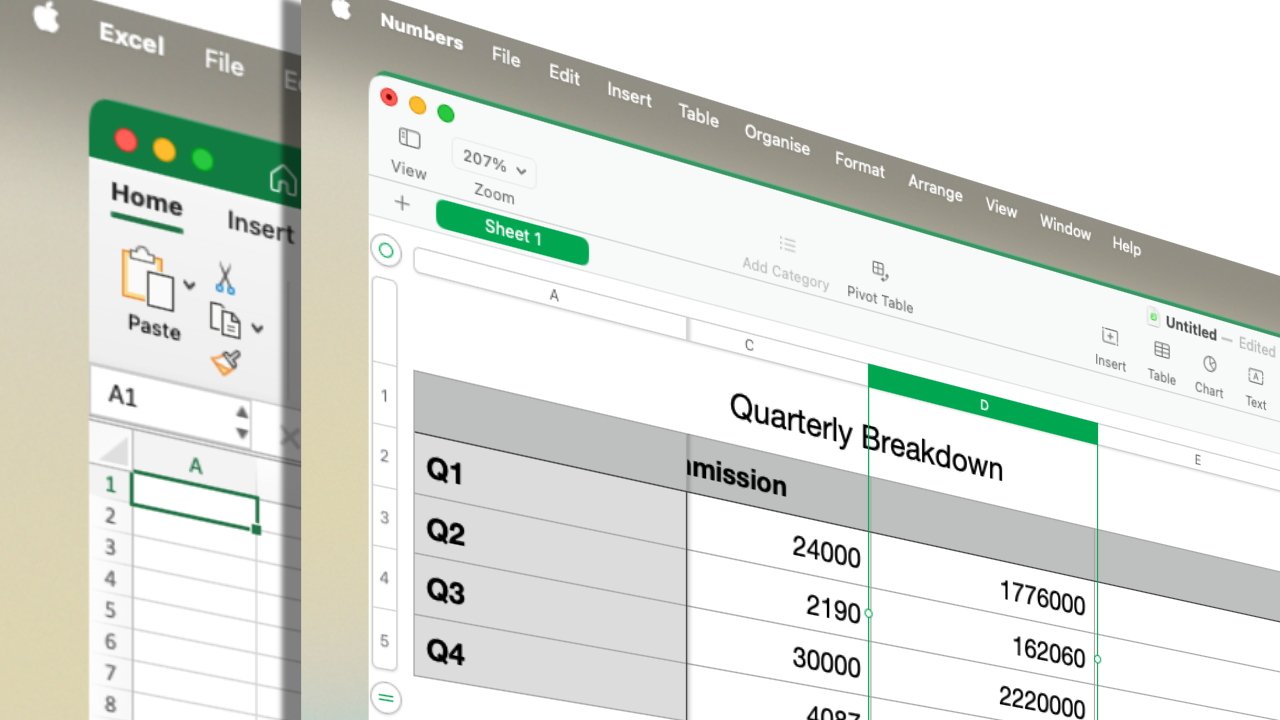
Microsoft to Discontinue Office 2019 for Mac and iPhone: What You Need to Know
Microsoft has announced that, effective July 13, 2026, it will disable most functionalities of Office 2019 for Mac, iPad, and iPhone users. This decision will render the standalone version of the productivity suite largely inoperative, compelling users to seek alternative solutions.
Background and Implications
In October 2025, Microsoft officially ended support for Office 2019 for Mac. While users could continue utilizing the software without support, the upcoming changes will significantly impact its usability. Starting July 13, 2026, Microsoft will disable almost all functionalities for Office 2019 users on macOS 11 Big Sur. Additionally, the software will enter a read-only mode for all users, irrespective of their operating system. ([appleinsider.com](https://appleinsider.com/articles/26/05/28/microsoft-is-killing-office-2019-for-mac-and-iphone-and-you-cant-do-much-about-it?utm_source=openai))
Options for Affected Users
Users affected by this change have several options to consider:
1. Upgrade to a Newer Version: Purchasing a one-time license for Office 2021 or Office 2024 is a viable option. It’s important to note that Office 2021 is slated to lose support in late 2026. Therefore, opting for Office 2024 would provide support until 2029, aligning with Microsoft’s five-year support window. ([appleinsider.com](https://appleinsider.com/articles/26/05/28/microsoft-is-killing-office-2019-for-mac-and-iphone-and-you-cant-do-much-about-it?utm_source=openai))
2. Subscribe to Microsoft 365: Subscribing to Microsoft 365 offers continuous updates and support, ensuring access to the latest features and security patches.
3. Utilize Web-Based Applications: For users whose devices do not support the minimum required operating systems, accessing Microsoft 365 through a web browser remains an option. This approach allows for editing and saving files without the need for local installations. ([appleinsider.com](https://appleinsider.com/articles/26/05/28/microsoft-is-killing-office-2019-for-mac-and-iphone-and-you-cant-do-much-about-it?utm_source=openai))
4. Explore Alternative Software: Considering alternatives such as Apple’s free iWork suite or LibreOffice can provide similar functionalities without additional costs.
Steps to Update Your Operating System
Ensuring your device runs a compatible operating system is crucial for continued software support. Below are the steps to update your Mac, iPad, or iPhone:
For Mac:
1. Open the Apple menu and select System Preferences.
2. Click on the General tab.
3. If available, click Software Update and follow the on-screen instructions.
For iPad or iPhone:
1. Open the Settings app.
2. Tap General.
3. If available, tap Software Update and follow the on-screen instructions.
Conclusion
The impending deactivation of Office 2019 for Mac and iPhone underscores the importance of staying updated with software and operating system versions. Users are encouraged to evaluate their options promptly to ensure uninterrupted access to essential productivity tools.