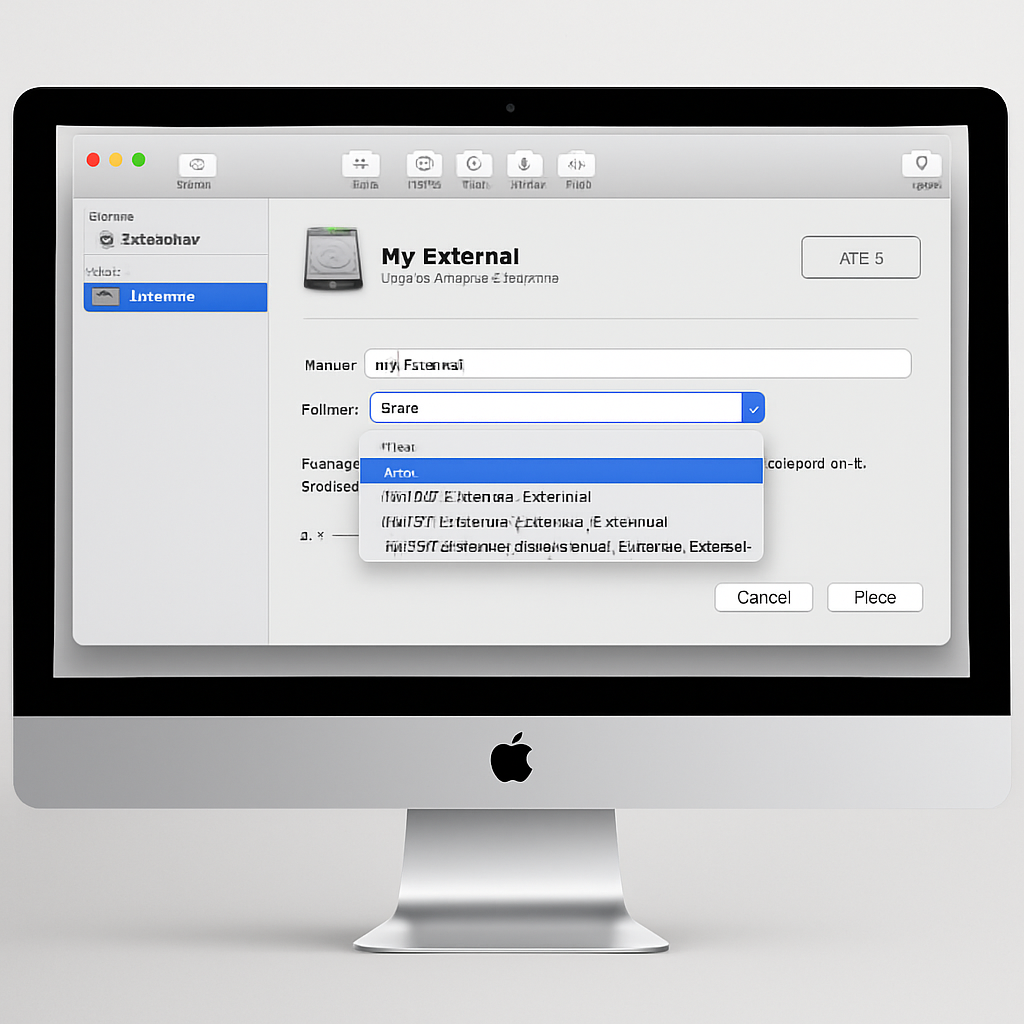
Apple has announced that starting with macOS 28, support for encrypted Mac OS Extended (HFS+) volumes will be discontinued. This change means that users with encrypted HFS+ external drives or storage devices will need to take action to ensure continued compatibility with future macOS versions.
Introduced in 1998, the Mac OS Extended file system, commonly known as HFS+, has been a staple for Mac users. However, with the release of macOS High Sierra in 2017, Apple introduced the Apple File System (APFS) as the default, offering enhanced performance and native encryption support. The upcoming removal of support for encrypted HFS+ volumes is a further step in Apple’s transition towards APFS.
To prepare for this change, users should first identify if they have any encrypted HFS+ volumes. Starting with macOS 26, the system may notify users when such a volume is detected, indicating its impending incompatibility with macOS 28. To manually check a volume’s format and encryption status:
- Open Disk Utility from the Applications > Utilities folder or via Spotlight search.
- Select ‘Show Only Volumes’ from the View menu.
- In the sidebar, choose the volume in question.
- Review the information displayed beneath the volume’s name. If it indicates ‘Mac OS Extended’ and ‘Encrypted,’ the volume will not be compatible with macOS 28.
For users with affected volumes, Apple recommends two primary courses of action:
Reformat the Volume
Reformatting involves erasing the existing data and setting up the volume with a new file system format. To do this:
- Back up all important data from the volume.
- Open Disk Utility and select the volume.
- Click ‘Erase’ and choose either ‘APFS’ or ‘APFS (Encrypted)’ as the new format.
- Proceed with the reformatting process.
Note that reformatting will permanently delete all existing data on the volume.
Decrypt the Volume
Decrypting allows users to retain their data without erasing the volume. To decrypt:
- Connect the drive to the Mac and unlock it using the encryption password.
- Control-click the drive’s icon on the desktop or in Finder and select ‘Decrypt.’
- Enter the encryption password again to initiate decryption.
Decryption time varies based on the volume’s size. Progress can be monitored using the Terminal command: diskutil cs list. Once decryption is complete, users can optionally convert the volume to APFS without erasing it by selecting ‘Convert to APFS’ from Disk Utility’s Edit menu.
It’s important to note that this decryption method does not apply to encrypted Time Machine backup disks. Users relying on such backups should plan accordingly before upgrading to macOS 28.
Apple’s decision to phase out support for encrypted HFS+ volumes underscores the company’s commitment to modernizing its file system infrastructure. By transitioning to APFS, users benefit from improved performance, reliability, and native encryption capabilities. Those still utilizing encrypted HFS+ drives should proactively address this change to ensure seamless compatibility with future macOS releases.