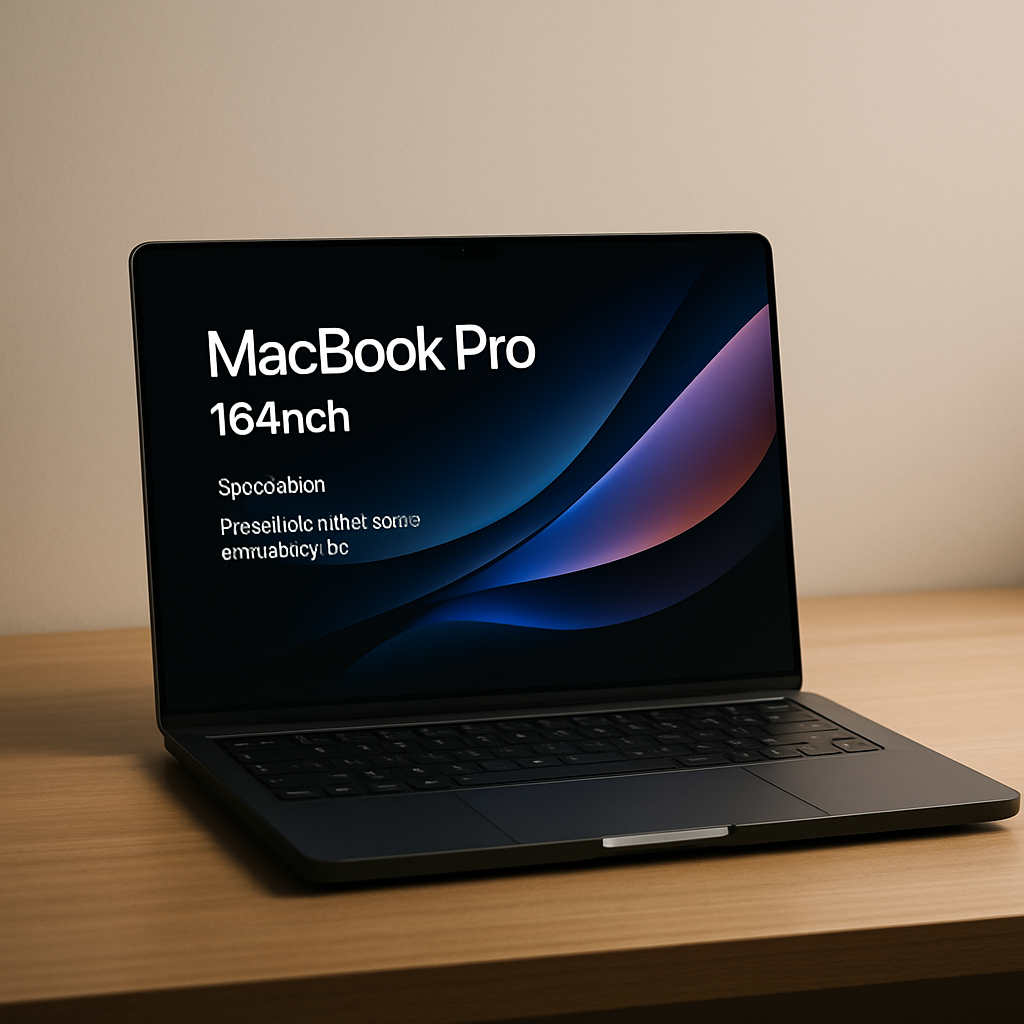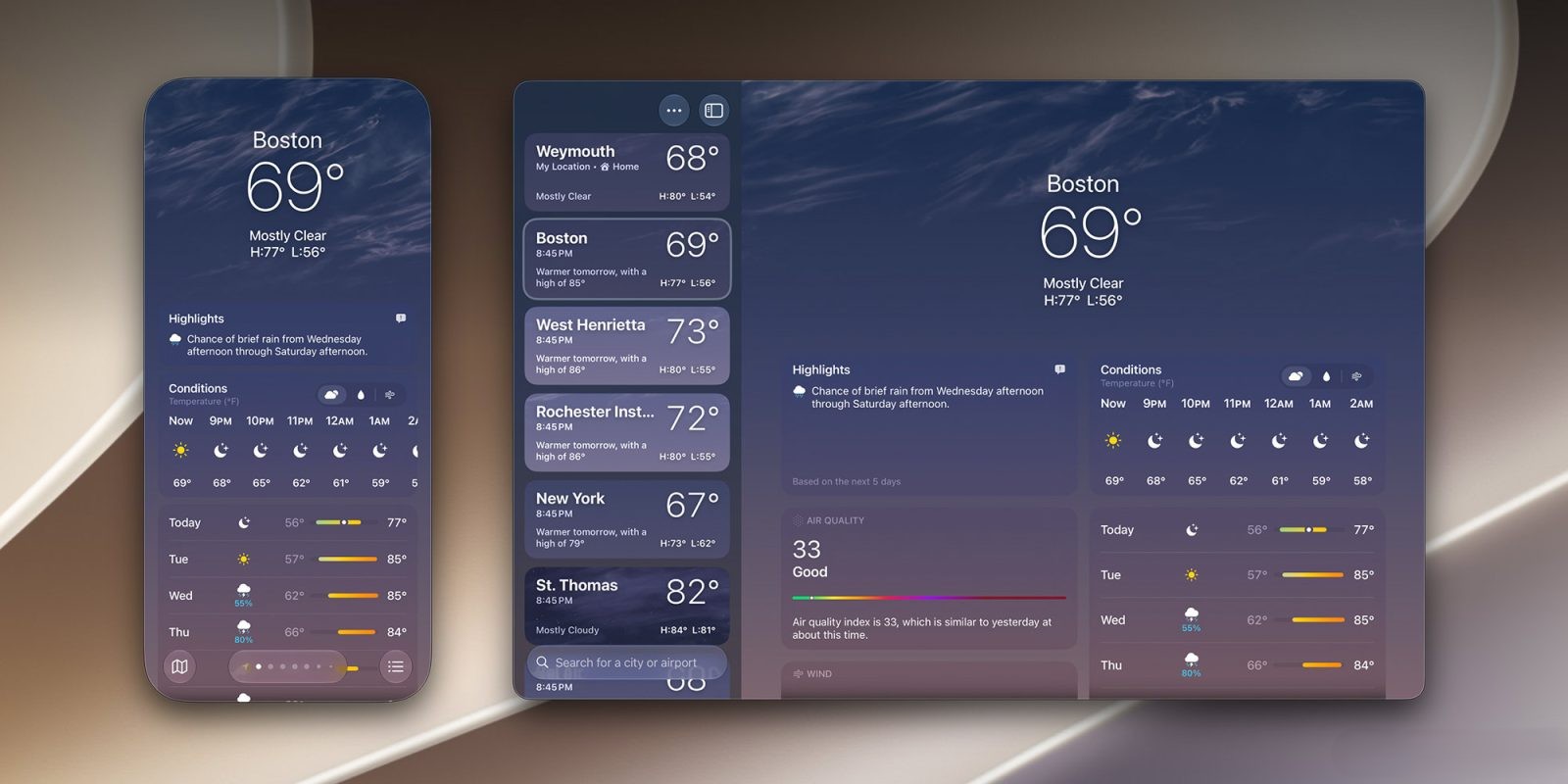
Apple’s latest MacBook Pro models equipped with the PROLED XDR Display mark the company’s first entry into integrating touchscreen support. While some users are excited, others prefer to keep their Mac experience touch-free—or at least more controlled. Here’s how to disable the touchscreen entirely or customize touch behavior between the MacBook Pro and Sidecar.
Fully disabling touch input
If you’d rather turn off touch input entirely on the new MacBook Pro, there’s a built-in option. Head into System Settings → Accessibility, where under the “Physical and Motor” section you’ll find Touch. Enable the Ignore Touch Gestures toggle to stop the Mac from recognizing any touch input (aside from reactivating this setting itself). Note that this switch also affects touch interactions when using Sidecar.
Selective touch and gesture customization
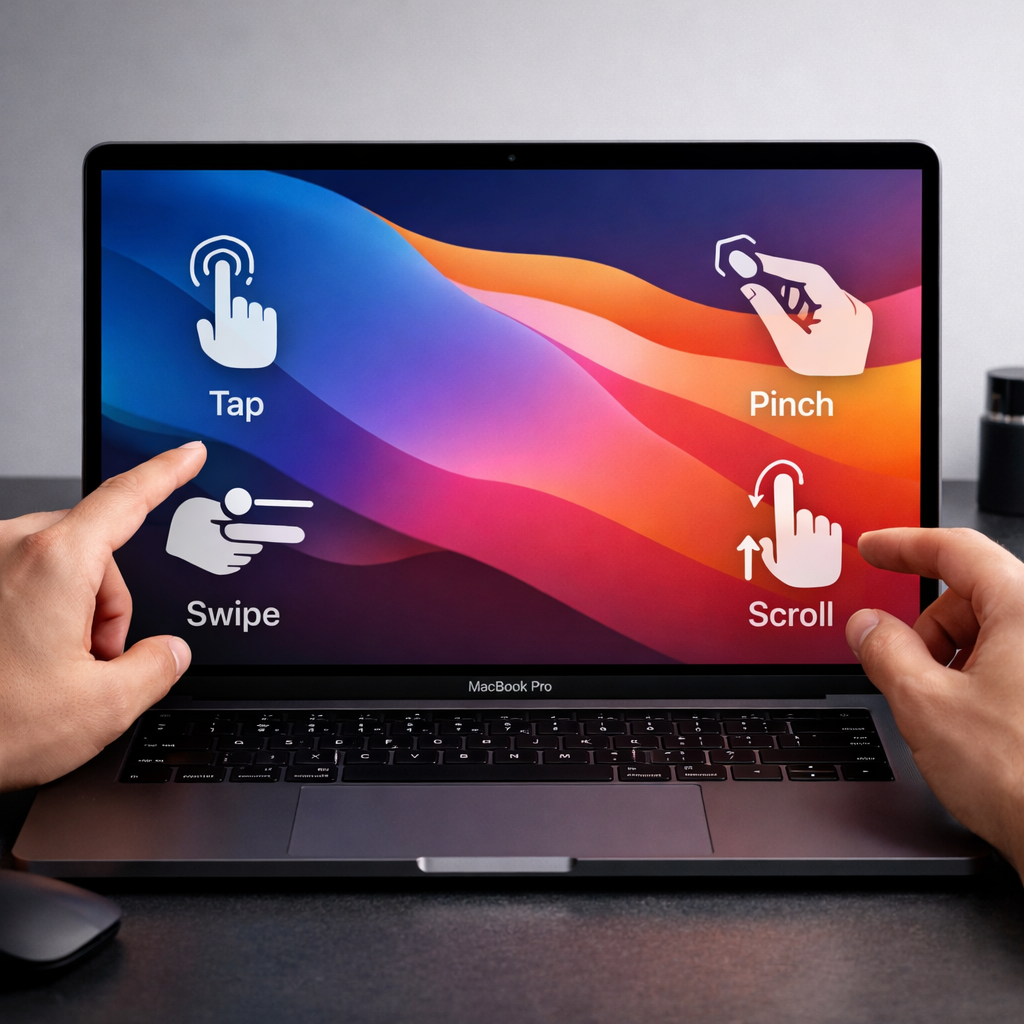
For those who prefer still using touch, Apple provides a suite of customization tools. In System Settings, locate the Touch Display option toward the bottom to manage which gestures are active or disabled. You can refine gesture behavior rather than shutting down touch entirely.
Additionally, Accessibility offers Touch Accommodations and AssistiveTouch under the Touch Gestures panel. These tools let users adjust how touch is processed—for example, changing how long a touch must last before it’s recognized, or introducing other modifiers to reduce accidental input.
For users who find the touch-enabled Apple logo distracting, there’s also guidance on disabling it, along with other tweaks. Reviews of the MacBook Pro’s PROLED XDR display delve into how the touchscreen behaves in real-world use—including latency, response, and overall feel.
This is a major evolution for MacBook Pro visuals and interaction—touchscreens have long been standard on iPads and Windows laptops, but it’s Apple’s first big move into that territory on its high-end laptops. For many longtime Mac users, it’s a cultural as well as a functional shift.
Bottom line: If you dislike touch interactions, you can disable them outright. Prefer a middle ground? Apple’s gesture customization and accessibility tools give you control over how touch works. With this new level of flexibility, the touchscreen’s integration feels more optional, not mandatory.
What to watch: Updates to macOS may add more granular touch settings. Developers working on Sidecar/continuity features should test how touch-disable toggles interact with external displays or remote control workflows.