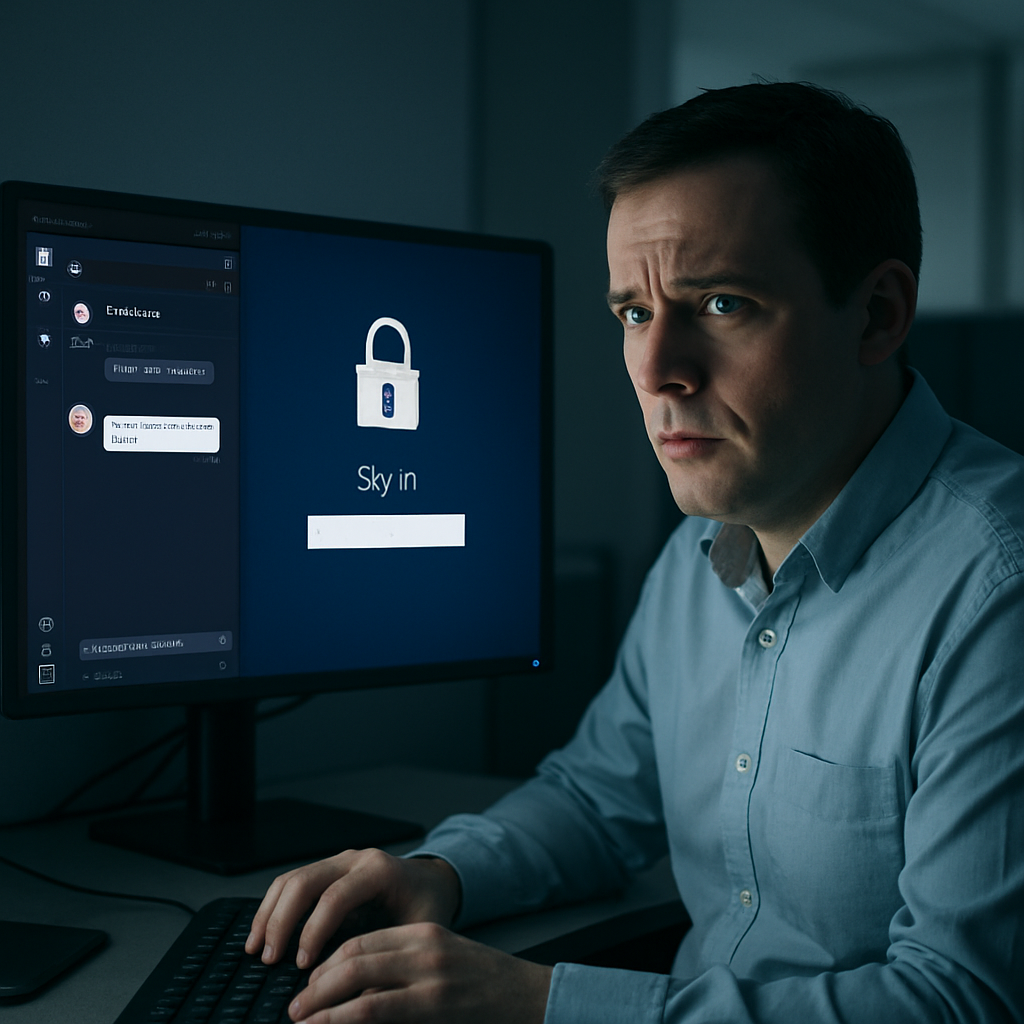
Hackers are exploiting Microsoft Teams to impersonate internal IT staff and trick employees into handing over their Windows login passwords. The scam relies not on technical vulnerabilities, but on social engineering—making scam messages look convincingly like they come from “IT Service Desk” or “Help Desk” personnel. Once contact is made, the attackers push victims to download files, approve remote access tools, or share support session codes.
How the Attack Works
These attackers register Microsoft 365 tenants of their own, assign display names that mimic official support channels, and reach out to users via Teams external chat. Because Teams allows communication across external domains when enabled, those messages can appear legitimate if both parties’ settings permit it. Targeted users are told there’s a crisis—security issues, email breakdowns, or software problems—and IT supposedly needs access to resolve them.
One recent campaign involved malware known as SynkLoader. It was delivered through a phishing message on Teams, posing as urgent IT support. Victims were persuaded to launch an MSI file (hosted on Microsoft Azure) or enable screen sharing or remote-control permissions. This makes the malware appear more credible and evades basic suspicion.
The Fake Lock Screen Trap
After installation, SynkLoader runs primarily in memory but gains persistence through Windows scheduled tasks. A module called PhishLocker then shows a counterfeit Windows lock screen. It will display the user’s account name and familiar background images to mirror the real Windows login, then capture any typed password in plain text—no hash cracks or login bypass needed.
There are signs users can check to spot the fake screen. Pressing Ctrl-Alt-Delete should bring up the official Windows Security screen; if it doesn’t, and if the screen seems like a fullscreen app that reverts when switching tasks (e.g. via Alt-Tab), that’s a red flag.
What Organizations Should Do
This trend highlights a growing risk: teams and collaboration apps, once trusted edges of company networks, are now attack vectors. Traditional phishing awareness often doesn’t cover this kind of deception, since users may trust what looks like an internal support request via chat.
To defend against it, firms are urged to restrict external Teams access to only particular, trusted domains. Configuration settings should visibly label external senders. IT teams should be contacted through official, well-known channels if there’s ever an unsolicited support request. And employees must be trained to reject unexpected asks—downloading software, granting control, or entering passwords—unless the request has been independently confirmed.
An unanticipated IT-request? Let the chat go cold. Verify via phone or your help-desk portal, never authorize screen sharing on impulse, and never give your password to what appears to be a login prompt unless you know it’s authentic.