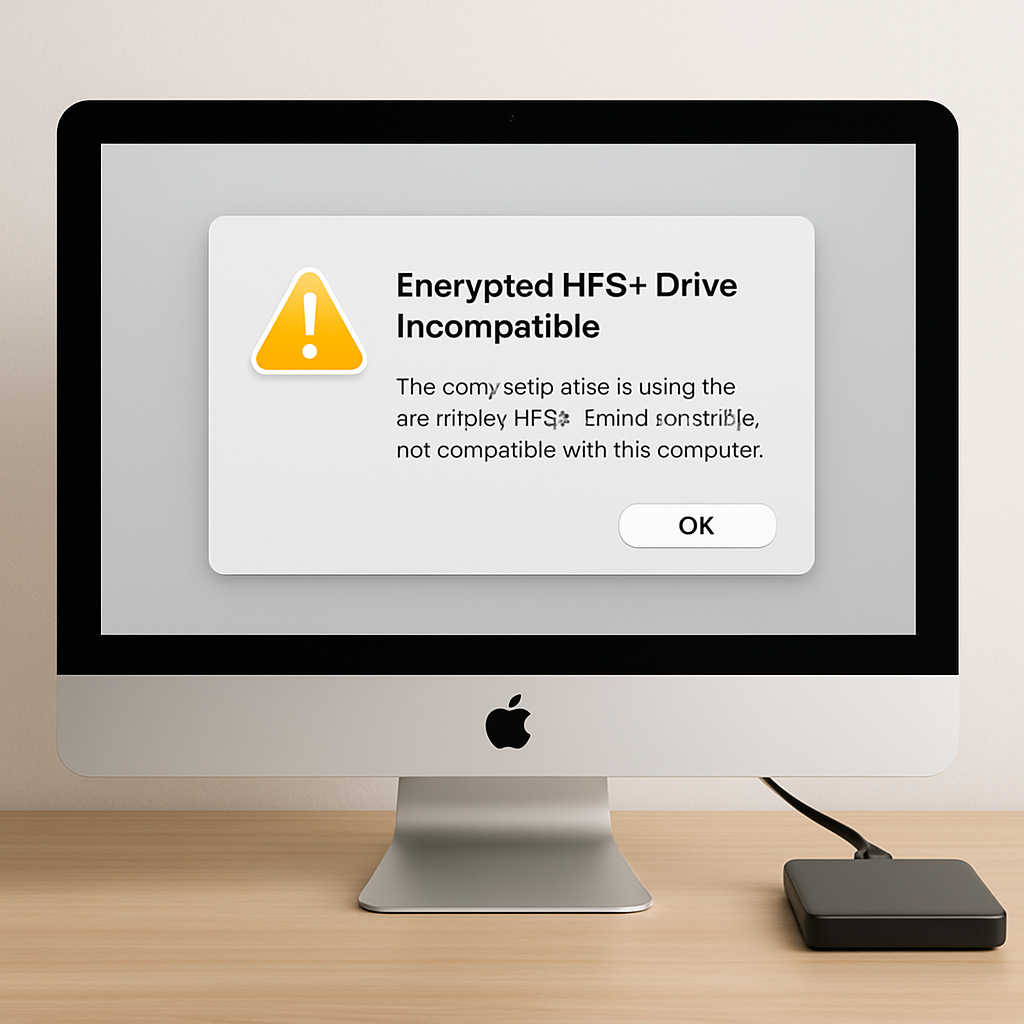
Apple has announced that with the release of macOS 28, support for encrypted Mac OS Extended (HFS+) volumes will be discontinued. This change means that users with encrypted HFS+ external drives will need to take action to ensure continued compatibility with future macOS versions.
Starting with macOS 28, the Mac OS Extended file system format will only be supported for unencrypted volumes. Encrypted HFS+ disks, such as older encrypted external hard drives, will no longer function unless users decrypt or reformat them before upgrading.
Apple has not provided a specific reason for this change. However, since the introduction of APFS in macOS High Sierra in 2017, which natively supports encryption, this move appears to be a step toward phasing out the older HFS+ format.
To assist users in this transition, beginning with macOS 26, the system may notify users if it detects an encrypted Mac OS Extended disk that will not be compatible with macOS 28 or later, identifying the affected volume by name.
Users can also manually check their drives through Disk Utility. By selecting a volume and examining the format details listed beneath its name, any volume labeled as both “Mac OS Extended” and “Encrypted” will be incompatible with future macOS versions.
Unencrypted Mac OS Extended volumes are not affected by this change. Apple confirms that macOS 28 and later will continue to support them. It’s important to note that Mac OS Extended is also known as HFS Plus or HFS+.
For users who wish to continue using an affected drive after upgrading, Apple recommends backing up its contents first, then either reformatting or decrypting it. Reformatting involves erasing the volume and setting it up again in APFS or APFS (Encrypted) format through Disk Utility, which permanently deletes existing data but ensures the drive remains functional in future macOS versions.
Alternatively, users can decrypt the drive to preserve existing data. This process involves connecting the drive, unlocking it with its encryption password, then Control-clicking its icon in the Finder or on the desktop and choosing Decrypt, entering the password a second time to begin the process. Apple notes that decryption “takes time, especially for large volumes,” and progress can be checked in Terminal.
Once decryption is complete, users can optionally convert the volume to APFS without erasing it via Disk Utility’s Convert to APFS option and re-encrypt it afterward if desired. However, this decryption path does not apply to encrypted Time Machine backup disks.
This development underscores Apple’s ongoing efforts to modernize its file system support, encouraging users to transition to APFS for enhanced performance and security features. Users should proactively address this change to ensure seamless compatibility with future macOS updates.