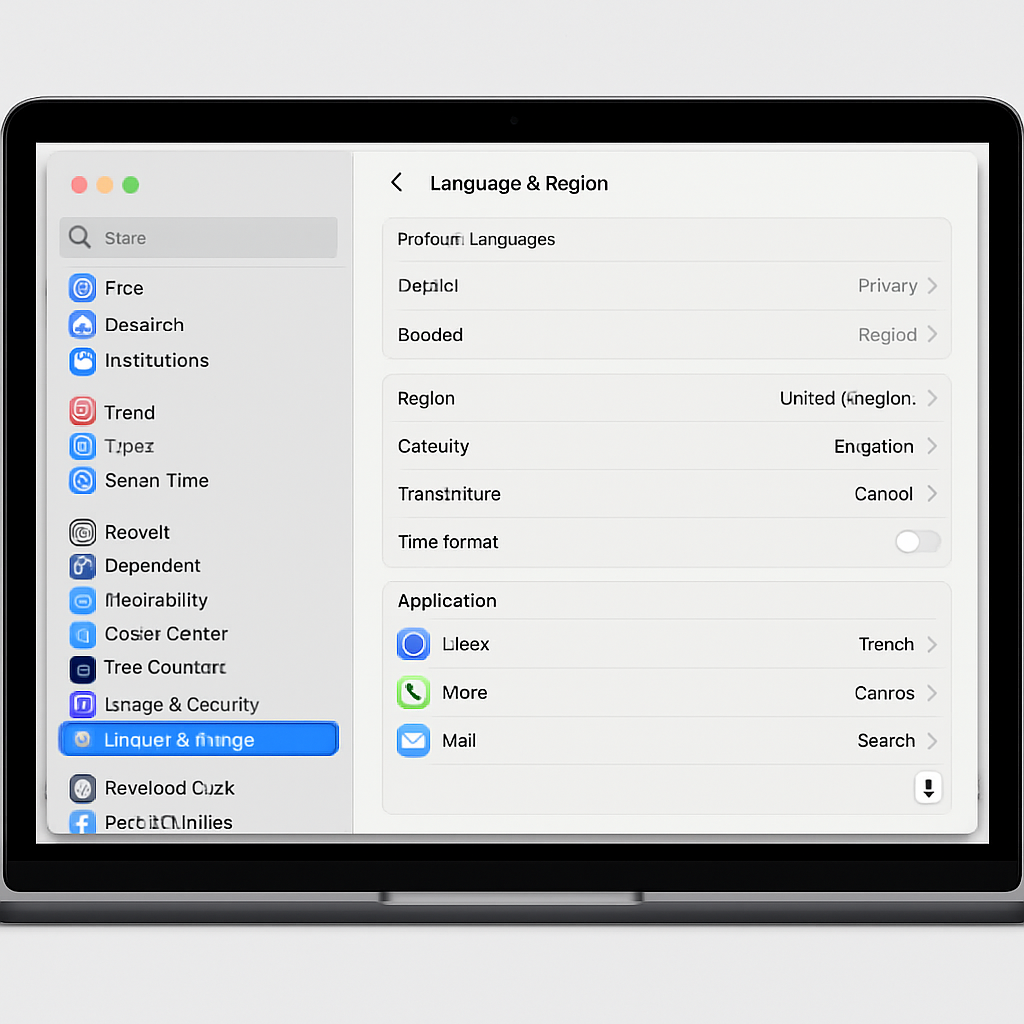
Many Mac users may not be aware that macOS allows setting different default languages for individual applications. This feature is particularly beneficial for bilingual users or those who frequently switch between language variants, such as British and American English.
To configure this, navigate to System Settings, then select General, and click on Language & Region. At the bottom of this section, there’s an Applications area where you can add specific apps and assign a preferred language to each. For instance, if your system language is set to British English, you can set Safari to use this default, while configuring Chrome to operate in American English.
It’s important to note that this customization is only available for applications that support macOS’s localization and language APIs. Therefore, not all apps may appear in the list for language customization.
By leveraging this feature, users can enhance their workflow and ensure that spellcheck and other language-dependent functionalities align with their specific needs in different applications.