iOS 26 Introduces Dynamic App Icon Tinting for Personalized Home Screen Aesthetics
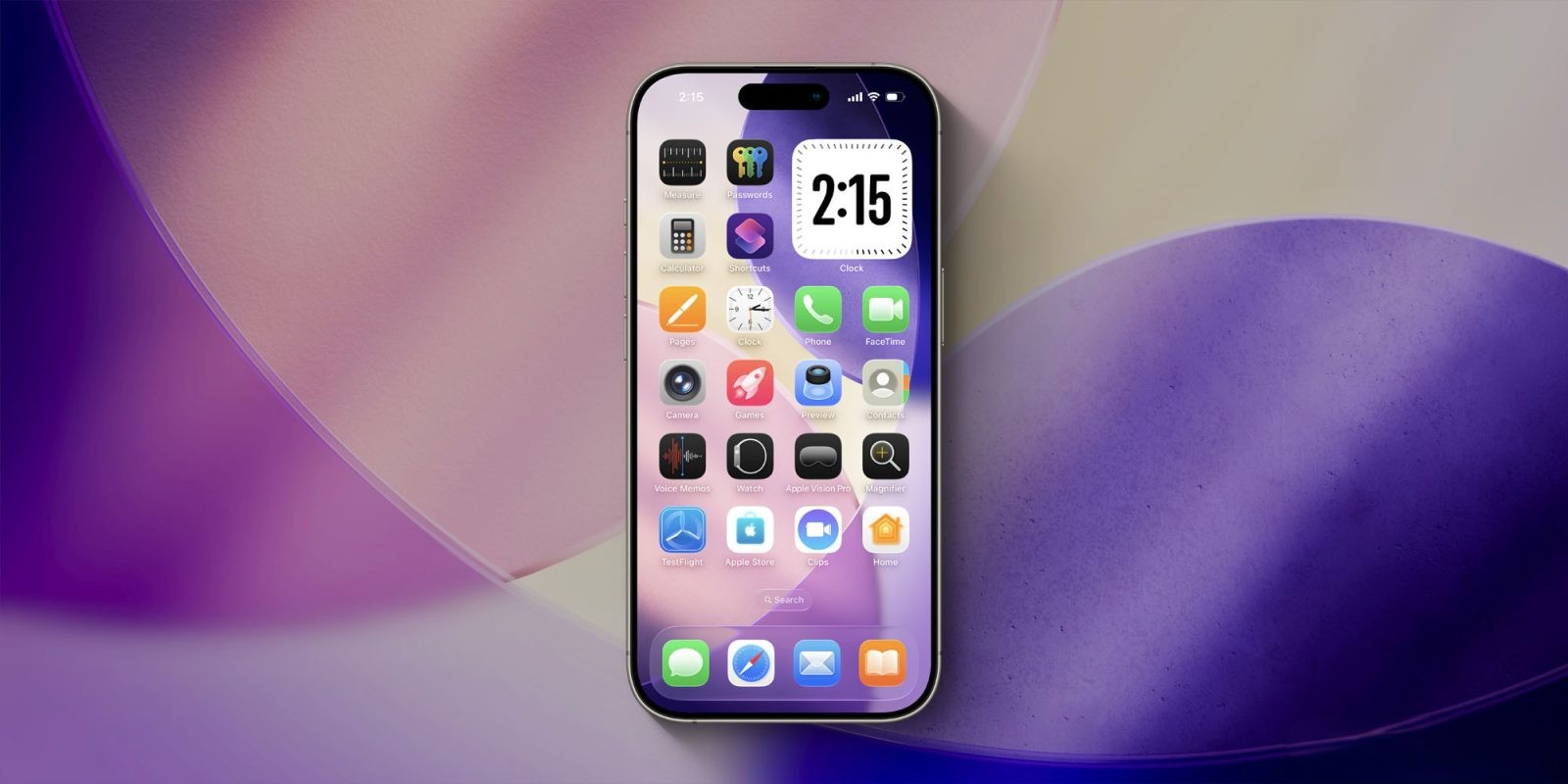
Apple continues to enhance iPhone customization with the release of iOS 26, introducing a feature that allows users to automatically tint app icons to match their device or case color. This update builds upon previous personalization options, offering a seamless way to achieve a cohesive and personalized Home Screen appearance.
Evolution of iPhone Customization
In recent years, Apple has progressively expanded the customization capabilities of the iPhone. The introduction of iOS 18 marked a significant milestone by enabling users to apply custom designs to app icons, including a Tinted appearance. This feature allowed for a more personalized Home Screen, but users had to manually select and apply these tints.
With iOS 26, Apple has refined this concept by introducing two new automatic tinting options:
1. Device Color Matching: App icons can now automatically adjust their tint to align with the color of the iPhone itself.
2. Case Color Matching: For users who frequently change their iPhone cases, app icons can adapt to match the color of the current case, providing a dynamic and harmonious aesthetic.
These enhancements cater to users seeking a consistent and unified visual theme across their device’s hardware and software.
Implementing App Icon Tinting
Activating this feature is straightforward:
1. Enter Edit Mode: Long-press on an empty area of your Home Screen until the icons begin to jiggle.
2. Access Customization Options: Tap the ‘Edit’ button located in the top-left corner of the screen.
3. Select ‘Customize’: From the menu that appears, choose the ‘Customize’ option.
4. Choose ‘Tinted’: In the customization menu, tap on ‘Tinted’ to access the tinting settings.
Within the ‘Tinted’ settings, you’ll find four icons near the bottom of the screen, just above the ‘Light,’ ‘Dark,’ and ‘Auto’ options:
– Device Color Match: The leftmost icon allows your app icons to match the color of your iPhone.
– Case Color Match: The icon immediately to the right enables app icons to match the color of your iPhone case.
This feature is particularly beneficial for users who enjoy coordinating their device’s appearance with their attire or accessories, as it allows for quick and effortless adjustments to the Home Screen’s aesthetic.
Compatibility Considerations
It’s important to note that the case color matching functionality is optimized for Apple’s official MagSafe cases. While some third-party cases may also support this feature, compatibility can vary depending on the case manufacturer and design.
Broader Customization Enhancements in iOS 26
Beyond app icon tinting, iOS 26 introduces several other customization features:
– Clear Icon Mode: Users can opt for a transparent icon appearance, allowing the wallpaper to subtly show through app icons. This mode offers ‘Light,’ ‘Dark,’ and ‘Auto’ options to suit different preferences.
– Liquid Glass Design Customization: The new Liquid Glass design can be tailored with ‘Clear’ and ‘Tinted’ options, enabling users to adjust the opacity and contrast of system elements for improved readability and aesthetic appeal.
– Default App Selection: iOS 26 expands the ability to set default apps for various functions, including web browsing, email, and messaging, providing users with greater control over their device’s behavior.
– Enhanced Home Screen Widgets: The Photos widget now includes ‘Spatial Scene’ and ‘Full Color’ options, adding depth and vibrancy to the Home Screen experience.
User Feedback and Adoption
The introduction of automatic app icon tinting has been met with enthusiasm from the iPhone community. Users appreciate the ease with which they can now achieve a harmonious and personalized Home Screen without the need for manual adjustments. This feature exemplifies Apple’s commitment to providing intuitive and user-friendly customization options that enhance the overall user experience.
Conclusion
iOS 26’s automatic app icon tinting feature represents a significant step forward in device personalization. By allowing app icons to dynamically match the color of the iPhone or its case, Apple offers users a simple yet effective way to create a cohesive and aesthetically pleasing Home Screen. As Apple continues to prioritize user customization, features like this underscore the company’s dedication to enhancing the personal connection users have with their devices.