Apple Introduces ‘Reduce Bright Effects’ in iOS 26.4 Beta 4 to Soften Liquid Glass UI
Apple’s latest iOS 26.4 beta 4 introduces a new accessibility feature aimed at enhancing user comfort by moderating the intensity of the Liquid Glass interface. This update includes the ‘Reduce Bright Effects’ setting, designed to diminish the bright flashing highlights that occur when interacting with certain UI elements.
Understanding Liquid Glass in iOS 26
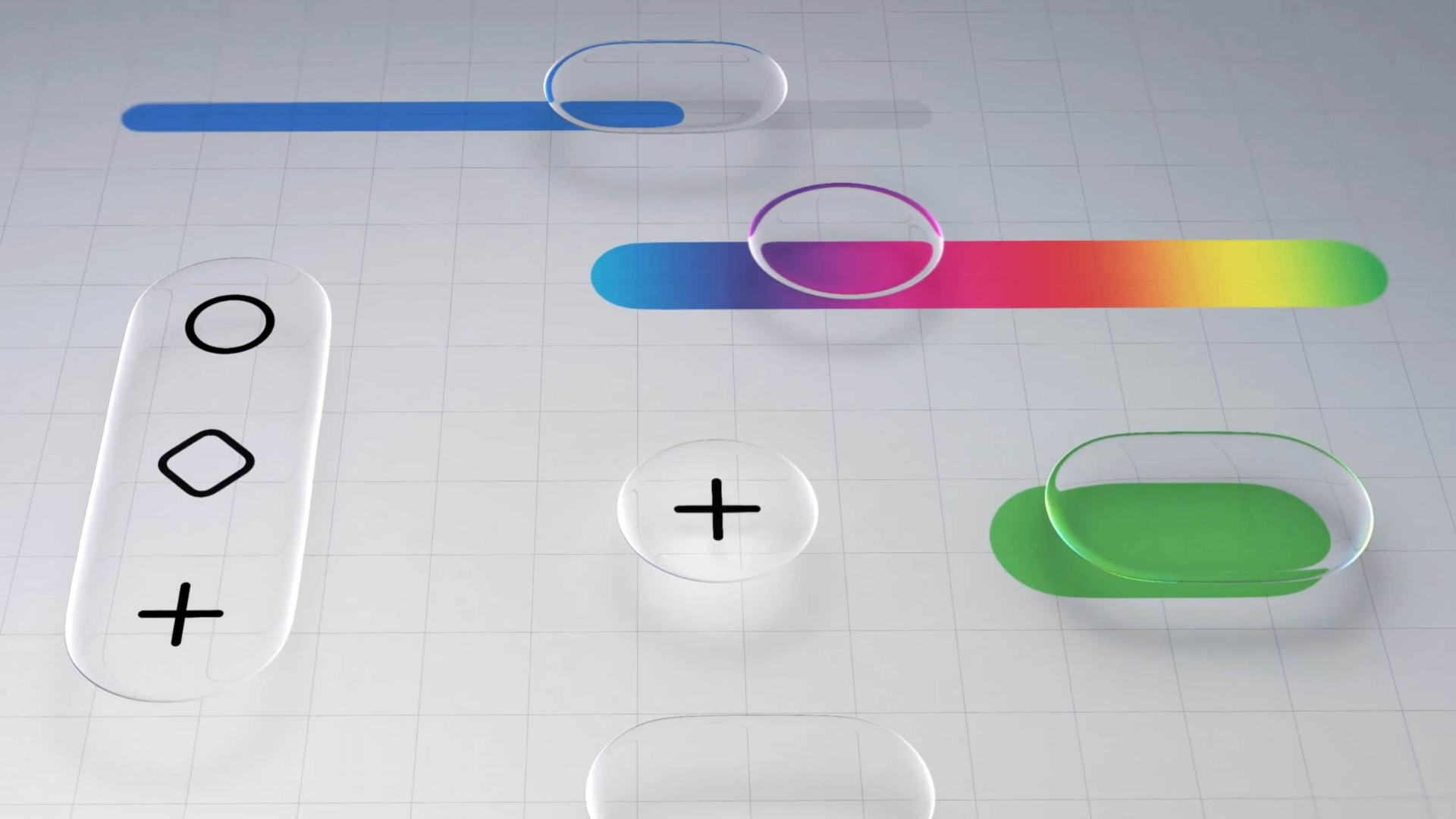
The Liquid Glass design, a hallmark of iOS 26, employs glossy, semi-transparent effects to create a sense of depth and fluidity across the user interface. While this design has been praised for its modern aesthetic, some users have found the bright highlights and flashing effects during interactions to be distracting or uncomfortable.
Introducing ‘Reduce Bright Effects’
In response to user feedback, Apple has added the ‘Reduce Bright Effects’ option in iOS 26.4 beta 4. This feature allows users to tone down the intensity of highlight animations associated with Liquid Glass elements, providing a more subdued visual experience.
How to Enable ‘Reduce Bright Effects’
To activate this new setting:
1. Open the Settings app.
2. Navigate to Accessibility.
3. Select Display & Text Size.
4. Toggle on Reduce Bright Effects.
By enabling this option, users can achieve a calmer interface without completely disabling the Liquid Glass design elements.
Evolution of User Control Over Liquid Glass
Apple has been progressively offering users more control over the Liquid Glass interface:
– iOS 26.1 Beta 4: Introduced the ability to choose between ‘Clear’ and ‘Tinted’ Liquid Glass styles, allowing users to adjust the transparency and contrast of the interface.
– iOS 26.3: Added customization options for the Liquid Glass effect, including clear, tinted, or adaptive modes, enabling users to tailor the interface’s appearance to their preferences.
The addition of ‘Reduce Bright Effects’ in iOS 26.4 beta 4 continues this trend, providing users with further customization to enhance their visual experience.
User Feedback and Apple’s Response
The Liquid Glass design has received mixed reactions. While many appreciate its modern and dynamic appearance, others have reported issues with readability and visual comfort, especially when using dark wallpapers. Apple’s introduction of settings like ‘Reduce Bright Effects’ demonstrates the company’s commitment to addressing user concerns and improving accessibility.
Conclusion
The ‘Reduce Bright Effects’ feature in iOS 26.4 beta 4 offers users greater control over the visual intensity of the Liquid Glass interface. By providing options to adjust the brightness and flashing effects, Apple continues to refine its design language to cater to a diverse user base, ensuring both aesthetic appeal and user comfort.