iOS 26.3 Introduces Seamless iPhone-to-Android Data Transfer and Enhanced Third-Party Device Integration
Apple’s latest update, iOS 26.3, brings significant enhancements aimed at improving user experience, particularly for those transitioning from iPhone to Android devices and for users of third-party wearables. This update underscores Apple’s commitment to interoperability and user convenience.
Streamlined Data Migration to Android
Historically, migrating data from an iPhone to an Android device has been a complex process, often requiring multiple steps and third-party applications. With iOS 26.3, Apple simplifies this transition through a new feature called Transfer to Android.
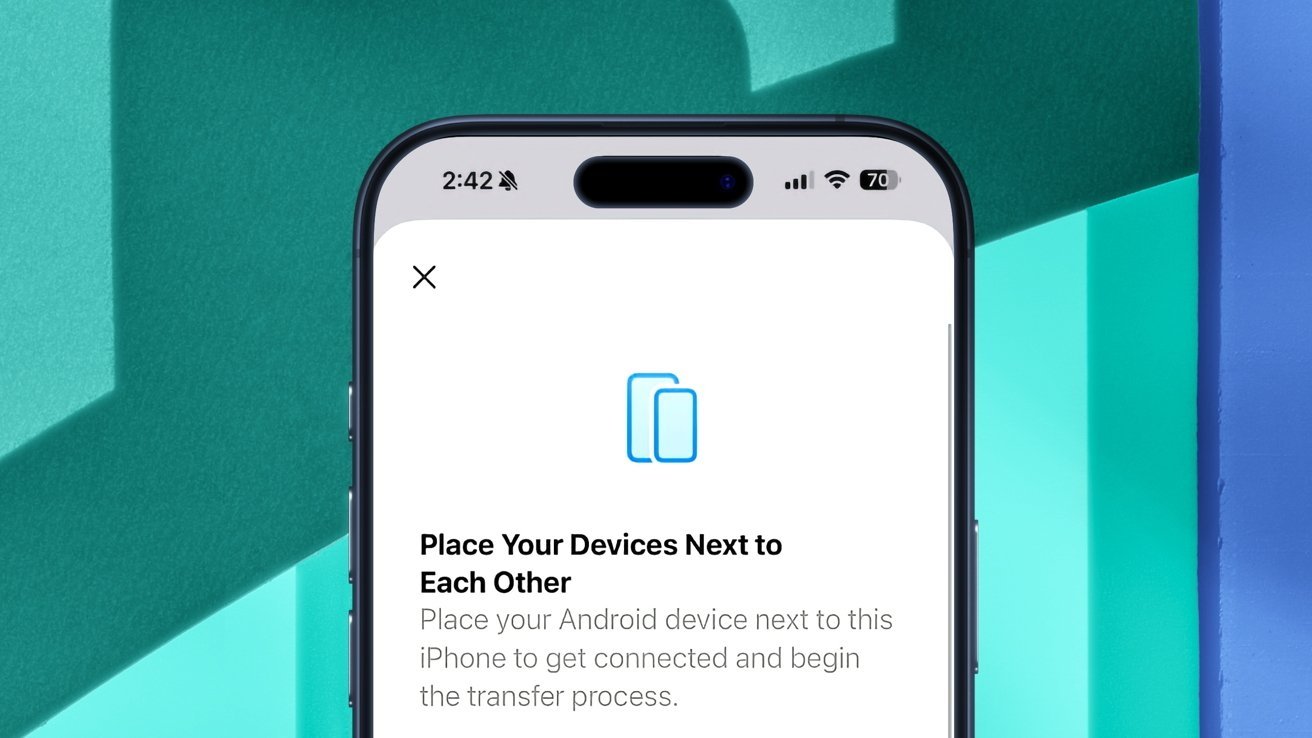
Located within the Settings app under General > Transfer or Reset iPhone, this feature guides users through a straightforward process:
1. Initiate Transfer: Place the Android device next to the iPhone to establish a connection.
2. Data Selection: Choose the data to transfer, including apps, photos, messages, and the phone number associated with the iPhone.
3. Transfer Process: The devices connect via Wi-Fi and Bluetooth, facilitating a secure and efficient data transfer.
It’s important to note that certain data types, such as health information, Bluetooth-paired devices, and protected items like locked notes, cannot be transferred due to security and compatibility considerations.
Requirements for Data Transfer:
– Software Version: Both devices must be running the latest software versions to ensure compatibility.
– Connectivity: Wi-Fi and Bluetooth must be enabled on both devices to facilitate the transfer process.
This feature is the result of a collaboration between Apple and Google, aiming to provide a seamless experience for users switching between platforms. The European Union’s Digital Markets Act has also played a role in encouraging such interoperability initiatives.
Enhanced Support for Third-Party Wearables
In addition to simplifying data migration, iOS 26.3 introduces improved support for third-party wearable devices, particularly smartwatches. This enhancement allows users to receive notifications from their iPhone on non-Apple wearables, broadening the ecosystem of compatible devices.
Setting Up Notification Forwarding:
1. Access Settings: Navigate to Settings > Notifications.
2. Enable Forwarding: Toggle the option to allow notifications to be forwarded to the connected third-party wearable.
Considerations:
– Exclusive Pairing: Enabling this feature will disable notifications on the Apple Watch, as the system supports notification forwarding to only one accessory at a time.
– Regional Availability: Initially, this feature is available exclusively in the European Union, aligning with regulatory requirements for device interoperability.
Additional Features in iOS 26.3
Beyond the major updates, iOS 26.3 includes other noteworthy features:
– Limited Precise Location for C-Series Modems: Users with iPhones equipped with C1 and C1X modems can now obscure their precise location data from carriers, enhancing privacy. This feature is currently supported by a limited number of carriers, with plans for broader adoption in the future.
– End-to-End Encryption for RCS Messages: Code references in the iOS 26.3 beta indicate that end-to-end encryption is being implemented for Rich Communication Services (RCS) messages, enhancing the security of messaging on iOS devices.
Updating to iOS 26.3
To update to iOS 26.3:
1. Open Settings: Launch the Settings app on your iPhone.
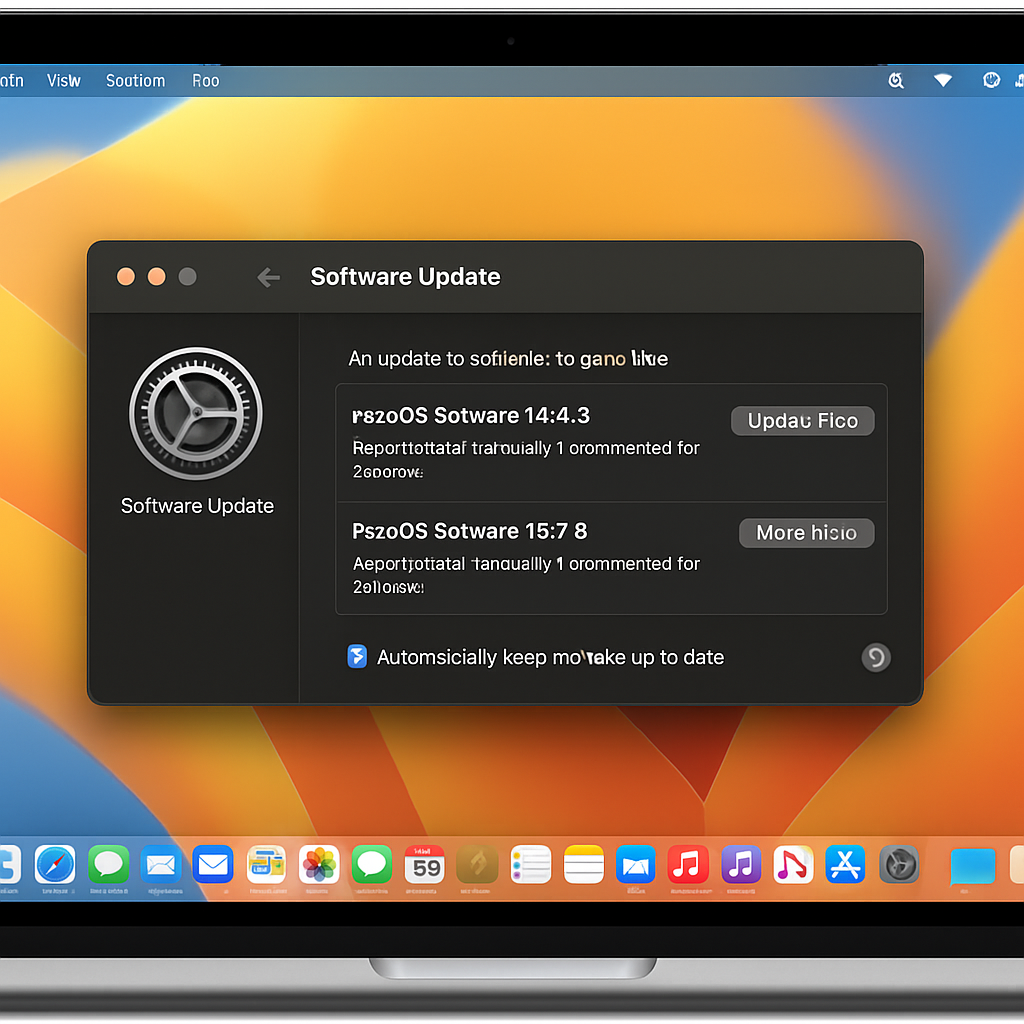
2. Navigate to Software Update: Go to General > Software Update.
3. Install Update: If iOS 26.3 is available, tap Download and Install.
For users with Automatic Updates enabled, the device will update to iOS 26.3 without manual intervention.
Conclusion
iOS 26.3 marks a significant step forward in enhancing user experience by simplifying the transition from iPhone to Android devices and improving compatibility with third-party wearables. These updates reflect Apple’s ongoing efforts to provide a more flexible and user-friendly ecosystem.