Screencap: Your Mac’s New Ally for Tracking Daily Progress
In the realm of long-term projects, maintaining a clear record of daily progress can be challenging. Often, weeks pass, and despite completing significant work, it becomes difficult to showcase day-to-day changes. Enter Screencap, a macOS application designed to bridge this gap by capturing your activities at scheduled intervals and transforming them into comprehensive timelines, daily summaries, and project milestones. Additionally, Screencap offers optional features like addiction tracking and an end-to-end encrypted social tray for sharing progress.
Currently available on GitHub, Screencap is presented as an open-source project, encouraging users to customize and build their own versions. The app, along with its social backend, is free, allowing for personalization without waiting for official updates.
Key Features of Screencap:
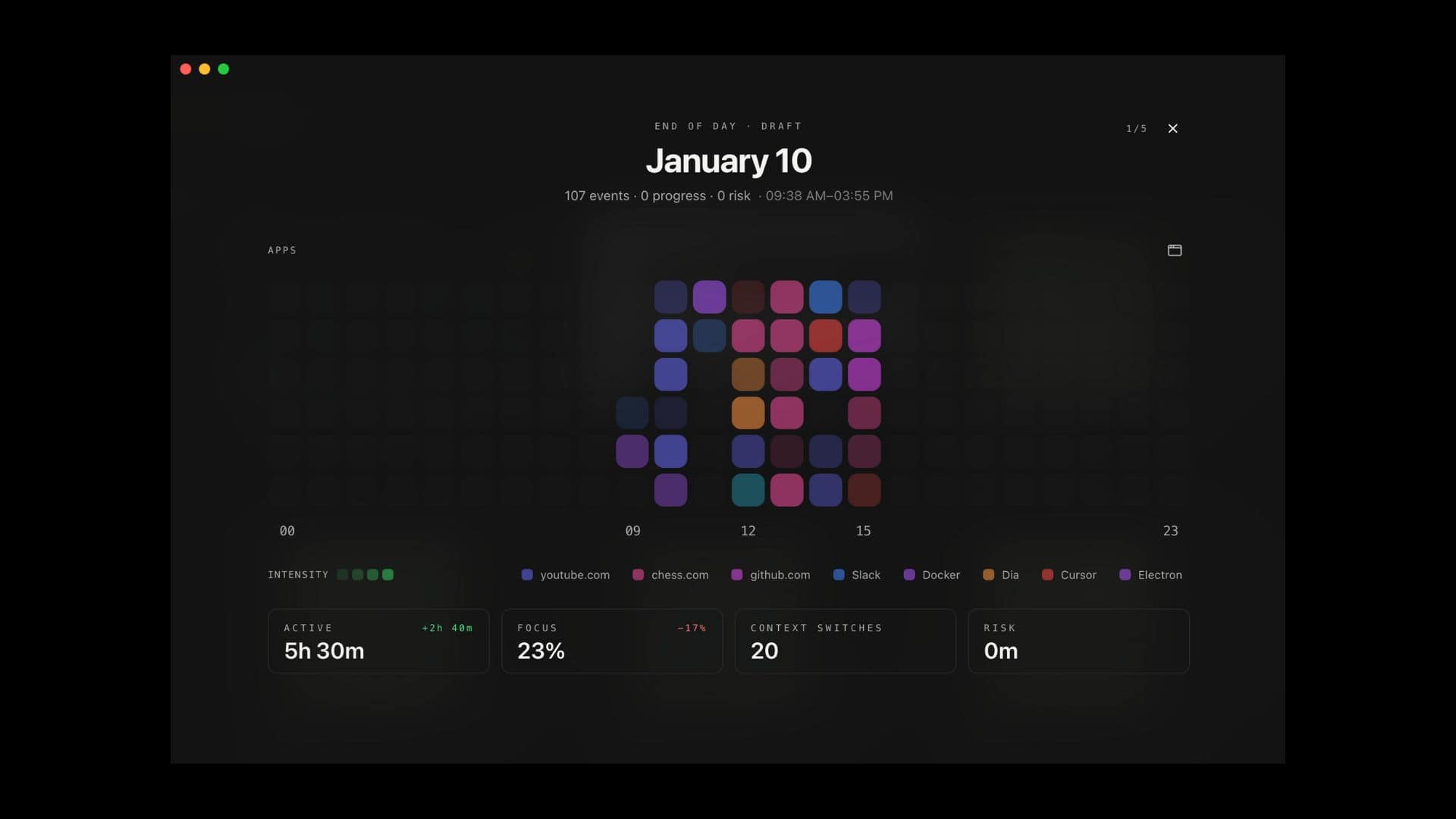
1. Activity Tracking: Screencap helps answer questions such as what tasks were accomplished today, the duration of work sessions, and whether excessive time was spent on distractions like games. Initially conceived as a background project tracker, it has evolved into a comprehensive personal dashboard featuring a Day Wrapped tray, an End of Day flow, and optional LLM-based classification.
2. Efficient Data Collection: The app captures activities in clear time blocks, allowing users to relabel events, dismiss captures, and mark moments as progress or potential distractions. To minimize noise, Screencap waits for periods of stability before capturing representative moments, making timelines easier to scan and conserving storage space.
3. Privacy-Centric Design: By default, Screencap keeps core data local. Users can choose between local AI, cloud AI, or no AI at all. When sharing is enabled, the app ensures content is end-to-end encrypted before leaving the Mac, safeguarding user privacy.
Getting Started with Screencap:
1. Installation and Permissions:
– Download the latest release and move Screencap.app to the Applications folder.
– Open the app and follow the onboarding instructions.
– Grant Screen Recording permissions to enable screenshot captures.
– For enhanced context, such as window titles and browser URLs, provide Accessibility and Automation permissions.
2. Configuring Capture Settings:
– Navigate to Settings -> Capture to select your preferred capture interval.
– In Settings -> Data, set your data retention period.
– Utilize shortcuts for quick actions:
– Capture now
– Capture project progress
– End of Day flow
3. AI Integration (Optional):
– To enable automatic labeling, activate classification in Settings -> AI.
– Choose one of the following options:
– Local LLM via Ollama or LM Studio
– Cloud LLM through an OpenAI-compatible API
– Disabled, for context-based grouping only
4. Reviewing and Marking Activities:
– Access the timeline to examine events by time slot.
– Edit labels if the app’s suggestions are inaccurate.
– Highlight key moments as milestones to build a useful project record.
– For addiction tracking, confirm or dismiss identified instances to refine the system’s accuracy.
Advanced Features:
1. Customizing Capture Preferences:
– Establish automation rules to exclude sensitive apps or websites from being captured.
– Assign specific categories or projects to frequently used tools.
– Disable AI for particular applications to maintain local-only behavior.
2. Utilizing the End of Day Flow:
– Employ this feature as a daily wrap-up.
– Review metrics, confirm milestones, and compose brief reflections with embedded screenshots.
3. Exploring the Social Tray (Optional):
– Create a username and generate device-specific keys.
– Add friends to share a Day Wrapped view for lightweight accountability.
– Collaborate on projects through encrypted rooms, providing a shared milestone feed.
Conclusion:
Screencap is not intended to replace task managers or calendars but to complement them by providing a clear record of actual activities on your Mac. It transforms raw data into an understandable account of work, habits, and progress. For those who appreciate open-source tools, prioritize privacy, and seek a better understanding of their time allocation, Screencap is a valuable addition to your workflow.