Google Chrome Introduces Pinned Tabs Feature on Android for Enhanced Browsing
Google Chrome has long been a preferred browser for users seeking a seamless and efficient web experience. In its latest update, Chrome for Android introduces a highly anticipated feature: pinned tabs. This addition aims to enhance user productivity by allowing important web pages to remain easily accessible.
Understanding Pinned Tabs
Pinned tabs are a functionality that enables users to keep specific tabs open and readily available, even as they navigate through other sites. On desktop versions of Chrome, this feature has been instrumental in helping users manage their browsing sessions by keeping essential pages, such as email inboxes or project management tools, constantly accessible. The introduction of pinned tabs to Chrome’s Android version brings this convenience to mobile users.
How to Use Pinned Tabs on Chrome for Android
Utilizing the pinned tabs feature on Chrome for Android is straightforward:
1. Open Chrome on Your Android Device: Ensure that your browser is updated to the latest version to access this feature.
2. Navigate to the Desired Web Page: Open the tab you wish to pin.
3. Pin the Tab: Long-press on the tab you want to pin. A menu will appear; select Pin tab from the options.
Once pinned, the tab will appear at the top of your tab list, making it easily identifiable and accessible. This organization helps users quickly return to important pages without sifting through numerous open tabs.
Benefits of Pinned Tabs
The introduction of pinned tabs offers several advantages:
– Enhanced Productivity: By keeping essential pages pinned, users can swiftly switch between tasks without losing track of important information.
– Improved Organization: Pinned tabs help declutter the browsing experience, allowing users to focus on their priorities.
– Seamless Access: Important tabs remain readily available, reducing the time spent searching for frequently visited sites.
Comparing Desktop and Mobile Experiences
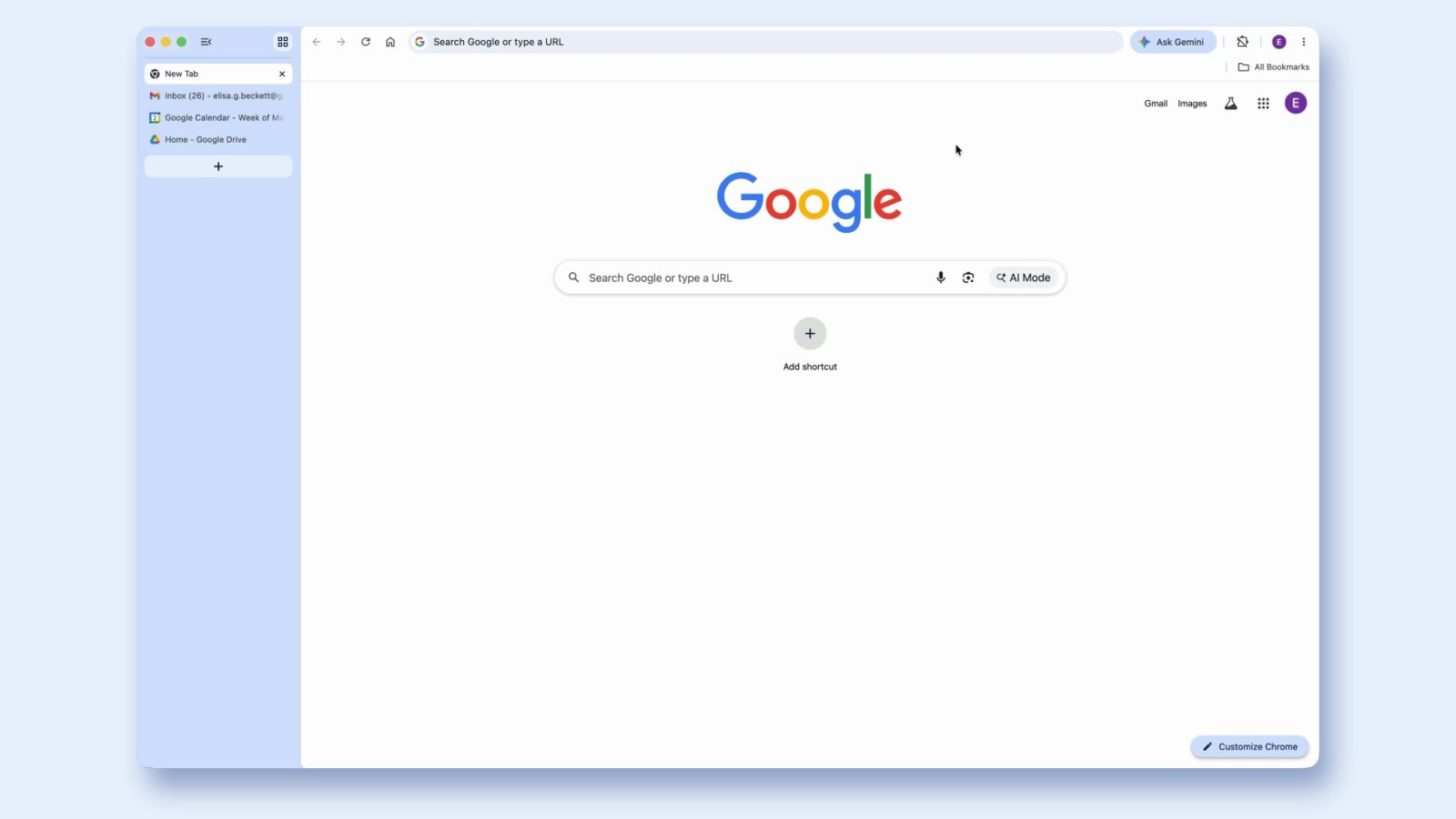
While the pinned tabs feature has been a staple on desktop versions of Chrome, its adaptation to the mobile platform required thoughtful consideration. On desktops, pinned tabs are minimized and placed at the beginning of the tab bar, displaying only the site’s favicon. This design conserves space and keeps the interface tidy.
On Android devices, the implementation is tailored to the mobile experience. Pinned tabs are positioned at the top of the tab list, ensuring they are easily accessible without overwhelming the user interface. This approach maintains the balance between functionality and usability on smaller screens.
User Feedback and Future Enhancements
Early user feedback on the pinned tabs feature has been positive, with many appreciating the added convenience and improved browsing efficiency. Users have noted that the ability to keep important tabs readily accessible has streamlined their mobile browsing experience.
Looking ahead, Google may consider additional enhancements based on user feedback. Potential improvements could include:
– Synchronization Across Devices: Allowing pinned tabs to sync between desktop and mobile versions of Chrome for a cohesive browsing experience.
– Customization Options: Providing users with the ability to customize the appearance and behavior of pinned tabs to suit individual preferences.
– Integration with Tab Groups: Combining pinned tabs with the tab grouping feature to offer more robust organization tools.
Conclusion
The addition of pinned tabs to Chrome for Android marks a significant step in enhancing mobile browsing efficiency. By bringing this beloved desktop feature to mobile devices, Google continues to demonstrate its commitment to improving user experience across platforms. As users embrace this new functionality, it is likely to become an integral part of their daily browsing routines, offering a more organized and productive way to navigate the web.