Resolving the YouTube Clips Interface Glitch on macOS: A Step-by-Step Guide
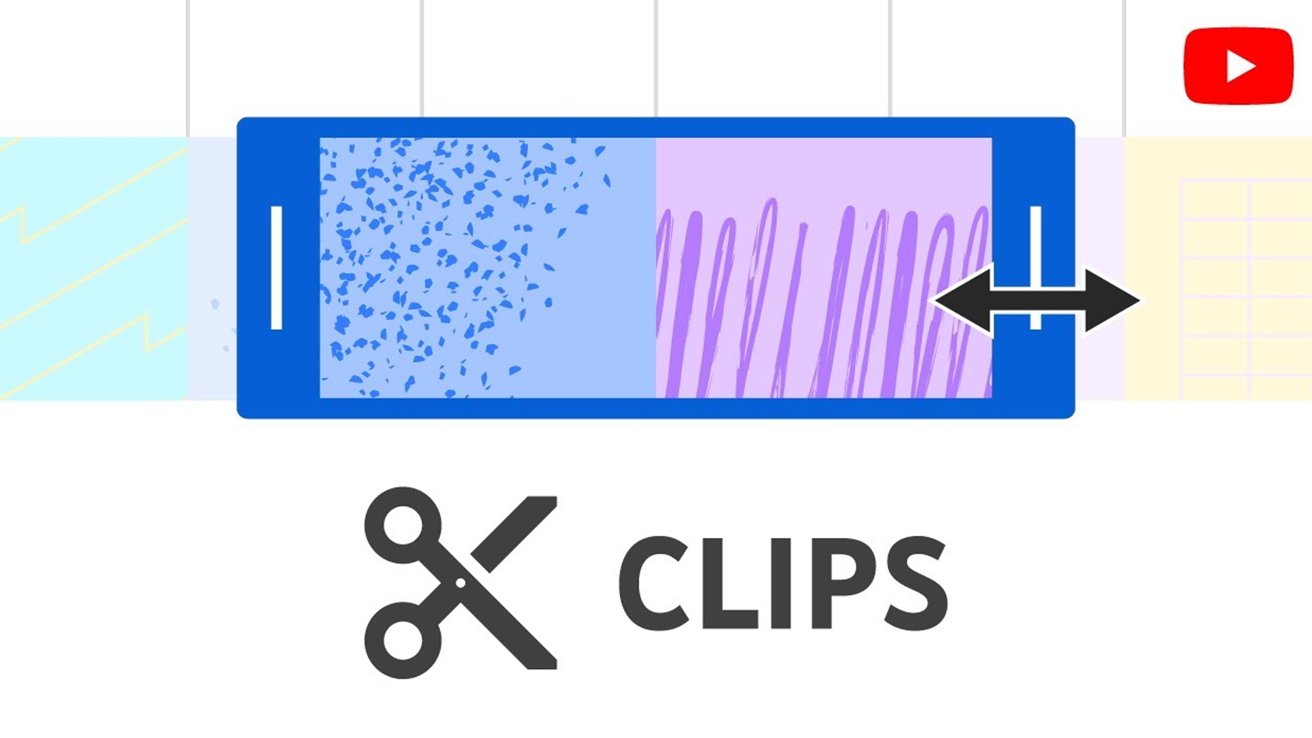
YouTube’s Clips feature, introduced to enhance user engagement by allowing the sharing of specific 5-to-60 second segments from videos, has become an invaluable tool for content creators and viewers alike. This functionality enables users to highlight particular moments without the need to share entire videos, streamlining content sharing and consumption.
However, a persistent and frustrating bug has emerged, particularly affecting macOS users. This glitch renders the Clips interface unresponsive, dimming the entire YouTube interface and making the Clip button unclickable. Attempts to interact with the interface prompt a warning about discarding the clip before saving, effectively halting the clipping process.
Understanding the YouTube Clips Bug
The issue manifests when users attempt to create a clip, only to find the YouTube interface shadowed and unresponsive. This problem isn’t isolated to a single browser or device; it has been reported across various platforms, including Safari and Chrome, and affects multiple devices. Initial assumptions pointed to browser extensions as potential culprits, but disabling or uninstalling these extensions did not resolve the issue.
Further investigation revealed that the bug is caused by an overlay element within the YouTube interface, known as the engagement-panel-scrim. This element occasionally malfunctions, covering the entire Clips page and rendering the interface unusable. While the exact cause of this malfunction remains unclear, the impact on user experience is significant.
Step-by-Step Solution for Safari on macOS
Fortunately, there is a straightforward method to address this issue for users on Safari:
1. Open the Desired YouTube Video: Navigate to the video you wish to clip using Safari.
2. Initiate the Clip Feature: Click on the Clip button below the video to start the clipping process.
3. Access the Developer Tools: To the right of the Clip interface, perform a right-click (or control-click, or a three-finger tap on a MacBook trackpad) and select Inspect Element from the context menu.
4. Identify the Problematic Element: In the developer tools pane that appears, locate the engagement-panel-scrim element.
5. Remove the Overlay: With the engagement-panel-scrim element selected, press the Delete key on your keyboard to remove it.
By deleting this overlay element, the Clips interface should become fully functional again, allowing you to create and share clips without further hindrance.
Alternative Solution Using Content Blockers
For users who prefer a more automated approach, especially those utilizing content blockers that accept custom filters, adding the following filter can prevent the overlay from appearing:
“`
www.youtube.com/###engagement-panel-scrim
“`
Implementing this filter instructs the content blocker to remove the problematic element automatically, thereby preventing the interface glitch from occurring.
Considerations for Mobile Users
While the issue has been predominantly reported on desktop browsers, some users have encountered similar problems on mobile Safari. Due to the limitations of mobile browsers and the complexity of accessing developer tools on these platforms, resolving the issue is more challenging. In such cases, using the official YouTube app is recommended, as it does not exhibit the same glitch.
Conclusion
The YouTube Clips feature is a powerful tool for sharing specific video segments, but the interface glitch has posed a significant inconvenience for many users. By following the outlined steps, macOS users can effectively resolve the issue and continue to utilize the Clips feature seamlessly. It’s important to note that this solution is temporary; refreshing the page may cause the overlay to reappear, necessitating a repeat of the process. Users are encouraged to report the issue to YouTube to prompt a more permanent fix in future updates.