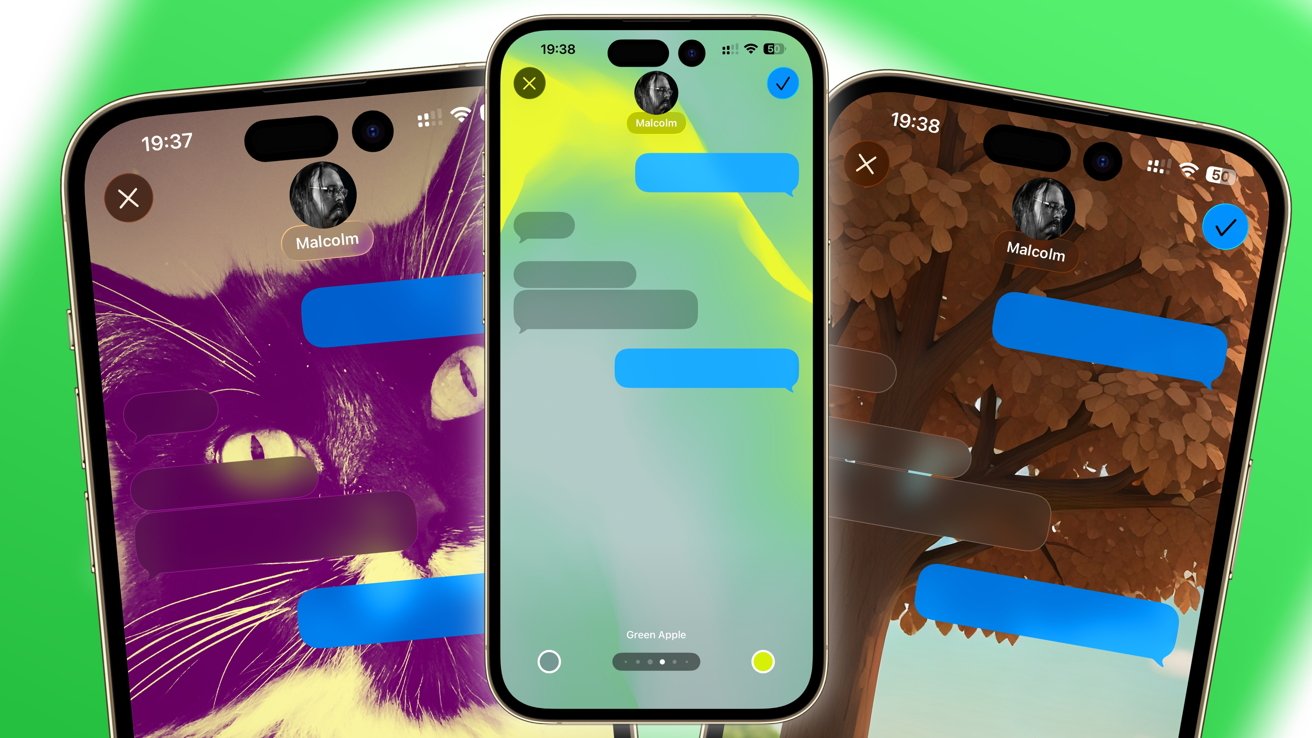
With the release of iOS 26 and iPadOS 26, Apple has introduced a feature that allows users to customize the backgrounds of their conversations in the Messages app. This enhancement not only adds a personal touch to your chats but also helps in distinguishing between different conversations at a glance.
Understanding the New Background Feature
The Messages app has long been a staple for iPhone and iPad users, serving as the primary platform for text communication. Traditionally, the app’s interface has been relatively uniform, with standard grey and blue (or green) speech bubbles on a plain white background. Recognizing the desire for more personalization, Apple has now provided the option to set custom backgrounds for individual conversations.
This feature is particularly beneficial for users who engage in multiple chats simultaneously. By assigning unique backgrounds to different conversations or group chats, you can quickly identify which chat you’re viewing without needing to read the content. For instance, you might choose a professional background for work-related chats and a more casual or fun image for conversations with friends or family.
Prerequisites for Changing Backgrounds
Before diving into the customization process, ensure that your device meets the following criteria:
– Operating System: Your iPhone or iPad should be running on iOS 26 or iPadOS 26. This feature is not available on earlier versions.
– Device Synchronization: If you use multiple Apple devices, ensure they are all updated to the latest operating system. Background changes made on one device will sync across all devices logged into the same Apple ID, provided they are running iOS 26 or iPadOS 26.
– Recipient’s Device Compatibility: While you can set backgrounds for your conversations, recipients using older iOS versions will not see these changes. Their interface will remain the default white background.
Step-by-Step Guide to Changing Conversation Backgrounds
Customizing your conversation backgrounds is a straightforward process. Follow these steps:
1. Open the Messages App: Launch the Messages app on your iPhone or iPad.
2. Select the Desired Conversation: Tap on the conversation you wish to personalize.
3. Access Conversation Details: At the top of the screen, tap on the title of the conversation. This could be the name of the contact or the group chat title.
4. Navigate to Backgrounds: In the conversation details, you’ll find a tab labeled Backgrounds. Tap on it to proceed.
5. Choose a Background: You’ll be presented with various background options. These include:
– Photos: Select an image from your photo library. You can browse through different categories or use the search function to find a specific picture.
– Color: Opt for a gradient background with customizable color combinations. Swipe through preset options or tap on the color circles to select your preferred hues.
– Sky: Choose an animated skyline that varies in time of day and cloud cover.
– Water: Select an animated underwater scene with light reflections on a sandy floor.
– Aurora: Pick an animated Aurora Borealis with different color schemes.
– Playground: Generate a background using the Image Playground feature. Describe a scene, and the system will create an image based on your prompt.
6. Customize the Background: Once you’ve selected a background, you can further customize it:
– Swipe Between Styles: For certain backgrounds, you can swipe to choose different color palettes or styles.
– Pinch to Crop: Adjust the image to fit your screen by pinching to zoom in or out.
7. Confirm Your Selection: After customizing, tap the blue checkmark in the top-right corner to set the background.
8. Return to the Conversation: Tap the back button in the top-left corner to return to your chat with the new background applied.
Disabling or Changing Backgrounds
If you wish to revert to the default background or select a different one:
1. Access the Conversation: Open the Messages app and select the conversation with the background you want to change.
2. Go to Conversation Details: Tap on the title of the conversation at the top.
3. Navigate to Backgrounds: Tap on the Backgrounds tab.
4. Select None: To remove the custom background, choose the None option.
5. Choose a New Background: If you prefer to set a different background, follow the steps outlined earlier to select and customize a new one.
Additional Considerations
– Visibility to Others: Be mindful that the backgrounds you set may be visible to other participants in the conversation, especially in group chats. Choose images that are appropriate for all members.
– Device Performance: While the customization feature is designed to be efficient, using high-resolution images or animated backgrounds may impact device performance or battery life. Monitor your device’s behavior and adjust settings if necessary.
– Privacy and Security: Ensure that the images you use do not contain sensitive information, especially if your device is accessible to others.
Conclusion
The ability to change conversation backgrounds in Messages on iOS 26 and iPadOS 26 offers users a new level of personalization and organization. By following the steps outlined above, you can tailor your messaging experience to reflect your style and preferences, making each conversation uniquely yours.