Microsoft Teams Mobile Update Empowers Users with Browser Choice for Non-Office and PDF Links
Microsoft is set to enhance the user experience on its Teams Mobile application for Android and iOS devices by introducing a new feature that offers users the flexibility to choose their preferred browser when accessing non-Office documents and PDF links. This update, scheduled for rollout in late February 2026, aims to bolster both security and usability by actively promoting the adoption of Microsoft Edge.
Understanding the Update
Traditionally, when users tapped on links within the Teams Mobile app, the application would automatically open them using the device’s default browser. With the forthcoming update, this behavior will change for links leading to non-Office documents (such as Word, Excel, or PowerPoint files) and PDFs. Upon tapping such a link, users will encounter a bottom-sheet pop-up prompting them to select their preferred browser for opening the link.
Promoting Microsoft Edge
In this new prompt, Microsoft Edge is highlighted as the recommended browser. This recommendation is based on several integrated features that Edge offers, including:
– Single Sign-On (SSO): Facilitates seamless access to organizational resources without repeated authentication prompts.
– Copilot Integration: Provides users with AI-driven assistance to enhance productivity and streamline tasks.
– Enhanced Enterprise Security Controls: Offers advanced security features tailored for enterprise environments, ensuring safer browsing experiences.
If a user opts for Microsoft Edge but does not have it installed on their device, the prompt will guide them to download and install the browser before proceeding.
Scope of the Rollout
This update is comprehensive, affecting all tenants across various sectors, including Worldwide, Department of Defense (DoD), Government Community Cloud (GCC), and GCC High. The rollout is expected to commence and conclude within late February 2026.
Administrative Controls and Configuration
By default, this feature will be enabled for all tenants, meaning organizations will experience this new behavior without the need for manual intervention. However, IT administrators retain the ability to manage this feature through PowerShell by adjusting the TeamsMobilityPolicy policy. The key attribute to modify is LinksInTeams, which accepts the following values:
– OfferBrowserOptions: Activates the browser selection prompt, allowing users to choose their preferred browser.
– UseSystemDefaults: Disables the feature, reverting to the device’s default browser behavior.
Policy Configuration Table:
| Policy Name | Attribute | Value | Behavior |
|———————–|—————-|———————|————————————————————————–|
| TeamsMobilityPolicy | LinksInTeams | OfferBrowserOptions | Enables the browser selection prompt, allowing users to choose their preferred browser. |
| TeamsMobilityPolicy | LinksInTeams | UseSystemDefaults | Disables the feature, reverting to the device’s default browser behavior. |
Administrators are encouraged to review their current TeamsMobilityPolicy configurations and update internal documentation accordingly. Additionally, helpdesk teams should be briefed on this new browser-selection experience to efficiently address any user inquiries.
Organizations operating in environments with strict controls or standardized browser deployments may prefer to set LinksInTeams to UseSystemDefaults proactively to maintain consistent workflows.
User Customization
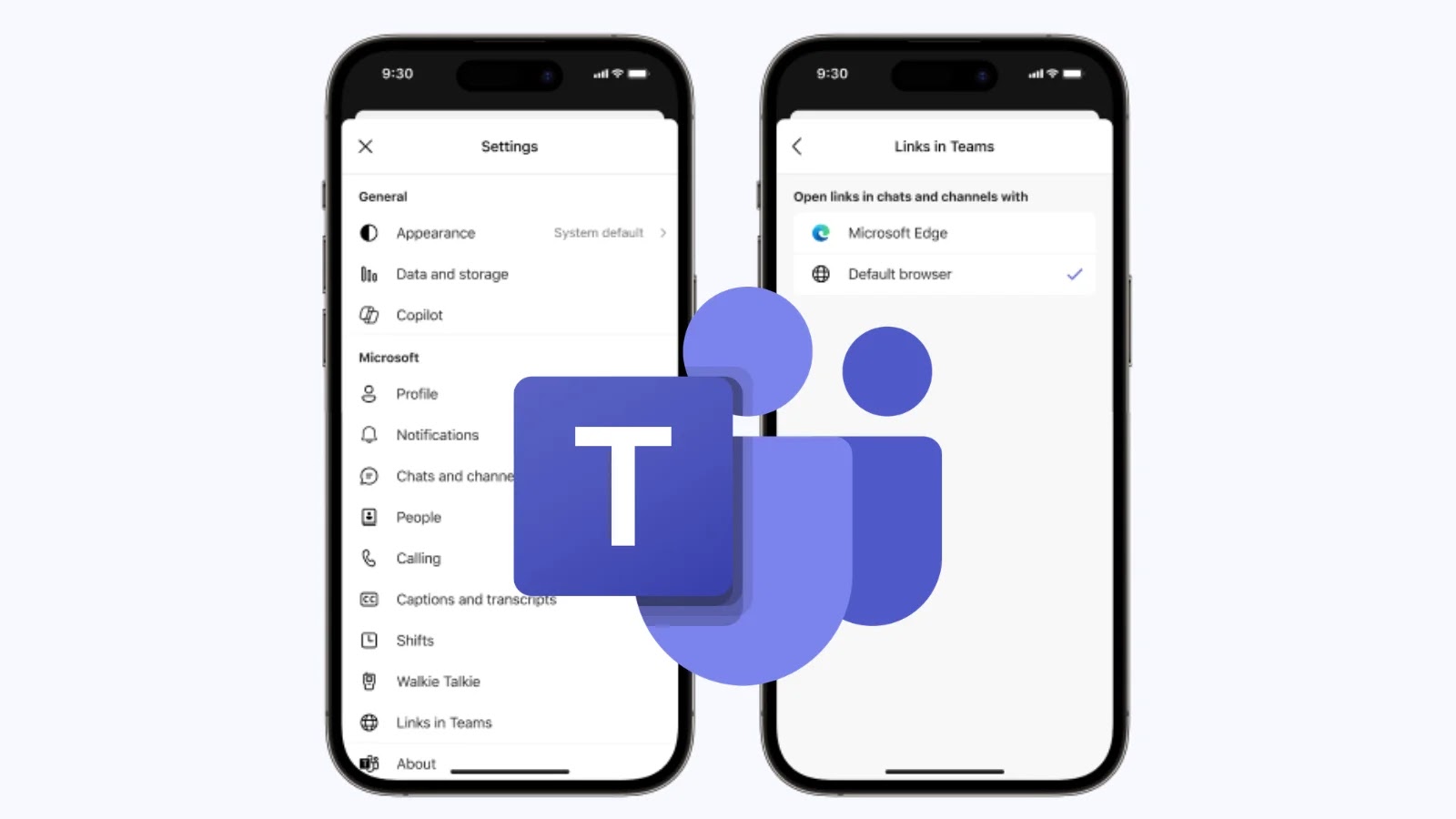
End users who wish to personalize their browsing experience can adjust this setting directly within the Teams Mobile app by following these steps:
1. Tap the profile icon located in the upper-left corner of the app.
2. Navigate to Settings.
3. Select Links in Teams to manage browser preferences.
Compliance and Monitoring
Microsoft has confirmed that this change does not introduce any new compliance considerations. However, organizations are advised to review the update against their internal policies to ensure alignment.
To assess the effectiveness and adoption of this feature, Microsoft will actively monitor user satisfaction (DSAT), Edge installation rates, and retention metrics throughout the rollout period. This proactive approach aims to address any issues promptly and ensure a smooth transition for all users.
Conclusion
This update to Microsoft Teams Mobile underscores Microsoft’s commitment to enhancing user experience and security. By offering users the choice of browser for non-Office and PDF links, and promoting the use of Microsoft Edge with its integrated features, Microsoft aims to provide a more seamless and secure collaboration environment.