Mastering iPhone Notifications in iOS 26: A Comprehensive Guide
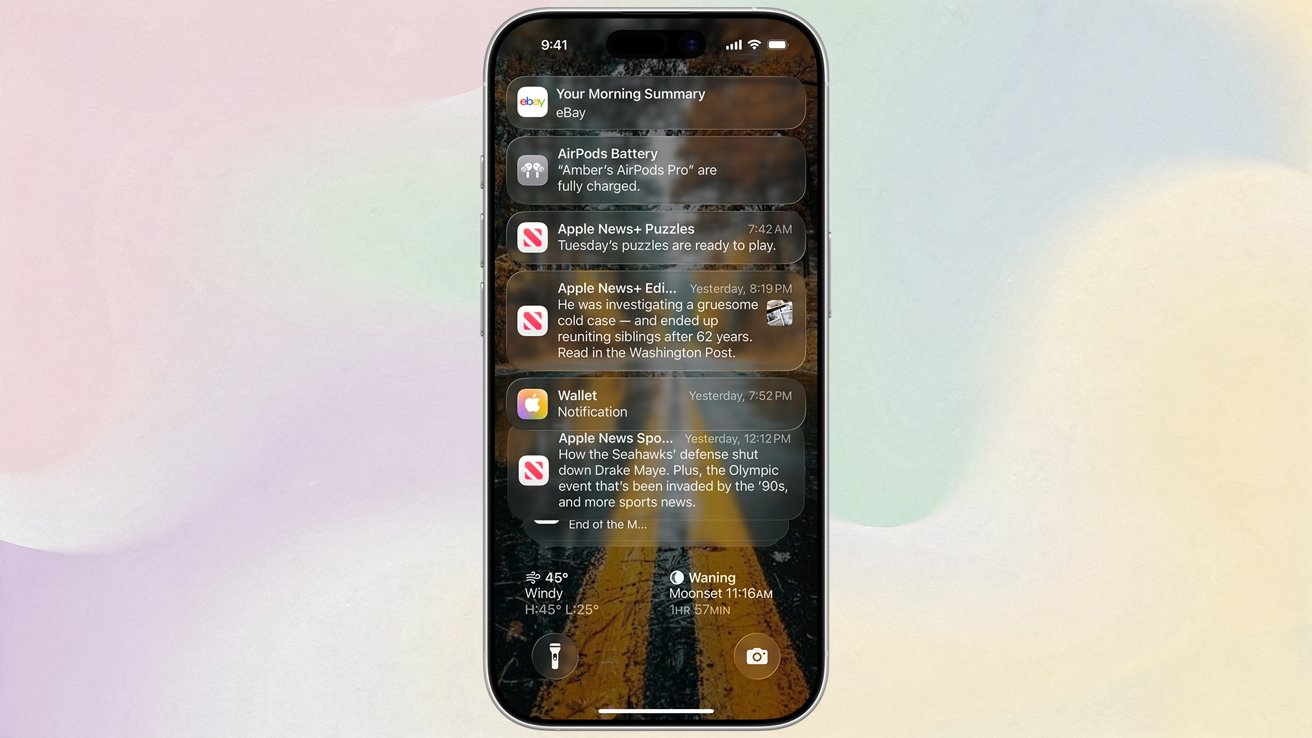
In today’s digital age, staying connected is easier than ever, but it often comes at the cost of constant interruptions. A 2024 study revealed that the average individual receives approximately 146 notifications daily, with Generation Z members averaging around 181 notifications per day. This incessant stream can be overwhelming, but iOS 26 offers robust tools to help you regain control over your iPhone’s notifications.
Understanding Notification Overload
The sheer volume of daily notifications can disrupt focus, reduce productivity, and increase stress levels. Recognizing this, Apple has introduced several features in iOS 26 designed to help users manage and customize their notification experience effectively.
Scheduled Summary: Consolidate Notifications
One of the standout features in iOS 26 is the Scheduled Summary, which allows users to batch non-urgent notifications and receive them at designated times. This feature is particularly beneficial for those who prefer to check notifications at specific intervals rather than being constantly interrupted.
Setting Up Scheduled Summary:
1. Access Settings: Open the Settings app on your iPhone.
2. Navigate to Notifications: Tap on Notifications.
3. Enable Scheduled Summary: Select Scheduled Summary and toggle it on.
4. Configure Schedule: Tap Continue and set the times you wish to receive your notification summaries.
5. Select Apps: Choose the apps whose notifications you want to include in the summary.
6. Finalize Settings: Once configured, tap the back button to save your settings.
By implementing Scheduled Summary, you can reduce the frequency of interruptions, allowing for more focused and productive periods throughout your day.
Managing Notifications for Individual Apps
Not all apps require immediate attention. For those that don’t, you can disable notifications entirely:
1. Open Settings: Launch the Settings app.
2. Go to Notifications: Tap on Notifications.
3. Select the App: Scroll to find and tap the app you wish to modify.
4. Disable Notifications: Toggle off Allow Notifications.
This approach is particularly useful for apps that you use infrequently or those that send non-essential alerts.
Filtering and Blocking Unwanted Messages
Spam messages can clutter your inbox and distract you from important communications. iOS 26 enhances message filtering capabilities to help manage this:
Screening Messages from Unknown Senders:
1. Open Messages: Launch the Messages app.
2. Access Filtering Options: Tap the three horizontal lines (Hamburger Menu) in the top right corner.
3. Manage Filtering: Select Managing Filtering.
4. Enable Screening: Toggle on Screen Unknown Senders.
This setting directs messages from unknown contacts to a separate list, reducing clutter in your main inbox.
Allowing Notifications from Unknown Senders:
If you prefer to receive notifications from unknown senders:
1. Within Managing Filtering: After enabling Screen Unknown Senders, tap Allow Notifications.
This ensures you don’t miss potentially important messages from new contacts.
Turning Off Government Alerts
Government alerts, such as AMBER alerts and emergency notifications, are crucial but can sometimes be disruptive. iOS 26 allows you to manage these alerts:
1. Open Settings: Access the Settings app.
2. Navigate to Notifications: Tap on Notifications.
3. Scroll to Government Alerts: At the bottom, you’ll find the Government Alerts section.
4. Toggle Alerts: Toggle off any alerts you wish to disable.
Note: While you can disable certain alerts, it’s advisable to keep critical alerts like Public Safety and Emergency Alerts enabled for your safety.
Utilizing Focus Filters
Focus Filters in iOS 26 allow you to customize which notifications you receive based on your current activity or location. This feature is particularly useful for minimizing distractions during work, sleep, or personal time.
Setting Up Focus Filters:
1. Open Settings: Launch the Settings app.
2. Select Focus: Tap on Focus.
3. Choose a Focus Mode: Select an existing Focus mode or create a new one.
4. Customize Notifications: Under Allowed Notifications, choose which people and apps can notify you during this Focus mode.
5. Add Focus Filters: Scroll down to Focus Filters and add filters for apps like Calendar, Mail, or Messages to further tailor your experience.
By leveraging Focus Filters, you can ensure that only relevant notifications reach you, enhancing concentration and reducing unnecessary interruptions.
Adaptive Power Notifications
iOS 26 introduces Adaptive Power Notifications, a feature that alerts you when your iPhone adjusts performance to conserve battery life. This can include actions like dimming the display or enabling Low Power Mode.
Enabling Adaptive Power Notifications:
1. Open Settings: Access the Settings app.
2. Navigate to Battery: Tap on Battery.
3. Select Power Mode: Tap on Power Mode.
4. Enable Notifications: Toggle on Adaptive Power Notifications.
This feature keeps you informed about your device’s power management actions, allowing you to make informed decisions about usage and charging.
Conclusion
Managing notifications effectively is essential for maintaining focus and reducing digital stress. iOS 26 provides a suite of tools, including Scheduled Summary, Focus Filters, and Adaptive Power Notifications, to help you tailor your notification experience to your preferences. By taking advantage of these features, you can transform your iPhone into a device that enhances productivity without overwhelming you with constant alerts.