Mastering Liquid Glass: Personalize Your iPhone’s Interface with iOS 26
With the release of iOS 26, Apple introduced the innovative Liquid Glass design, offering users a sleek and dynamic interface. This new aesthetic brings a fresh look to the iPhone, characterized by transparent elements and fluid animations. To enhance user experience, Apple has provided several customization options, allowing you to tailor the Liquid Glass design to your preferences. Here’s a comprehensive guide on how to personalize your iPhone’s interface with iOS 26.
Understanding Liquid Glass in iOS 26
Liquid Glass is a design overhaul that introduces transparency and depth to the iOS interface. This design language affects various elements, including app icons, widgets, and system menus, creating a cohesive and immersive user experience. The design aims to make the interface feel more dynamic and responsive, adapting to different backgrounds and user interactions.
Customizing Liquid Glass Appearance
Apple offers two primary styles for the Liquid Glass interface: Clear and Tinted. Each style provides a distinct visual experience, catering to different user preferences.
1. Accessing Liquid Glass Settings:
– Open the Settings app on your iPhone.
– Navigate to Display & Brightness.
– Tap on Liquid Glass.
2. Choosing Between Clear and Tinted Styles:
– Clear: This style emphasizes transparency, allowing background colors and images to subtly influence the appearance of UI elements. It offers a modern and airy feel to the interface.
– Tinted: This option increases the opacity of UI elements, adding more contrast and depth. It provides a look reminiscent of previous iOS versions, offering familiarity with a touch of modernity.
Experiment with both styles to determine which aligns best with your aesthetic preferences. Switching between them is seamless, allowing you to adapt the interface to different environments or moods.
Personalizing the Lock Screen Clock
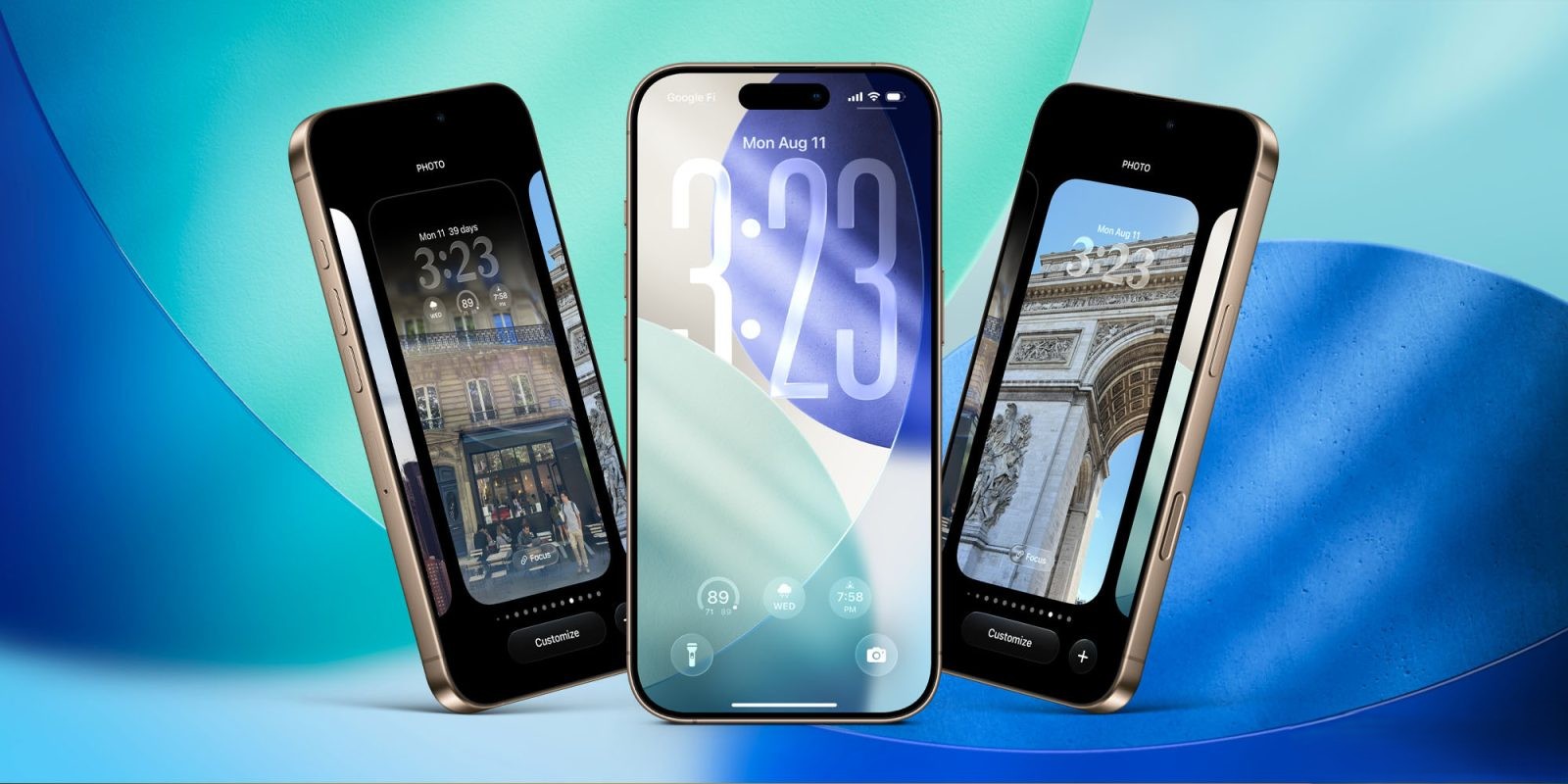
The Lock Screen is a focal point of the iPhone experience, and iOS 26 allows for extensive customization of the clock display, integrating seamlessly with the Liquid Glass design.
1. Entering Lock Screen Customization Mode:
– Long-press on your Lock Screen wallpaper until the customization interface appears.
– Tap on Customize.
2. Adjusting the Clock Design:
– Tap on the clock to access design options.
– Select the Glass option to apply the Liquid Glass effect to the clock.
3. Modifying Transparency and Size:
– A slider will appear above the design options when Glass is selected.
– Adjust the slider to set the desired level of transparency for the clock. Sliding to the left increases transparency, allowing more of the background to show through, while sliding to the right decreases transparency, making the clock more opaque.
– For the default font option, you can also resize the clock. Drag the handle located at the bottom-right corner of the clock to adjust its size, making it larger or smaller according to your preference.
These adjustments enable you to create a Lock Screen that not only displays the time but also complements your chosen wallpaper and overall aesthetic.
Enhancing App Icons with Liquid Glass
iOS 26 extends the Liquid Glass design to app icons, allowing for a cohesive and immersive visual experience. You can modify app icons to align with the new design language, creating a unified look across your Home Screen.
1. Activating Clear App Icons:
– Touch and hold an empty area on the Home Screen until the icons begin to jiggle.
– Tap on Edit in the top-left corner.
– Select Customize from the menu that appears.
– Choose the Clear option to apply the transparent effect to app icons.
2. Selecting Appearance Mode:
– After selecting Clear, you can choose between Light, Dark, or Auto appearances.
– Light: Maintains a bright interface, suitable for well-lit environments.
– Dark: Applies a darker theme, ideal for low-light settings and reducing eye strain.
– Auto: Automatically switches between Light and Dark modes based on the time of day or ambient lighting conditions.
This customization allows you to create a Home Screen that reflects your personal style while maintaining the functional aspects of app icons.
Exploring Dynamic Wallpapers
To further enhance the Liquid Glass experience, iOS 26 introduces Dynamic Wallpapers that change colors automatically, adding a lively and ever-changing backdrop to your device.
1. Setting a Dynamic Wallpaper:
– Open the Settings app.
– Navigate to Wallpaper.
– Tap on Choose a New Wallpaper.
– Select the Dynamic category.
– Choose a Dynamic Wallpaper that suits your preference.
These wallpapers subtly shift colors and patterns, providing a fresh look each time you interact with your device.
Utilizing Third-Party Apps with Liquid Glass Design
Several third-party apps have embraced the Liquid Glass design, offering interfaces that harmonize with iOS 26’s aesthetics. For instance, Telegram has implemented a Liquid Glass-like menu bar, providing a consistent visual experience even for users not on iOS 26. Similarly, Apple’s Shazam app has received a Liquid Glass makeover, featuring a sleek new look that aligns with the system-wide design language.
Exploring these apps can enhance your overall experience, as they integrate seamlessly with the Liquid Glass design, offering both functionality and visual appeal.
Conclusion
iOS 26’s Liquid Glass design offers a transformative visual experience, bringing transparency, depth, and dynamism to the iPhone interface. By customizing the Liquid Glass settings, Lock Screen clock, app icons, and wallpapers, you can create a personalized and cohesive aesthetic that reflects your style. Embracing these customization options allows you to fully experience the innovative design language introduced in iOS 26, making your iPhone not only a powerful tool but also a reflection of your personal taste.