Mastering Portrait Mode in iOS 26: A Comprehensive Guide
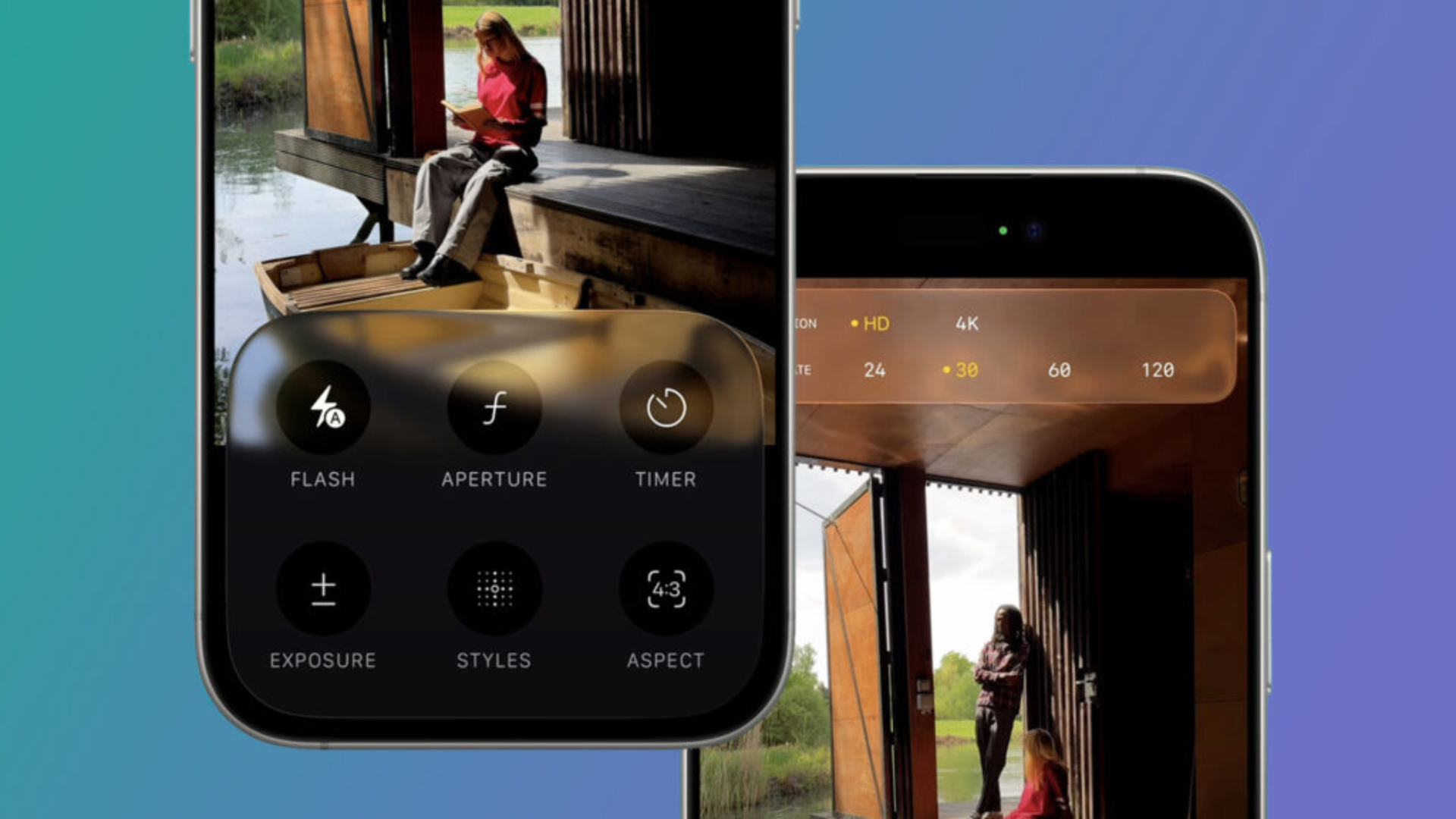
With the release of iOS 26, Apple has introduced a streamlined Camera app interface, emphasizing simplicity and user-friendliness. This redesign, however, has led to some users wondering about the whereabouts of familiar features like Portrait Mode. Rest assured, Portrait Mode remains a core component of the iPhone’s photography capabilities; it has merely been repositioned within the app’s new layout.
Understanding the Redesigned Camera Interface
In iOS 26, the Camera app now prominently displays only two primary modes upon launch: Photo and Video. This minimalist approach aims to declutter the interface, allowing users to focus on the most commonly used functions. Other modes, including Portrait, Panorama, Slo-Mo, and Time-Lapse, are accessible through intuitive swipe gestures. This design choice enhances the user experience by reducing on-screen distractions while keeping additional features readily available.
Locating and Utilizing Portrait Mode
Portrait Mode enables photographers to capture images with a depth-of-field effect, where the subject remains sharp against a beautifully blurred background. To access Portrait Mode in iOS 26:
1. Open the Camera App: Launch the Camera application from your home screen.
2. Navigate to Portrait Mode: At the bottom of the screen, you’ll see the mode selector. Swipe left on this selector until you reach Portrait.
3. Frame Your Subject: Position your subject within the frame, ensuring adequate lighting and distance for optimal depth effect.
4. Capture the Photo: Press the shutter button to take your Portrait Mode photograph.
This method is consistent across all iPhone models that support Portrait Mode and are running iOS 26.
Alternative Access to Portrait Mode
For users who prefer a different approach:
1. Open the Camera App: Access the Camera application as usual.
2. Tap the Mode Label: At the bottom, where it says Photo or Video, tap on this label.
3. Drag to Reveal Modes: Drag left or right to unveil additional modes, including Portrait.
4. Select and Capture: Choose Portrait and proceed to take your photo.
This alternative method provides flexibility in navigating the Camera app’s features.
Editing Portrait Mode Photos
One of the standout features of Portrait Mode is the ability to adjust the depth and lighting effects post-capture:
1. Open the Photos App: Locate and open the Photos application.
2. Select Your Portrait Photo: Browse and tap on the Portrait Mode photo you wish to edit.
3. Enter Edit Mode: Tap the Edit button in the top-right corner.
4. Adjust Depth and Lighting: Utilize the Depth Control slider to modify the background blur intensity. Additionally, experiment with lighting effects such as Studio Light or Stage Light to enhance your image.
5. Save Changes: Once satisfied, tap Done to save your edits.
These editing capabilities allow for greater creative control over your photographs.
Addressing Common Concerns
Some users have expressed difficulty in locating Portrait Mode after updating to iOS 26. This confusion stems from the app’s redesigned interface, which now requires a swipe gesture to access certain modes. Understanding this change ensures that all features remain accessible and functional.
Frequently Asked Questions
– Do all iPhones with iOS 26 support Portrait Mode?
Most iPhone models that previously supported Portrait Mode continue to do so with iOS 26. However, very old models incompatible with iOS 26 will not have access to this feature.
– Can I edit the background blur after taking a photo?
Yes, by opening the photo in the Photos app, tapping Edit, and adjusting the Depth Control slider, you can modify the background blur intensity.
– Is Portrait Mode functionality the same in iOS 26 as before?
Yes, the core functionality remains unchanged; only the method of accessing the mode has been updated in the Camera app’s interface.
Summary
– iOS 26 introduces a simplified Camera app interface, displaying only Photo and Video modes by default.
– Portrait Mode is accessible by swiping left on the mode selector or tapping and dragging the mode label.
– Post-capture editing of depth and lighting effects is available through the Photos app.
– The redesign aims to enhance user experience by reducing on-screen clutter while maintaining full functionality.
Conclusion
Portrait Mode remains an integral part of the iPhone’s photography suite in iOS 26. While the method to access it has evolved with the app’s redesign, the feature’s capabilities and editing options continue to offer users the tools to capture stunning, professional-quality portraits. Familiarizing yourself with the new interface ensures a seamless and enjoyable photography experience.