Understanding iPhone’s StandBy Mode: How Different Chargers Influence Display Preferences
With the introduction of iOS 17, Apple unveiled the StandBy feature, transforming the iPhone into a versatile smart display when placed horizontally during charging. This mode offers users a customizable interface, displaying clocks, widgets, or photos based on individual preferences. An intriguing aspect of StandBy is its ability to remember and adapt to different charging setups, leading to varied display behaviors depending on the charger in use.
Personalized StandBy Views Based on Charger Recognition
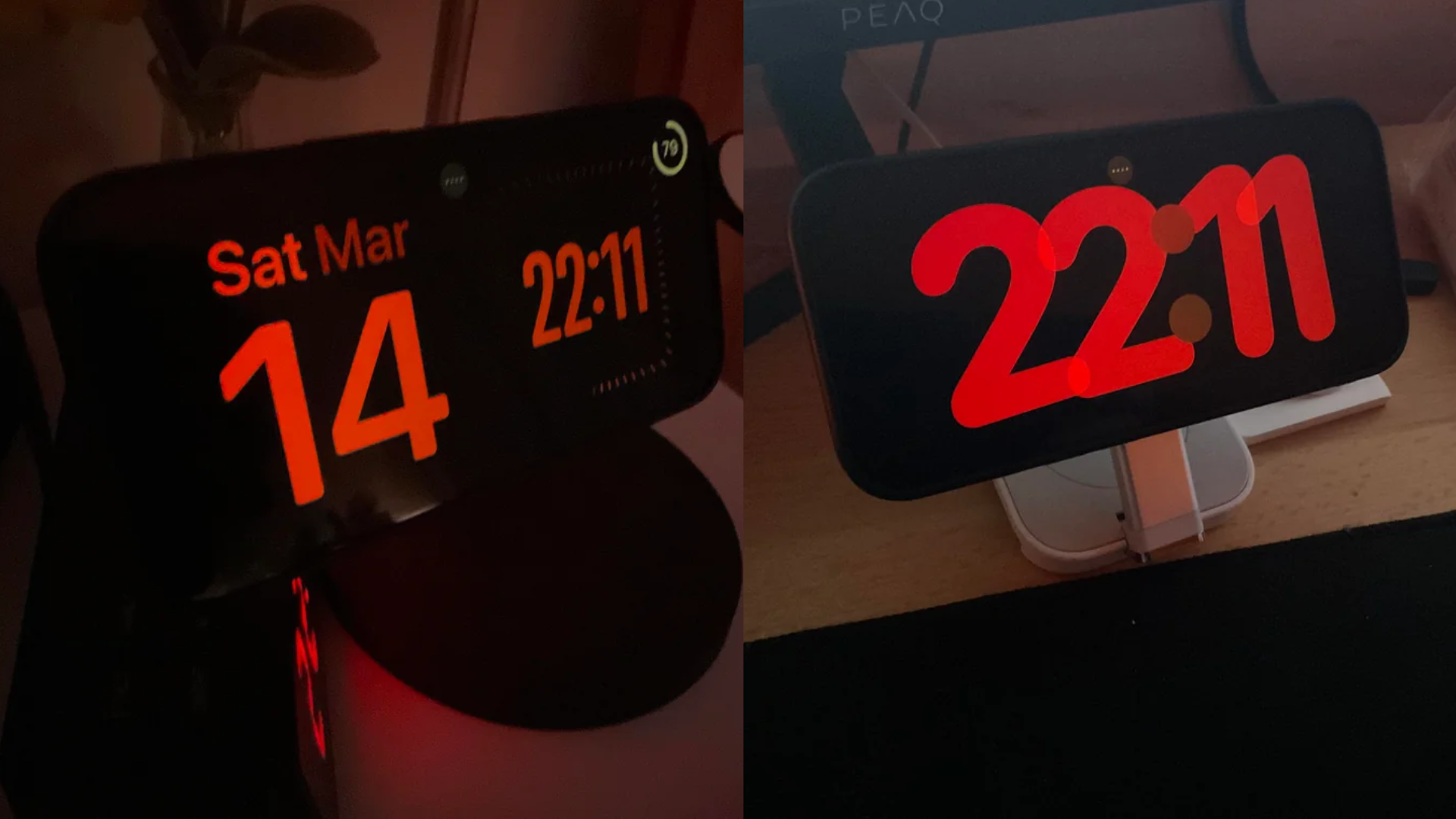
Apple designed StandBy to recognize and recall user preferences for each charging scenario. This means that the iPhone can display a specific StandBy layout when connected to a particular charger and a different one when connected elsewhere. For instance, you might prefer a clock display on your nightstand charger, while opting for a photo slideshow on your desk charger. Once set, the iPhone automatically recalls and applies these preferences upon detecting the respective charger.
Technical Mechanisms Behind Charger Recognition
The iPhone’s ability to differentiate between chargers and recall specific StandBy settings is facilitated by several technical components:
– MagSafe and Qi Wireless Chargers: These chargers contain unique identification data that the iPhone can read.
– NFC Communication: MagSafe accessories utilize Near Field Communication (NFC) to transmit unique accessory identifiers to the iPhone.
– Authentication Certificates: Qi 1.3 wireless chargers include authentication certificates, enabling the iPhone to verify and recognize the charger.
By leveraging this data, the iPhone stores and recalls the preferred StandBy layout associated with each charger or charging setup.
Variations in Charging Animations and Speeds
Users have observed that certain wireless chargers trigger specific charging animations, while others do not. This discrepancy arises from Apple’s authentication system. Made for MagSafe certified chargers support this system, displaying the circular charging animation and often delivering faster charging speeds. In contrast, generic magnetic chargers may charge the device but lack the authentication to trigger these animations or communicate accessory information.
Practical Implications for Users
This intelligent design allows for a seamless and personalized charging experience. Your iPhone can display a clock on your bedside charger, a widget dashboard at your desk, and a photo display in the living room without manual adjustments each time. Once you’ve set the layout for each charger, StandBy automatically restores it whenever the phone detects that specific charging setup.
Conclusion
Apple’s StandBy feature in iOS 17 exemplifies the company’s commitment to enhancing user experience through thoughtful design and technology integration. By recognizing and adapting to different chargers, the iPhone offers a personalized and dynamic display experience, making everyday interactions more intuitive and tailored to individual preferences.