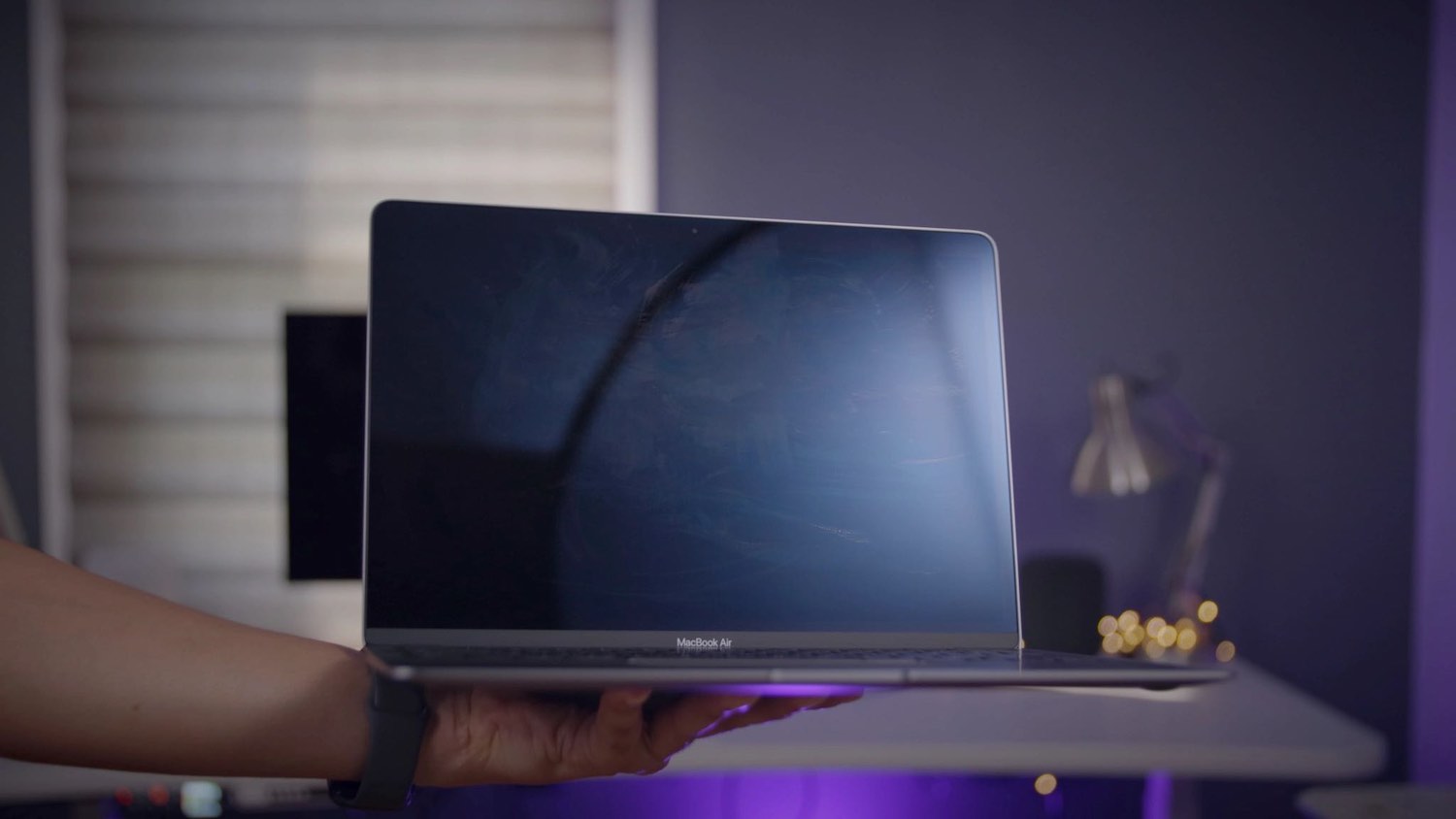
Mastering MacBook Maintenance: A Comprehensive Guide to Cleaning Your Screen and Keyboard
Maintaining the pristine condition of your MacBook’s screen and keyboard is essential for both aesthetic appeal and optimal functionality. Regular cleaning not only enhances your device’s appearance but also ensures a hygienic workspace. This guide provides a detailed, step-by-step approach to effectively and safely clean your MacBook’s screen and keyboard.
Understanding the Importance of Regular Cleaning
Over time, MacBook screens and keyboards accumulate dust, fingerprints, and other residues. These not only mar the visual clarity of the display but can also affect the tactile experience of the keyboard. Moreover, unclean surfaces can harbor bacteria, posing potential health risks. Therefore, establishing a routine cleaning regimen is crucial for both device longevity and user health.
Pre-Cleaning Preparations
Before initiating the cleaning process, it’s imperative to take certain precautions to prevent any damage:
1. Power Down and Unplug: Ensure your MacBook is turned off and disconnected from any power sources or peripherals. This minimizes the risk of electrical hazards and prevents accidental inputs during cleaning.
2. Choose the Right Environment: Opt for a clean, well-lit workspace to easily identify smudges and debris.
3. Gather Appropriate Cleaning Materials: Utilize a soft, lint-free microfiber cloth. Avoid abrasive materials like paper towels, which can scratch the screen.
Cleaning the MacBook Screen
1. Dry Wipe: Begin by gently wiping the screen with a dry microfiber cloth to remove loose dust and particles. Use light, circular motions to avoid applying excessive pressure.
2. Dampen the Cloth: For stubborn smudges, slightly dampen a portion of the microfiber cloth with distilled water. It’s crucial to avoid soaking the cloth; it should be moist, not wet.
3. Wipe the Screen: Gently wipe the screen with the dampened cloth, starting from one side and moving to the other in a consistent motion. Ensure that no moisture seeps into the edges or openings of the screen.
4. Dry the Screen: After removing smudges, use the dry part of the cloth to buff the screen, eliminating any streaks and ensuring a clear display.
Cleaning the Keyboard
1. Remove Loose Debris: Hold the MacBook at a slight angle and gently tap it to dislodge any loose particles from the keyboard.
2. Use Compressed Air: For deeper cleaning, use a can of compressed air to blow out debris from between the keys. Hold the can at an angle and spray in short bursts to prevent moisture buildup.
3. Wipe the Keys: Dampen a microfiber cloth with distilled water and gently wipe the keys. For persistent grime, a 70% isopropyl alcohol solution can be used. Ensure the cloth is only slightly damp to prevent moisture from seeping under the keys.
4. Dry the Keyboard: Use a dry microfiber cloth to remove any remaining moisture from the keys.
Materials to Avoid
To prevent damage to your MacBook, avoid the following materials and substances:
– Abrasive Cloths: Materials like paper towels can scratch the screen and should be avoided.
– Harsh Chemicals: Avoid cleaners containing acetone, ammonia, bleach, or hydrogen peroxide, as they can damage the screen’s coating and the keyboard’s finish.
– Direct Application of Liquids: Never spray liquids directly onto the screen or keyboard. Always apply them to the cloth first to control the amount of moisture.
Special Considerations for Nano-Texture Displays
If your MacBook features a nano-texture glass display, such as those found on the Pro Display XDR, specific care is required:
– Use the Provided Polishing Cloth: Apple provides a special polishing cloth designed for nano-texture glass. Use this cloth exclusively to clean the screen.
– Avoid Moisture: Do not use any liquids to clean nano-texture glass. The provided cloth is sufficient to remove dust and smudges.
Maintaining a Clean MacBook
To keep your MacBook in optimal condition:
– Regular Cleaning: Incorporate screen and keyboard cleaning into your regular maintenance routine, aiming for at least once a week.
– Hand Hygiene: Wash your hands before using your MacBook to minimize the transfer of oils and dirt.
– Avoid Eating Over the Keyboard: Crumbs and spills can damage the keyboard and internal components.
– Use a Keyboard Cover: Consider using a keyboard cover to protect against dust and spills. Ensure it’s thin enough to avoid pressure on the screen when the lid is closed.
Conclusion
Regular and careful cleaning of your MacBook’s screen and keyboard not only enhances its appearance but also contributes to its longevity and your health. By following the outlined steps and precautions, you can maintain your MacBook in pristine condition, ensuring a pleasant and efficient user experience.