Google Introduces Gemini Screen Automation to Pixel 10 Series
Google has unveiled a significant enhancement for Pixel 10 series users with the introduction of Gemini’s screen automation capabilities. This feature, previously available on the Galaxy S26, is now part of the March 2026 Feature Drop for Pixel devices.
Understanding Gemini’s Screen Automation
Gemini’s screen automation is designed to streamline user interactions by automating tasks within compatible applications. This functionality allows users to execute commands such as booking rides, ordering food, or scheduling deliveries through voice prompts. Supported applications include popular services like Lyft, Uber, Uber Eats, GrubHub, DoorDash, and Starbucks.
How to Utilize Screen Automation
To activate this feature, users can issue specific voice commands via the Gemini prompt box. Examples include:
– Book a ride to the airport.
– Schedule a ride for tomorrow.
– Reorder my last coffee.
– Order pizza for delivery.
– Add milk and eggs to my grocery cart.
– Order groceries to my mom’s house.
For more detailed requests, users can specify items, such as:
– Order a strawberry acai lemonade refresher and sausage, cheddar, & egg sandwich.
Initial Setup and Permissions
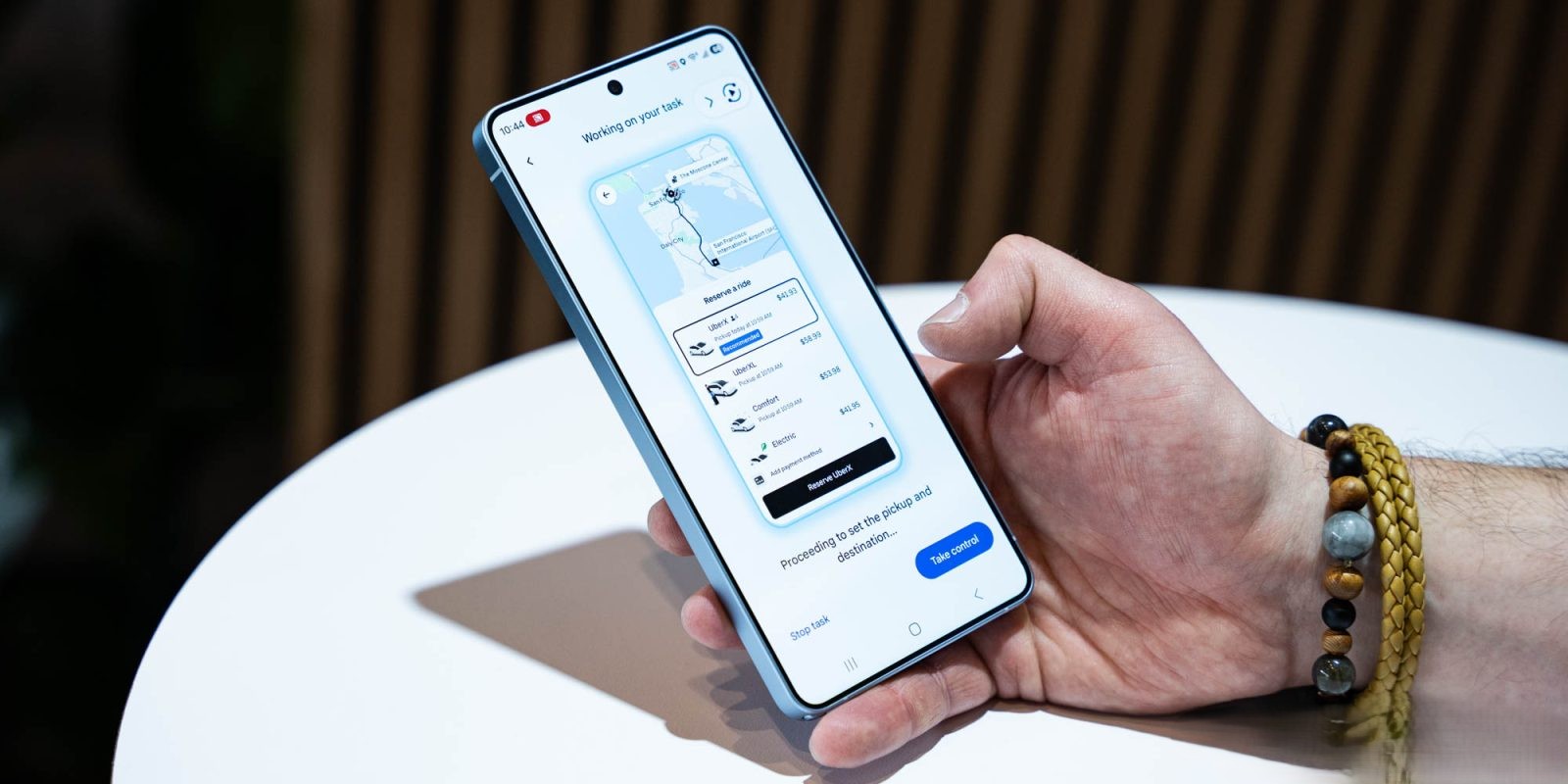
Upon first use, users are prompted to agree to the Get tasks done with Gemini terms. Once accepted, initiating a task will display a Working on this task card alongside a Task in progress system notification. This notification provides options to View progress or Stop task.
Operational Mechanics
The automation process involves the app operating within a secure virtual window on the Pixel device, with processing handled via cloud-based systems. As with other Gemini features, usage is subject to specific limits based on the user’s subscription tier:
– Free Users: 5 requests per day.
– AI Plus Subscribers: 12 requests per day.
– AI Pro Subscribers: 20 requests per day.
– AI Ultra Subscribers: 120 requests per day.
During the task execution, Gemini may seek additional information, such as preferred store locations or item sizes, to ensure accuracy. Users are required to confirm the final purchase details before completion.
Accessing Screen Automation Settings
To manage or review the screen automation settings:
1. Open the Gemini app.
2. Navigate to Settings.
3. Select Screen automation to confirm or adjust system permissions.
This feature is currently rolling out to Pixel 10, Pixel 10 Pro, and Pixel 10 Pro XL devices running Android 16 QPR3 (March 2026) in the United States. Notably, the setting also appears on the Pixel 10 Pro Fold, though it is not officially listed.
Conclusion
The integration of Gemini’s screen automation into the Pixel 10 series marks a significant advancement in enhancing user convenience and device functionality. By enabling seamless task automation through voice commands, Google continues to push the boundaries of smartphone capabilities, offering users a more efficient and intuitive experience.