Seamless Sideloading: Android’s Advanced Flow Simplifies App Transfers to New Devices
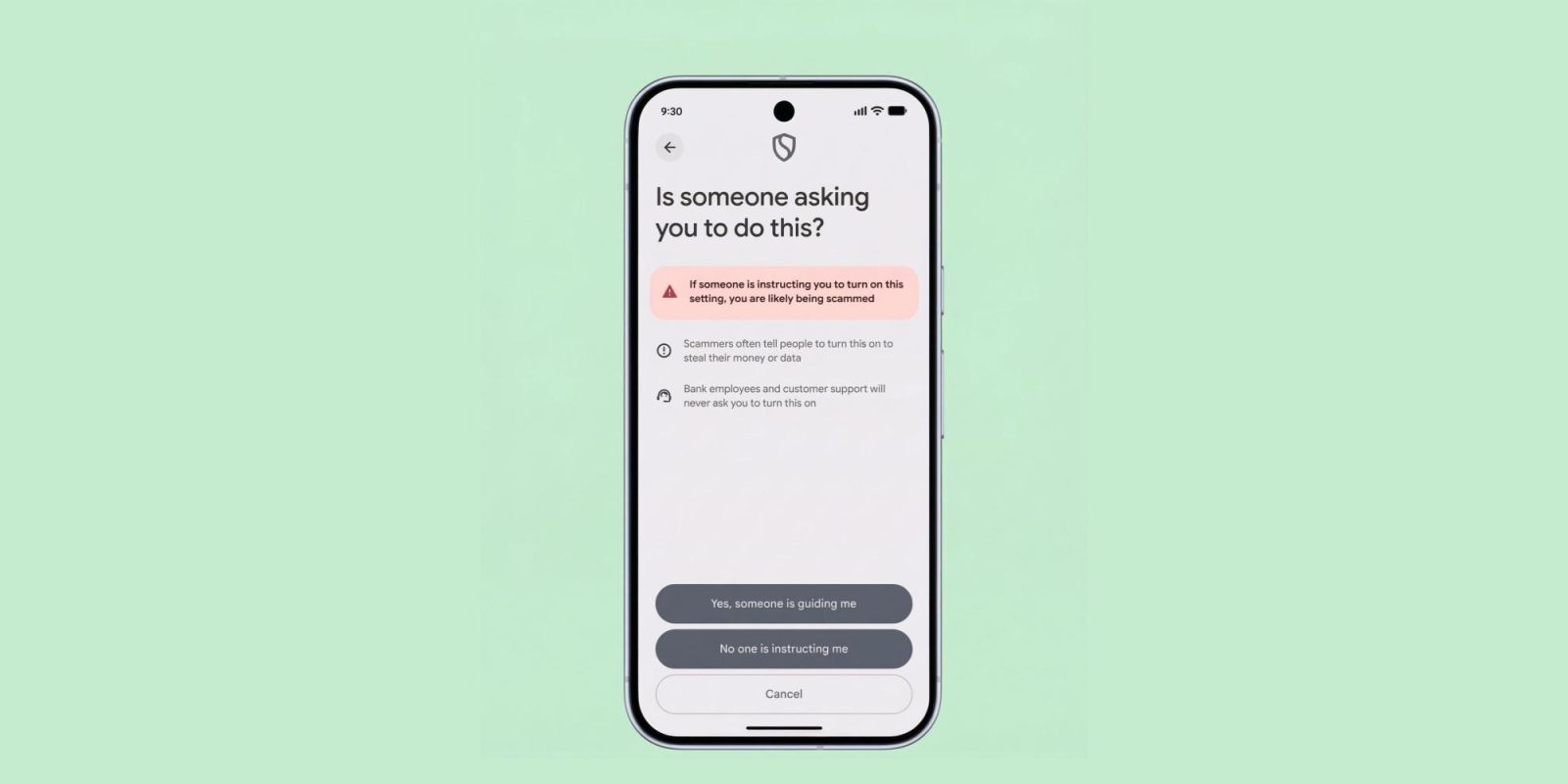
In a significant development for Android users, Google has introduced an advanced flow feature that streamlines the process of sideloading applications from unverified developers. This enhancement ensures that once users have enabled sideloading on their current device, this preference is seamlessly transferred to new devices during the setup process.
Matthew Forsythe, Google’s Chief Product Explainer, elaborated on this advancement in a recent FAQ video shared by the Android Developers account. He confirmed that the sideloading authorization, once granted, will carry over to a new device, eliminating the need for users to repeat the process when upgrading.
This update addresses previous concerns about the complexities involved in reinstalling apps from unverified sources on new devices. By automating the transfer of sideloading permissions, Google enhances user convenience and maintains the integrity of the Android ecosystem.
However, certain aspects remain to be clarified. For instance, it’s yet to be determined whether a factory reset of the current device would necessitate re-enabling the advanced flow. Similarly, questions arise about the persistence of sideloading permissions when flashing new ROMs or in scenarios lacking direct device-to-device transfer. Users are advised to stay tuned for further updates from Google on these matters.
Additional insights from the FAQ video include:
– ADB Installations: The 24-hour waiting period imposed on sideloading does not affect ADB (Android Debug Bridge) installations. Consequently, there is no ADB command available to bypass this waiting period.
– App Detection: Applications cannot detect whether the advanced flow is enabled, as this is an operating system-level change.
– Updating Unverified Apps: To update apps from unverified sources, the advanced flow must remain enabled. If users opt for the limited 7-day bypass window, they will need to reinitiate the process to update these applications once the period expires. This option is primarily intended for testing purposes rather than for regular app installations.
– Developer Mode: Maintaining developer mode is not required to continue installing unverified APKs, simplifying the process for users.
This initiative reflects Google’s commitment to balancing user flexibility with security. By refining the sideloading process, Android aims to provide a more user-friendly experience while safeguarding devices against potential risks associated with unverified applications.