Mastering iOS 26: Essential Settings to Enhance Your iPhone Experience
With the release of iOS 26, Apple has introduced a plethora of new features and customization options, allowing users to tailor their iPhone experience more precisely. Here are some key settings you might consider adjusting to optimize your device’s functionality and aesthetics.
1. Refining the Always On Display
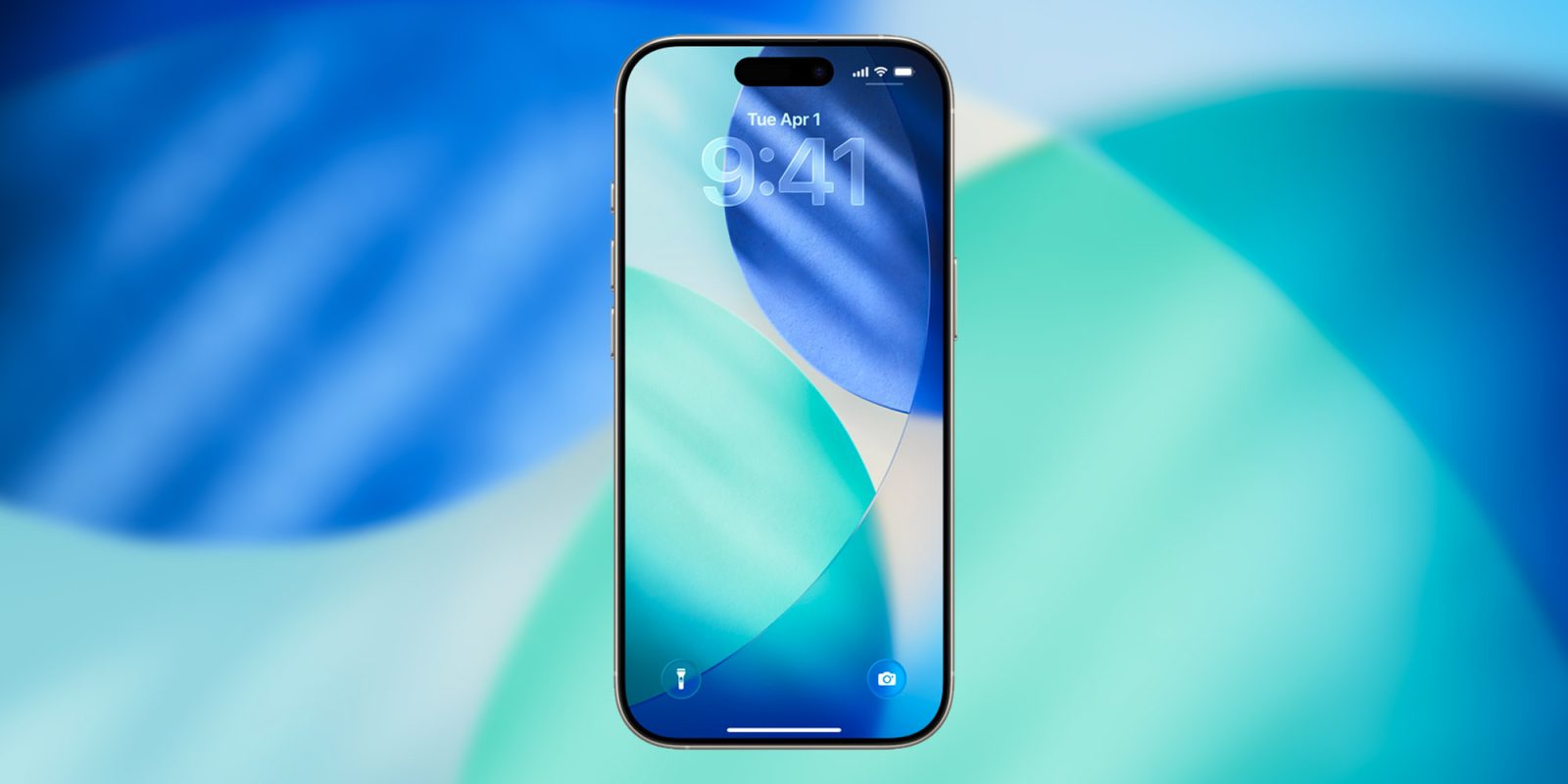
The Always On Display (AOD) feature has undergone a notable change in iOS 26. By default, the wallpaper on the AOD is blurred, presumably to enhance the visibility of the Liquid Glass clock or to conserve battery life. If you prefer the original clarity of your wallpaper, you can revert this setting:
– Navigate to Settings > Display & Brightness > Always On Display.
– Toggle off Blur Wallpaper Photo.
This adjustment will restore the AOD to display your wallpaper without any blur, maintaining the visual appeal you’re accustomed to.
2. Customizing Lock Screen Camera Access
Traditionally, swiping left on the Lock Screen quickly launches the Camera app. However, with the introduction of additional methods to access the camera—such as the Camera Control button and the Action button—some users may find the swipe gesture redundant or prone to accidental activation. To disable this gesture:
– Go to Settings > Camera.
– Scroll down to Lock Screen Swipe to Open Camera.
– Toggle off this option.
This change ensures that the camera is accessed only through your preferred methods, reducing unintended launches.
3. Activating Adaptive Power Mode
iOS 26 introduces Adaptive Power, a feature designed to extend battery life by making subtle performance adjustments when your device detects higher-than-usual battery usage. Unlike the more aggressive Low Power Mode, Adaptive Power operates discreetly to conserve energy without significantly impacting performance. To enable this feature:
– Open Settings > Battery > Power Mode.
– Select Adaptive Power.
You can also opt to receive notifications when Adaptive Power is active, keeping you informed about your device’s energy-saving actions.
4. Adjusting Liquid Glass Design Preferences
The Liquid Glass design, a prominent visual update in iOS 26, offers a sleek and modern aesthetic. However, if you find the default transparency levels challenging for readability or simply prefer a different look, you can customize this feature:
– Navigate to Settings > Display & Brightness > Liquid Glass.
– Choose between Clear and Tinted options.
The Clear option maintains the original transparency, while Tinted increases opacity, providing more contrast and potentially improving readability.
5. Reverting Camera Mode Switching Gesture
In iOS 26, Apple altered the gesture for switching between camera modes, which may feel counterintuitive to long-time users. To revert to the classic mode-switching gesture:
– Go to Settings > Camera.
– Enable Classic Mode Switching.
This setting restores the familiar swipe direction for changing camera modes, aligning with previous user experiences.
6. Managing CarPlay Messages Display
For users who utilize CarPlay, iOS 26.2 introduces the ability to disable pinned conversations in the Messages app, allowing for a simplified interface:
– Access Settings within CarPlay.
– Locate and toggle off Pinned Conversations.
This adjustment results in a straightforward list of conversation threads, reducing potential distractions while driving.
7. Customizing Home Screen Icons
iOS 26 enhances Home Screen personalization with new icon customization options, including light mode icon tinting and the introduction of a Clear mode:
– Long-press on the Home Screen and select Edit.
– Tap Customize and choose between Tinted (Light or Dark) or Clear (Light or Dark) modes.
These options allow you to tailor the appearance of your app icons to better match your aesthetic preferences.
8. Enhancing Reminders with Time Zone Support
The Reminders app now includes time zone support, a feature inspired by the Calendar app, which is particularly beneficial for travelers:
– When setting a reminder, tap on the time to access Time Zone settings.
– Specify the desired time zone for the reminder.
Additionally, you can set a default time zone for all reminders:
– Go to Settings > Apps > Reminders.
– Enable Set Manually and select your preferred time zone.
This feature ensures that your reminders are accurately timed, regardless of your location.
9. Utilizing Screen Flash for Notifications
To enhance notification visibility, especially for users with hearing impairments, iOS 26.2 introduces a screen flash option:
– Navigate to Settings > Accessibility > Audio & Visual > Flash for Alerts.
– Enable Screen to activate a brief screen flash for incoming notifications.
This visual cue can be used alone or in conjunction with the camera flash to ensure you never miss an alert.
10. Setting Urgent Reminders
The Reminders app now offers an Urgent toggle for time-based reminders, ensuring critical tasks receive the attention they deserve:
– When creating or editing a reminder, enable the Urgent option.
Urgent reminders will be prioritized, helping you manage important tasks more effectively.
By exploring and adjusting these settings, you can tailor iOS 26 to better fit your personal preferences and usage habits, enhancing both functionality and user experience.