Crafting Your Own External Hard Drive for Mac: A Comprehensive Guide
Expanding your Mac’s storage doesn’t have to be costly or complicated. By assembling your own external hard drive, you can tailor the storage solution to your specific needs, ensuring compatibility, performance, and cost-effectiveness. This guide will walk you through the process, from selecting the right components to formatting the drive for optimal use with your Mac.
Understanding the Basics
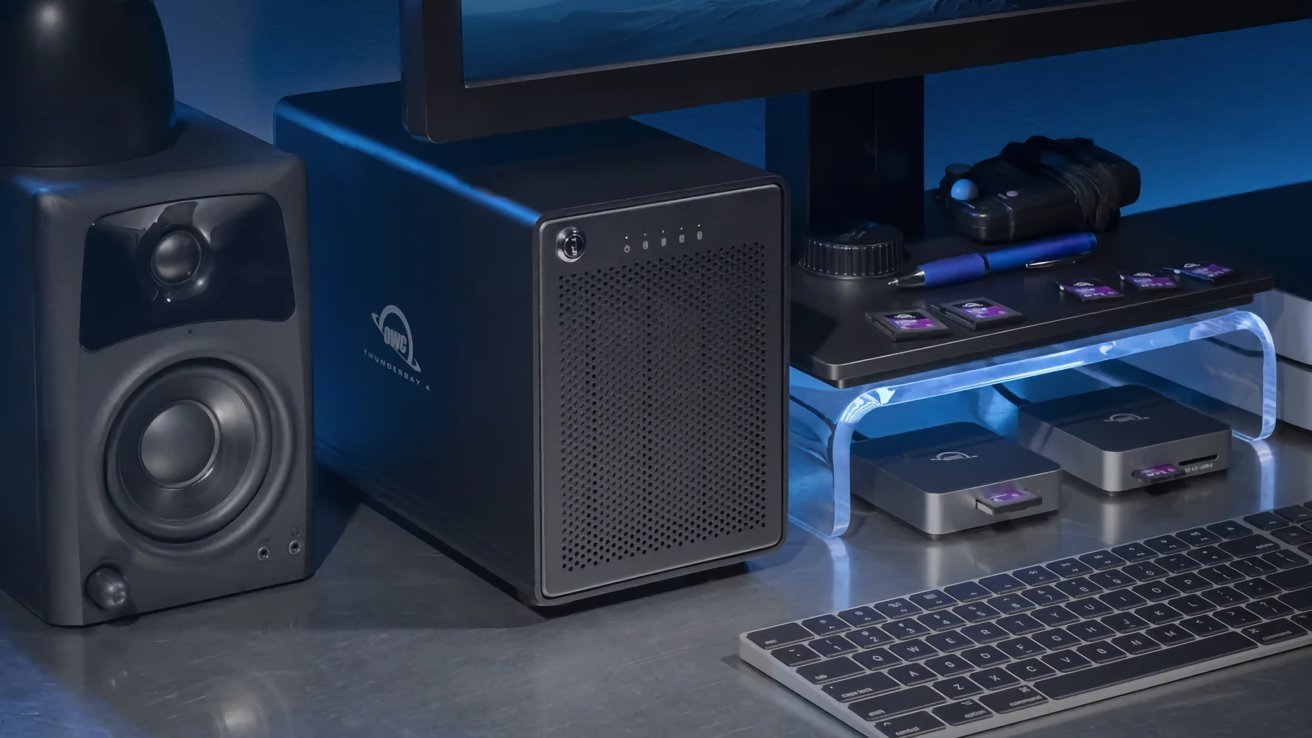
An external hard drive comprises two main components: the hard drive itself and the enclosure that houses it. The enclosure connects the drive to your Mac via interfaces like USB or Thunderbolt, providing both power and data transfer capabilities.
Choosing the Right Hard Drive
When selecting a hard drive, consider the following factors:
– Storage Capacity: Determine how much space you need based on your usage—be it for backups, media storage, or professional projects.
– Drive Type: Decide between a Hard Disk Drive (HDD) and a Solid State Drive (SSD). HDDs are more affordable and offer larger capacities, making them suitable for general storage needs. SSDs, while pricier, provide faster data access speeds and enhanced durability, ideal for tasks requiring quick data retrieval.
– Form Factor: Ensure the drive’s physical size matches the enclosure. Common sizes include 2.5-inch (typically for laptops) and 3.5-inch (standard for desktops).
Selecting a Compatible Enclosure
The enclosure is crucial for connecting your hard drive to your Mac. Consider the following:
– Interface Type: Choose an enclosure with an interface compatible with your Mac’s ports. Options include:
– USB 3.0 (5Gbps): Suitable for basic file storage and backups.
– USB-C / USB 3.2 (10Gbps): Offers faster file transfers, ideal for medium workloads.
– Thunderbolt 3/4 (40Gbps): Provides maximum speed, perfect for video editing and professional tasks.
– Drive Compatibility: Ensure the enclosure supports the drive type (HDD or SSD) and form factor (2.5-inch or 3.5-inch) you’ve chosen.
– Additional Features: Some enclosures offer features like RAID support for data redundancy, cooling mechanisms, or multiple bays for expanded storage.
Assembling the External Hard Drive
Once you’ve selected your hard drive and enclosure:
1. Install the Drive: Open the enclosure and securely mount the hard drive inside, following the manufacturer’s instructions.
2. Connect to Mac: Use the appropriate cable to connect the enclosure to your Mac.
3. Power Up: If the enclosure requires external power, plug it in and turn it on.
Formatting the Drive for macOS
To ensure full compatibility and optimal performance with your Mac:
1. Open Disk Utility: Navigate to Applications > Utilities > Disk Utility.
2. Select the Drive: In the sidebar, choose the newly connected external drive.
3. Erase the Drive: Click the Erase button.
4. Choose Format:
– APFS (Apple File System): Ideal for SSDs and macOS High Sierra or later.
– Mac OS Extended (Journaled): Suitable for HDDs and older macOS versions.
– exFAT: Use if you need compatibility between macOS and Windows systems.
5. Name the Drive: Assign a recognizable name.
6. Erase and Format: Click Erase to begin the formatting process.
Setting Up Time Machine Backups
To use your new external drive for Time Machine backups:
1. Open Time Machine Preferences: Go to System Preferences > Time Machine.
2. Select Backup Disk: Click Select Backup Disk and choose your external drive.
3. Confirm Selection: Click Use Disk to start the backup process.
Additional Tips
– Encryption: For added security, consider encrypting your external drive. In Disk Utility, select APFS (Encrypted) during the formatting process and set a strong password.
– Partitioning: If you plan to use the drive for multiple purposes (e.g., storage and Time Machine backups), create separate partitions using Disk Utility.
– Regular Maintenance: Periodically check the health of your external drive using Disk Utility’s First Aid feature to ensure data integrity.
By building your own external hard drive, you gain control over the components, ensuring a storage solution that meets your performance requirements and budget. With careful selection and proper setup, your custom external drive will serve as a reliable extension of your Mac’s storage capabilities.