Apple Restores Safari’s Compact Tab Bar in macOS 26.4 and iPadOS 26.4 Betas
In a move that resonates with long-time users, Apple has reintroduced the Compact Tab Bar in the latest developer betas of macOS 26.4 and iPadOS 26.4. This feature, which consolidates the address bar, active tabs, and controls into a single horizontal row, was notably absent in the initial releases of macOS Tahoe and iPadOS 26. Its return underscores Apple’s responsiveness to user feedback and its commitment to customizable user experiences.
The Evolution of Safari’s Interface
With the launch of macOS Tahoe and iPadOS 26, Apple unveiled a visual overhaul of Safari, introducing the Liquid Glass design. This redesign aimed to provide a more immersive browsing experience by emphasizing content and minimizing interface elements. However, in this transition, the Compact Tab Bar—a favorite among users for its space-saving design—was removed. The absence of this feature led to a more expansive tab layout, which, while visually appealing, consumed additional vertical space, especially on devices with smaller screens.
User Feedback and Apple’s Response
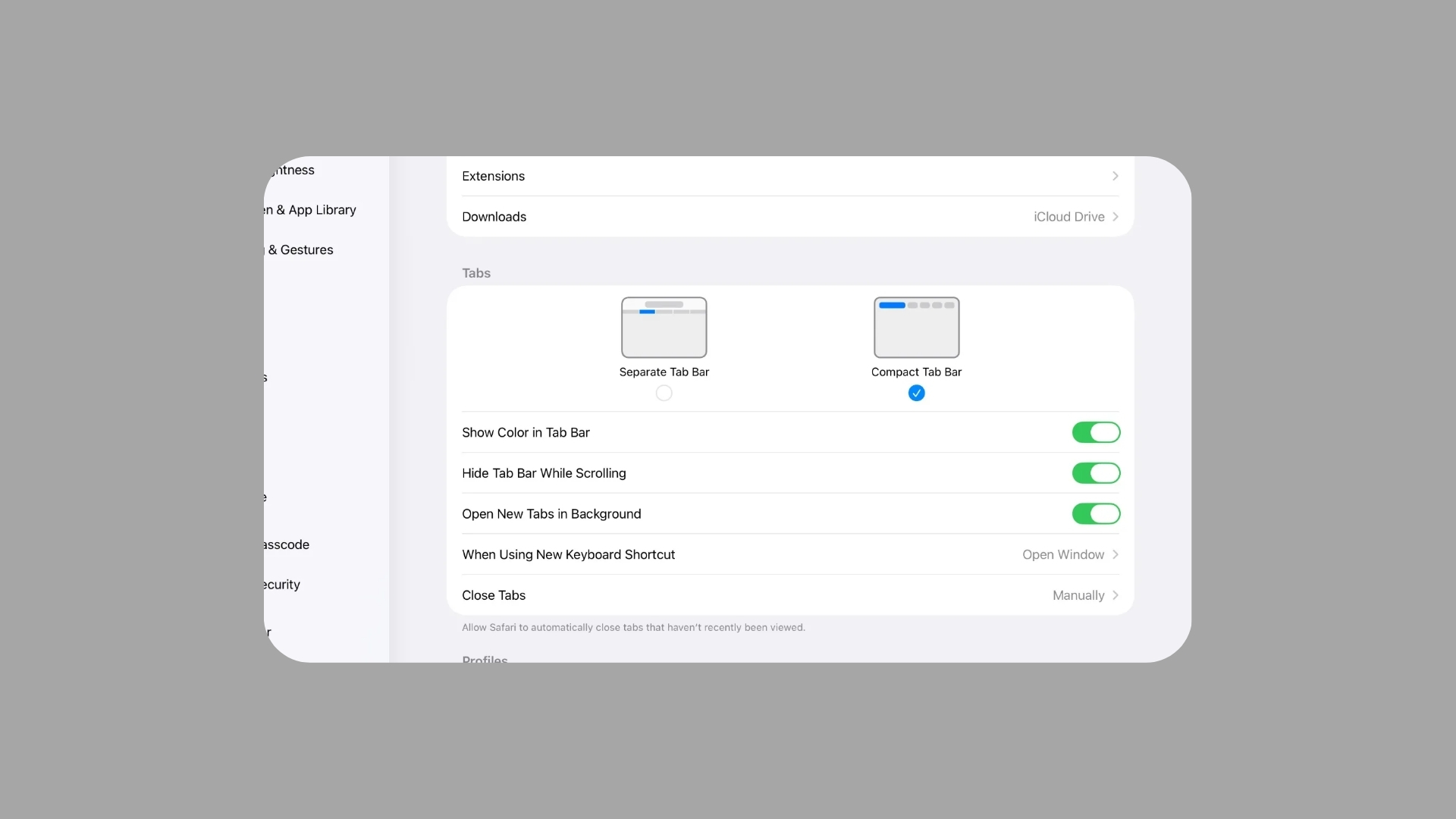
The removal of the Compact Tab Bar did not go unnoticed. Many Mac and iPad users expressed their concerns, highlighting the efficiency and familiarity the compact layout offered. Recognizing the value of user preferences, Apple has reinstated this feature in the latest developer betas, allowing users to choose between the Compact and Separate Tab Bar layouts.
Understanding the Compact Tab Bar
The Compact Tab Bar is designed to streamline the browsing interface by merging multiple elements into a single line. This consolidation includes:
– Address Bar: The field where users input URLs or search queries.
– Active Tabs: Open web pages displayed as tabs.
– Browser Controls: Navigation buttons, sharing options, and other essential tools.
By integrating these components, the Compact Tab Bar reduces the need for scrolling and maximizes the visible content area, enhancing multitasking capabilities, particularly during intensive browsing sessions.
Enabling the Compact Tab Bar
Users can easily switch to the Compact Tab Bar by following these steps:
– On Mac:
1. Open System Settings.
2. Navigate to Safari.
3. Select Compact Tab Bar.
– On iPad:
1. Open Settings.
2. Tap on Safari.
3. Toggle on Compact Tab Bar.
Users can revert to the Separate Tab Bar view at any time by following the same steps and selecting the alternative option.
The Broader Context: Safari’s Design Iterations
Apple’s approach to Safari’s design has seen several iterations over the years, often balancing innovation with user familiarity. For instance, in earlier versions, Apple introduced changes that were later adjusted based on user feedback. The reintroduction of the Compact Tab Bar is a testament to this iterative process, reflecting Apple’s dedication to refining user experiences.
Looking Ahead
As of now, macOS 26.4 and iPadOS 26.4 are in the developer beta phase. Public beta versions are anticipated to follow shortly, with a broader release expected in the spring. This timeline suggests that all users will soon have the flexibility to choose their preferred tab bar layout, catering to individual browsing habits and screen sizes.
Conclusion
The return of the Compact Tab Bar in Safari highlights Apple’s commitment to user-centric design. By offering customizable interface options, Apple ensures that users can tailor their browsing experience to their preferences, enhancing both functionality and satisfaction.