Mastering the Latest AirPods Features: A Comprehensive Guide
Apple’s AirPods have continually evolved, introducing a suite of innovative features that enhance user experience. With the release of iOS 18 and iOS 26, AirPods Pro 2, AirPods Pro 3, and AirPods 4 have received significant updates. This guide delves into these new functionalities and provides step-by-step instructions to maximize their potential.
1. Head Gestures: Hands-Free Control
Availability: AirPods Pro 2, AirPods Pro 3, AirPods 4
The introduction of head gestures allows users to interact with Siri and manage notifications without physical touch.
– Accepting Calls or Responding to Notifications: Nod your head up and down.
– Declining Calls or Dismissing Notifications: Shake your head side to side.
Setup Instructions:
1. Ensure your AirPods are connected to your iPhone.
2. Open the Settings app and select your AirPods at the top.
3. Scroll to Head Gestures and toggle the feature on.
4. Assign gestures for Accept, Reply and Decline, Dismiss actions.
Note: Activate Announce Calls and Announce Notifications under Settings > Notifications to utilize this feature.
2. Voice Isolation: Crystal-Clear Conversations
Availability: AirPods Pro 2, AirPods Pro 3, AirPods 4
Voice Isolation leverages machine learning and the H2 chip to enhance voice clarity by minimizing background noise during calls.
Activation Steps:
1. During a call, swipe down to access Control Center.
2. Tap the Controls button.
3. Select Voice Isolation to enable the feature.
3. Personalized Spatial Audio: Immersive Gaming Experience
Availability: AirPods 3, AirPods 4, all AirPods Pro models, AirPods Max
Personalized Spatial Audio with dynamic head tracking brings a theater-like sound experience to gaming.
Setup Guide:
1. Connect your AirPods to your iPhone.
2. Navigate to Settings > [Your AirPods].
3. Tap on Personalized Spatial Audio and follow the on-screen instructions, which include a Face ID-style scan of your ears.
This customization ensures an optimal audio experience tailored to your ear shape.
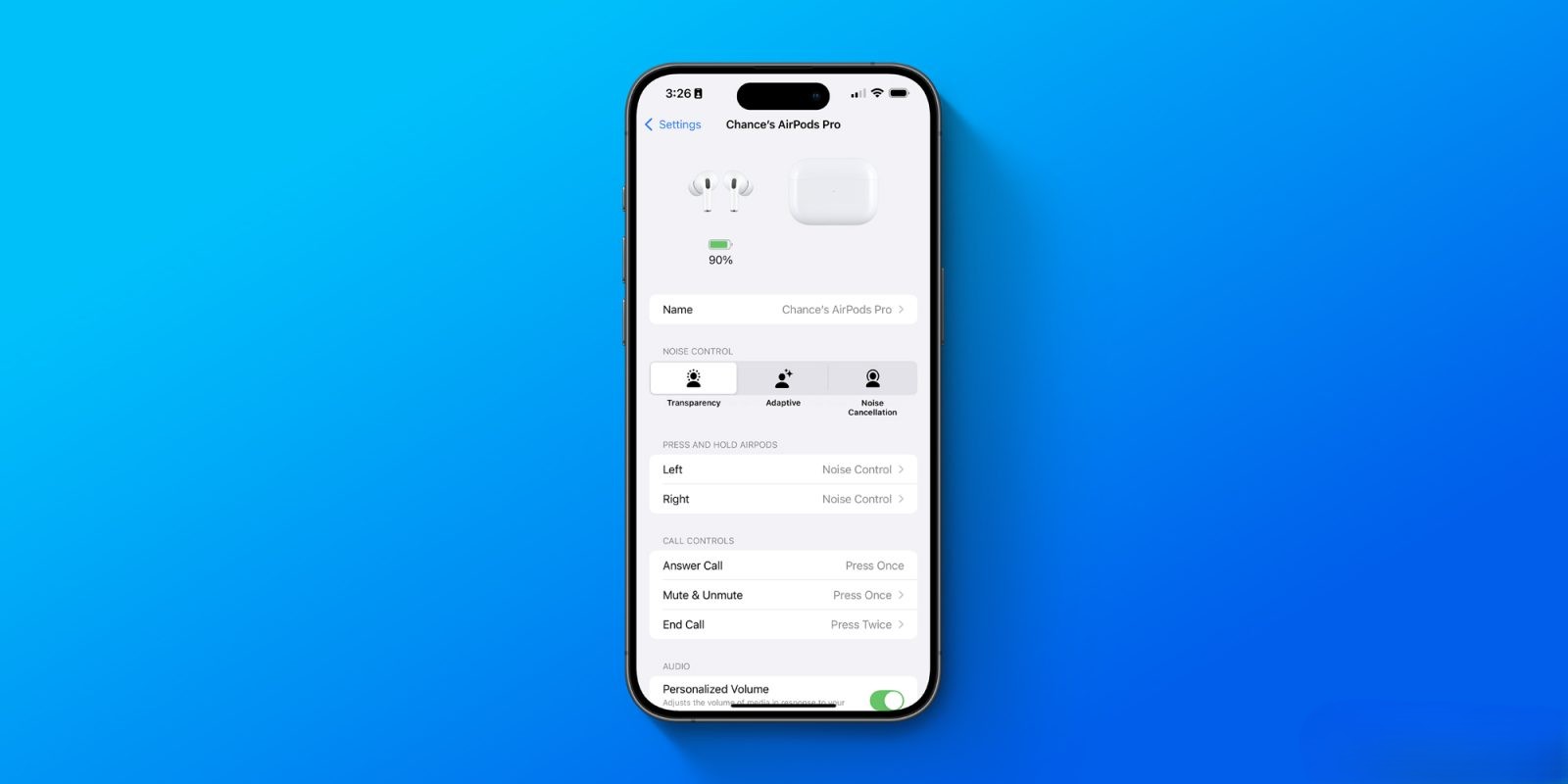
4. Adaptive Audio Customization: Tailored Noise Control
Availability: AirPods Pro 2, AirPods Pro 3, AirPods 4 with Active Noise Cancellation
Adaptive Audio intelligently blends Active Noise Cancellation and Transparency mode, adjusting to your environment.
Customization Steps:
1. With AirPods connected, open Settings and select your AirPods.
2. Tap on Adaptive Audio.
3. Adjust the slider to allow for Less Noise or More Noise based on your preference.
5. Hearing Health Features: Monitor Your Auditory Well-being
Availability: AirPods Pro 2, AirPods Pro 3
Apple has integrated hearing health features, enabling users to monitor their auditory environment and receive notifications if sound levels could impact hearing.
How to Use:
1. Connect your AirPods and open Settings.
2. Navigate to Health > Hearing.
3. Review your headphone audio levels and set up notifications for high decibel exposure.
6. Sleep Detection: Automatic Playback Pause
Availability: AirPods Pro 2, AirPods Pro 3, AirPods 4
This feature detects when you’ve fallen asleep while wearing your AirPods and automatically pauses playback, eliminating the need for manual sleep timers.
Activation Process:
1. Ensure your AirPods are connected to your iPhone.
2. Open Settings and select your AirPods.
3. Toggle on Sleep Detection.
Note: This feature may work in tandem with the Apple Watch’s sleep tracking capabilities for enhanced accuracy.
7. Camera Control: Capture Moments Effortlessly
Availability: AirPods Pro 2, AirPods Pro 3, AirPods 4
AirPods now offer the ability to control your iPhone or iPad camera remotely, allowing you to capture photos or videos with a simple press on the AirPods stem.
How to Enable:
1. Connect your AirPods to your device.
2. Open Settings and select your AirPods.
3. Assign the Camera Control function to a press gesture under Press and Hold AirPods settings.
Usage: Open the Camera app and press the assigned gesture on your AirPods to capture a photo or start recording a video.
8. Studio-Quality Audio Recording: Professional Sound Capture
Availability: AirPods Pro 2, AirPods Pro 3, AirPods 4
Transform your AirPods into high-quality recording devices, ideal for content creators and professionals.
To Utilize:
1. Connect your AirPods to your device.
2. Open your preferred recording app.
3. Ensure AirPods are selected as the input device.
This feature delivers enhanced voice quality, including 16-bit, 48kHz audio, suitable for podcasts, voice-overs, and more.
9. Automatic Switching for CarPlay: Seamless Audio Transition
Availability: All AirPods models
AirPods can now automatically switch their Bluetooth connection to and from CarPlay, ensuring uninterrupted audio experiences when entering or exiting your vehicle.
Setup Instructions:
1. Ensure your AirPods and CarPlay are connected to your iPhone.
2. Open Settings > Bluetooth.
3. Tap the i next to your AirPods and enable Automatic Switching.
10. Enhanced Voice Quality on Calls: Clearer Conversations
Availability: AirPods Pro 2, AirPods Pro 3, AirPods 4
Experience improved voice clarity during calls, even in noisy environments, thanks to advanced algorithms and the H2 chip.
No additional setup is required; this enhancement is automatically applied during calls.
Conclusion
Apple’s continuous software updates have significantly enhanced the functionality of AirPods, offering users a more intuitive and immersive experience. By familiarizing yourself with these features and customizing them to your preferences, you can fully leverage the capabilities of your AirPods.