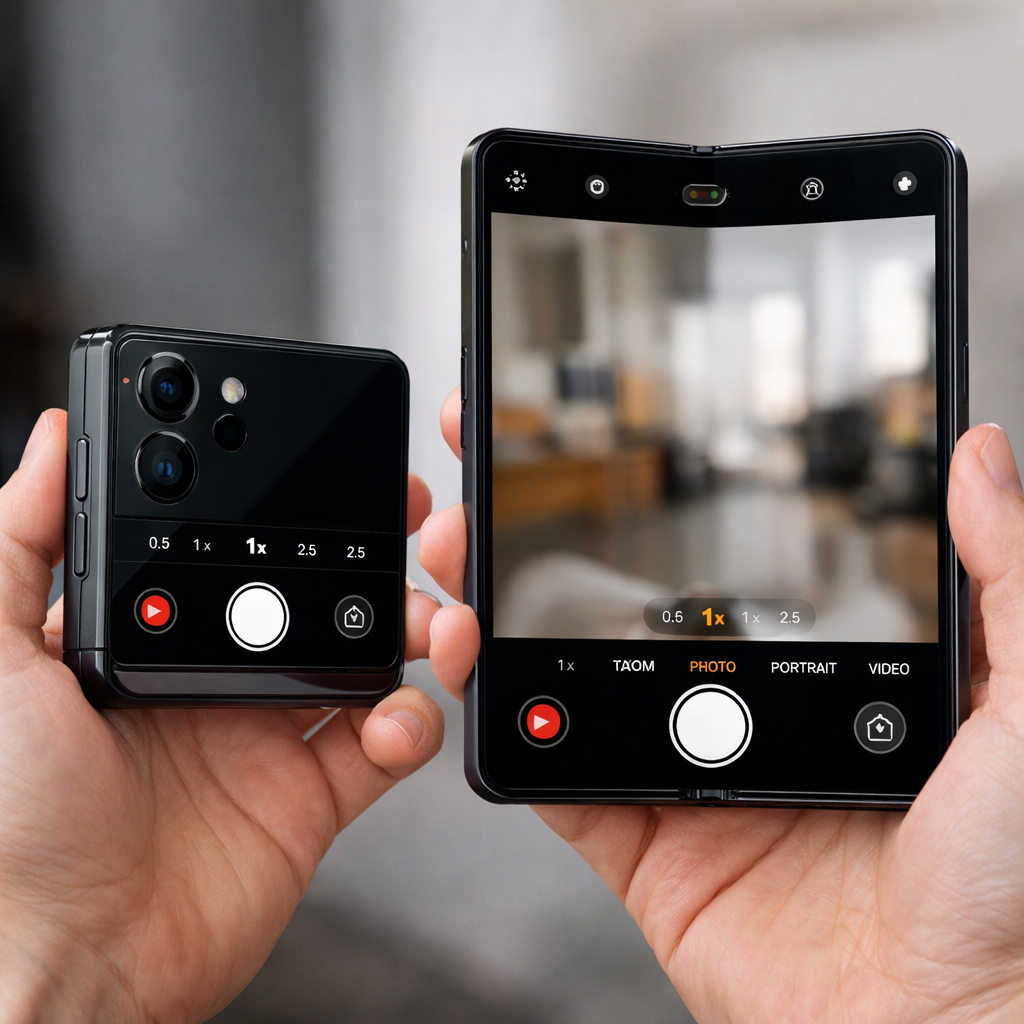
The iPhone Duo is making waves—but it doesn’t use Face ID like current iPhones. Instead, it relies on Touch ID, which takes some getting used to. After hands-on time with the Duo, a few settings tweaks stood out as must-haves to make daily use smoother, particularly for unlocking, navigation, photos, and overall convenience.
Maximizing Touch ID Usability
One of the biggest shifts with the Duo is hardware: there’s no Face ID. Unlocking the phone, using Apple Pay, and accessing apps all rely on pressing the side-mounted Touch ID sensor. To adapt, start by registering several fingerprints—not just from one hand but from multiple fingers and both sides. Because you’ll be holding the phone in different orientations (vertical, horizontal, folded, flipped), having many registered prints means you’re less likely to fumble every time you need to unlock.
If you also wear an Apple Watch, turn on its ability to unlock the Duo. This means you won’t need to reach for the sensor as often. For this to work, the watch must be locked with a passcode and worn on your wrist. When set up, it saves you steps—especially when your hands aren’t free or positioned well for Touch ID.
Another option: enable the “Rest Finger to Open” setting. Rather than pressing the sensor, you can simply rest your finger lightly. Some users prefer the tactile press, but this setting offers a speedier, more fluid unlock. Try both to see which feels right.
Everyday Usability Adjustments
Volume buttons on the Duo stay fixed by default—”Volume Up” is always the same physical button, no matter how the device is rotated. Turning off this fixed positioning lets the volume controls reorient with the device, so the topmost button always increases sound. It aligns better with how you’re holding it as you fold or flip the phone.
Screenshot capture is also more involved than usual: normally, you’d press the side button plus a volume button. But there’s a built-in accessibility feature called Back Tap that lets you assign a double or triple tap on the back of the phone to take screenshots. That means one hand can do it, freeing up the other.
Reachability—traditionally used on large devices to bring the top of the screen into reach—is tweaked on the Duo. Because its width and folding change what feels “far away,” swiping from either screen edge brings it closer. That said, this is turned on by default; some people might find it activates by accident, so it’s also simple to disable.
Also worth setting up: a shortcut that automatically locks the screen when the Duo is folded closed. There’s no toggle for this yet, but the Shortcuts app lets users build one. You trigger an automation for “Opened or Closed” under Display, set it to “Closed,” and then add the “Lock Screen” action. It locks right when you close the device.
Camera Tips that Make a Difference
The Duo’s Camera app now lets you customize which tools appear above the frame—flash, Live Photos, Night Mode, etc.—and how they’re arranged. A six-dot menu in the bottom right of the camera interface lets you pick what you want and move those tools into the order that feels most natural to you.
Another useful tweak involves Smart Take, the Duo’s hands-free group or self-shot mode. It works by detecting motion or pose changes and then auto-triggering a photo, but by default it flashes when capturing. If the flash is too bright or distracting, you can disable it under Settings → Camera → Flash During Capture so that shots don’t produce the flash cue.
Setting aside some camera and shortcut tweaks, users can adjust many of these nine settings within a few minutes—once you know where to find them. They collectively make the Duo far more intuitive and forgiving when you’re adjusting to its unique form factor.
Why this matters: the Duo’s folding design and omission of Face ID require new habits. These tweaks reduce friction—less awkward finger stretching, fewer accidental inputs, faster shots, better ergonomics. If Apple refines these in future updates, they could become core to the Duo experience. For now, knowing what to change early saves frustration and unlocks the device’s true potential.