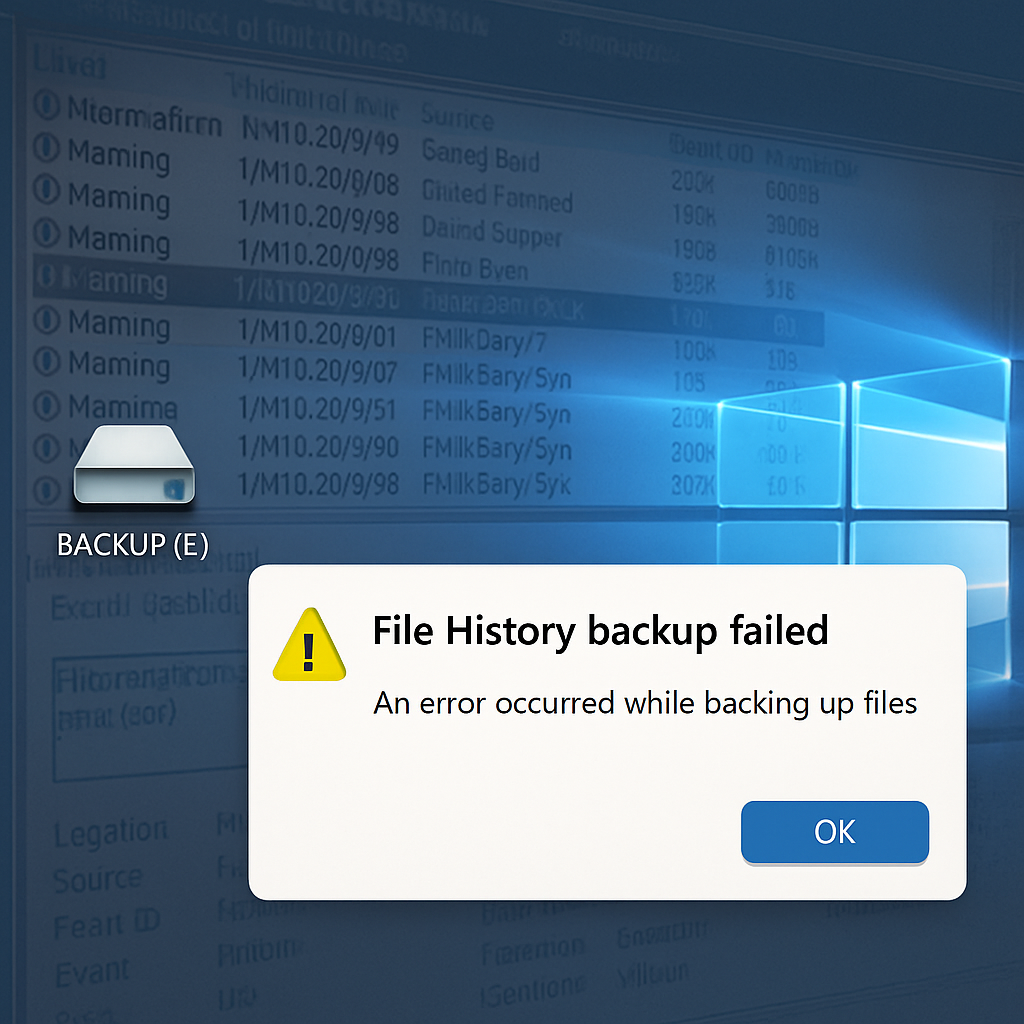
Microsoft has acknowledged a critical problem affecting File History backups following its September 2026 Windows security updates. On affected systems, File History may fail to create or update backups, leaving users unaware that their files aren’t being safely backed up despite all appearances. This issue poses a risk for anyone relying on the built-in backup system.
File History, accessible via the Control Panel under System and Security, is designed to regularly copy user files to an external drive or network location while preserving older versions. It’s a native Windows backup solution for recovering documents that have been modified, corrupted, or accidentally erased.
What’s Going Wrong
The issue was officially documented by Microsoft on September 19, after the rollout of security patches on September 8. It affects various versions of Windows 11—namely 23H2, 24H2, 25H2, and the newly released 26H1—as well as Windows 10 versions 22H2 and 21H2, plus Enterprise LTSC 2019 and 2016. Windows Server versions are reportedly not impacted.
Symptoms include recurring “Reconnect your drive” warnings even though the external or network drive remains properly connected. Users may notice that the backup timestamp stays stale or shows no recent backups, and previously protectable files might display “No previous version available.” In some cases, logs in Event Viewer show crashes tied to FileHistory.exe and KERNELBASE.dll, indicating internal failures rather than drive issues.
What Microsoft Is Doing and What You Can Do
Microsoft is developing a fix for a future Windows update and plans to publish more detailed information when it becomes available. Until then, users are advised to manually verify their backups instead of assuming protection just because a drive is connected. That involves checking the most recent backup timestamp in the File History interface and testing recovery of important files via the restore tool. Scrutinize Event Viewer for the associated crashes to confirm issues.
Some users have reported that uninstalling update KB5124008 (for Windows 11 versions 24H2 and 25H2) restores File History functionality. But removing security updates carries its own risks—doing so may reintroduce vulnerabilities. Organizations should track backup success carefully, watch for outdated timestamps, and regularly test restore capability rather than trusting system indicators alone.
This incident drives home a vital point: backups are only reliable when you verify them. Just because a system shows that a backup is connected or a job has run doesn’t mean files are truly secure. For IT teams and individual users alike, assuming protection without confirmation could lead to unpleasant surprises.
Analytical Take: The File History failure underscores how even mature backup tools can be compromised by routine updates. As systems grow more complex and patches more frequent, monitoring and verification become essential parts of data protection. Expect Microsoft to issue hotfixes soon, but in the meantime this serves as a reminder: a reliable backup strategy includes redundancy, testing, and human attention—not just automated promises.