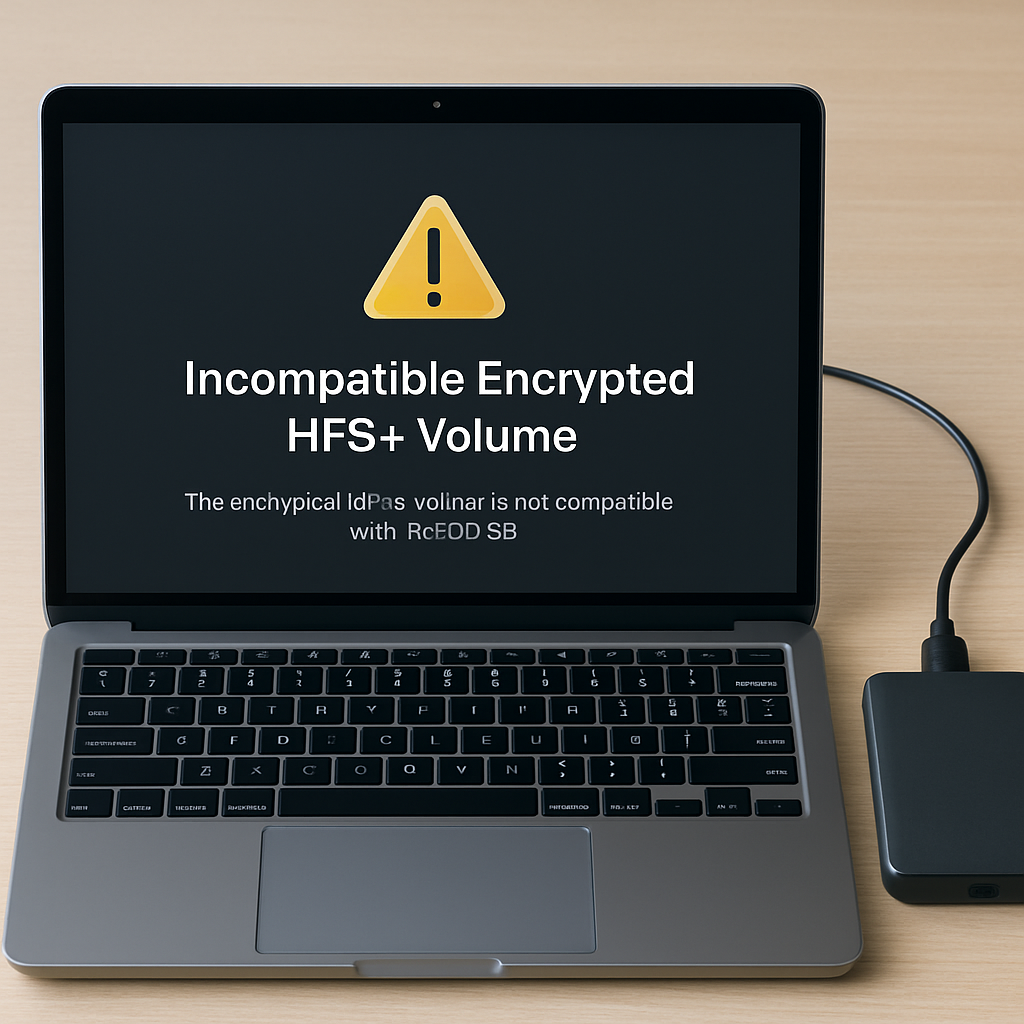
Apple has announced that with the release of macOS 28, support for encrypted Mac OS Extended (HFS+) volumes will be discontinued. This change requires users to decrypt or reformat these volumes to maintain compatibility with future macOS versions.
In a recent support document, Apple detailed that starting with macOS 28, the Mac OS Extended file system will only be supported for unencrypted volumes. Users utilizing encrypted HFS+ external drives or other encrypted legacy Mac-formatted volumes must either decrypt or reformat these volumes to continue using them.
While Apple has not provided a specific reason for this change, it appears to be part of the ongoing transition to the Apple File System (APFS), which offers built-in encryption support and replaced Mac OS Extended as the default file system in macOS High Sierra.
To assist users in identifying affected volumes, macOS 26 and later versions will notify users when they are using an encrypted Mac OS Extended disk that will not be compatible with macOS 28 or later. The notification will specify the volume by name. Users can also manually check their volumes by following these steps:
- Open Disk Utility, located in the Utilities folder within the Applications folder, or use Spotlight to find and open it.
- From the View menu in the menu bar, select “Show Only Volumes.”
- In the sidebar of Disk Utility, select the volume in question.
- Examine the information displayed directly under the volume’s name on the right. If both “Mac OS Extended” and “Encrypted” are indicated, the volume will not be compatible with macOS 28 and later.
Apple emphasizes that macOS 28 and subsequent versions will continue to support unencrypted volumes using the Mac OS Extended format. To ensure compatibility with future macOS releases, Apple recommends users back up their data and then either reformat the volume to APFS or APFS (Encrypted) or decrypt the volume. Reformatting will permanently delete all data on the volume but will ensure future compatibility. Decrypting the volume involves connecting the drive to the Mac, entering the encryption password to unlock it, and selecting “Decrypt” from the shortcut menu that appears upon control-clicking the drive’s icon.
This development underscores Apple’s commitment to advancing its file system technology. Users should proactively address this change to avoid potential data access issues when upgrading to macOS 28.