Mastering NameDrop: Effortless iPhone Contact Sharing in Seconds
In the fast-paced digital era, exchanging contact information swiftly and securely is paramount. Apple’s introduction of NameDrop in iOS 17 revolutionizes this process, allowing iPhone users to share their contact details seamlessly by simply bringing two devices close together. This guide delves into the functionalities of NameDrop, offering step-by-step instructions, customization options, and troubleshooting tips to enhance your contact-sharing experience.
Understanding NameDrop
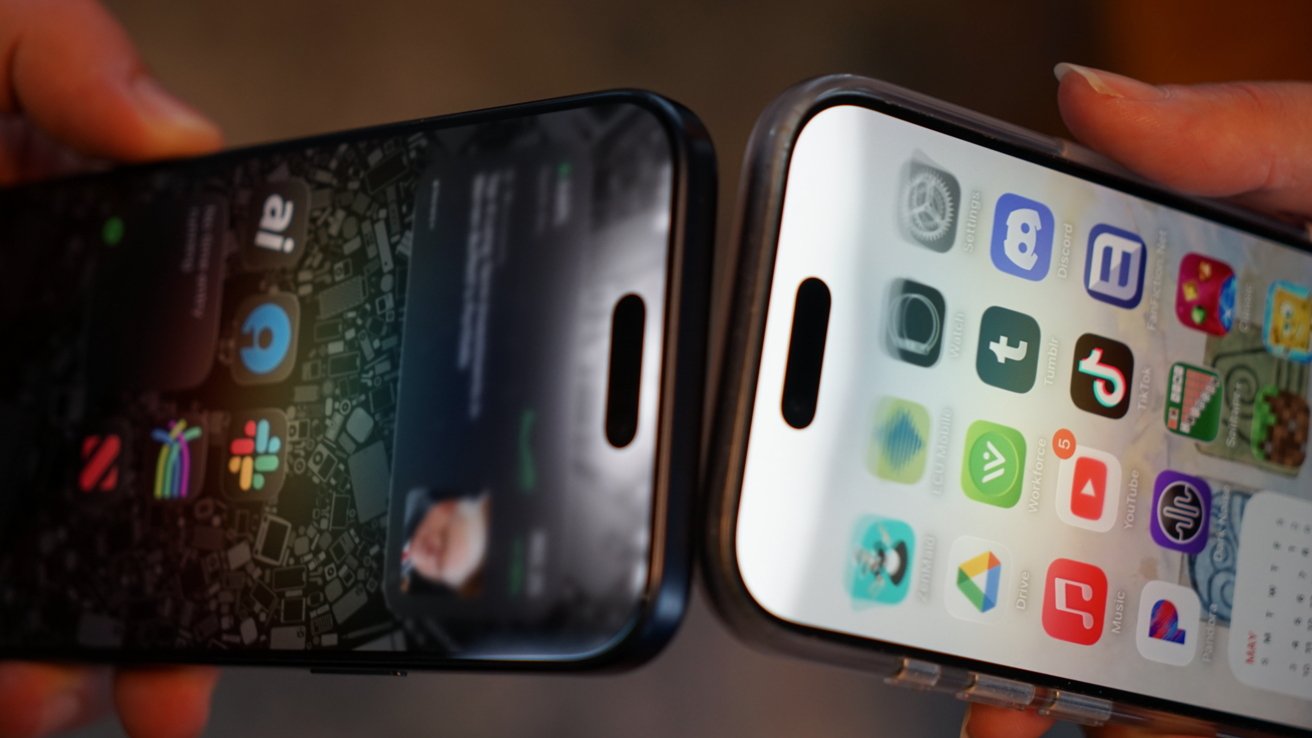
NameDrop is a feature integrated into iOS 17 that enables users to exchange contact information effortlessly. By positioning two iPhones near each other, users can share their name, Contact Poster, and primary phone number or email address without the need for manual input. This intuitive gesture not only simplifies the process but also adds a touch of sophistication to the way we connect.
Setting Up NameDrop on iPhone
To utilize NameDrop effectively, ensure both iPhones meet the following criteria:
1. Operating System: Both devices must be running iOS 17 or later.
2. AirDrop Activation: AirDrop should be enabled on both devices.
3. Device Unlocking: Both iPhones must be unlocked and displaying the Home Screen or Lock Screen.
Steps to Use NameDrop:
1. Position the Devices: Hold the top edges of both iPhones close together for a brief moment.
2. Await the Prompt: A NameDrop animation accompanied by a Contact Poster preview will appear on both screens.
3. Choose Sharing Option: Select Receive Only to obtain the other person’s contact information or Share to exchange contacts mutually.
4. Maintain Proximity: Keep the devices close until the transfer is complete.
Important Considerations:
– Connectivity: Ensure that Wi-Fi and Bluetooth are active on both devices, as disabling these can interrupt the process.
– User Confirmation: NameDrop requires user approval before any information is shared, preventing unauthorized data exchange.
Utilizing NameDrop on Apple Watch
NameDrop extends its functionality to the Apple Watch, allowing users to share contact information between Apple Watches or between an Apple Watch and an iPhone.
Steps to Use NameDrop on Apple Watch:
1. Align Devices: Bring the front of the Apple Watch near the top edge of the other user’s iPhone or Apple Watch.
2. Wait for Prompt: A NameDrop animation will appear, prompting the sharing interface.
3. Approve Exchange: Confirm the exchange and keep the devices close until the transfer is finalized.
Note: The Apple Watch interface offers a simplified version of the Contact Poster preview, displaying options like Continue or Receive Only.
Creating and Editing a Contact Poster for NameDrop
A well-crafted Contact Poster enhances the NameDrop experience by providing a visual representation of your contact information.
Steps to Create or Edit a Contact Poster:
1. Access Contacts App: Open the Contacts app on your iPhone.
2. Select Your Card: Tap My Card at the top of the contacts list.
3. Edit Information: Tap Edit and then tap your contact photo.
4. Customize Poster: Choose and personalize your Contact Poster and photo.
5. Enable Sharing: Turn on Name & Photo Sharing to share your updated information with others.
6. Set Sharing Preferences: Choose Contacts Only for automatic sharing with saved contacts or Always Ask to approve sharing each time.
Customizing Shared Information with NameDrop
NameDrop allows users to select specific contact details to share, providing control over the information exchanged.
Steps to Customize Shared Information:
1. Initiate NameDrop: When the NameDrop interface appears, your Contact Poster, name, and primary contact details will be displayed.
2. Access Sharing Options: Tap the > button next to your phone number or email address.
3. Select Details: A list of shareable contact details will appear with checkboxes. Choose the specific information you wish to share.
4. Confirm Sharing: After selecting the desired details, tap Share to proceed.
Note: Information such as pronouns, addresses, and birthdays are not shared via NameDrop, ensuring privacy.
Addressing Common NameDrop Issues
Users may occasionally encounter situations where NameDrop activates other features like AirDrop or SharePlay.
Common Causes and Solutions:
– Active Media: If music or video is playing, SharePlay may be triggered. Ensure no media is active before initiating NameDrop.
– Displayed Content: If a shareable file or link is open, AirDrop may activate. Return to the Home Screen or Lock Screen before using NameDrop.
Disabling NameDrop
For users who prefer not to use NameDrop, the feature can be disabled through the settings.
Steps to Disable NameDrop:
1. Open Settings: Access the Settings app on your iPhone.
2. Navigate to General: Tap General.
3. Select AirDrop: Tap AirDrop.
4. Disable Proximity Sharing: Turn off Bringing Devices Together.
Conclusion
NameDrop streamlines the process of exchanging contact information, offering a quick and secure method for iPhone and Apple Watch users. By understanding its functionalities, customizing shared information, and addressing potential issues, users can fully leverage this feature to enhance their connectivity.