Expanding Your MacBook Neo’s Display Capabilities: Top Docking Solutions
The MacBook Neo, powered by Apple’s A18 Pro chip, is designed as an affordable and efficient laptop. However, it natively supports only one external display at up to 4K resolution at 60Hz, alongside its built-in 13-inch screen. This limitation can be a hurdle for users requiring multiple monitors for enhanced productivity. Fortunately, DisplayLink technology offers a solution by enabling multiple external displays through compatible docking stations.
Understanding DisplayLink Technology
DisplayLink docks function as virtual graphics adapters, transmitting compressed video data over USB-C connections. This method bypasses the MacBook Neo’s inherent display limitations, allowing users to connect multiple external monitors. To utilize this technology, installing the appropriate DisplayLink drivers on macOS is essential.
Top DisplayLink Docking Stations for MacBook Neo
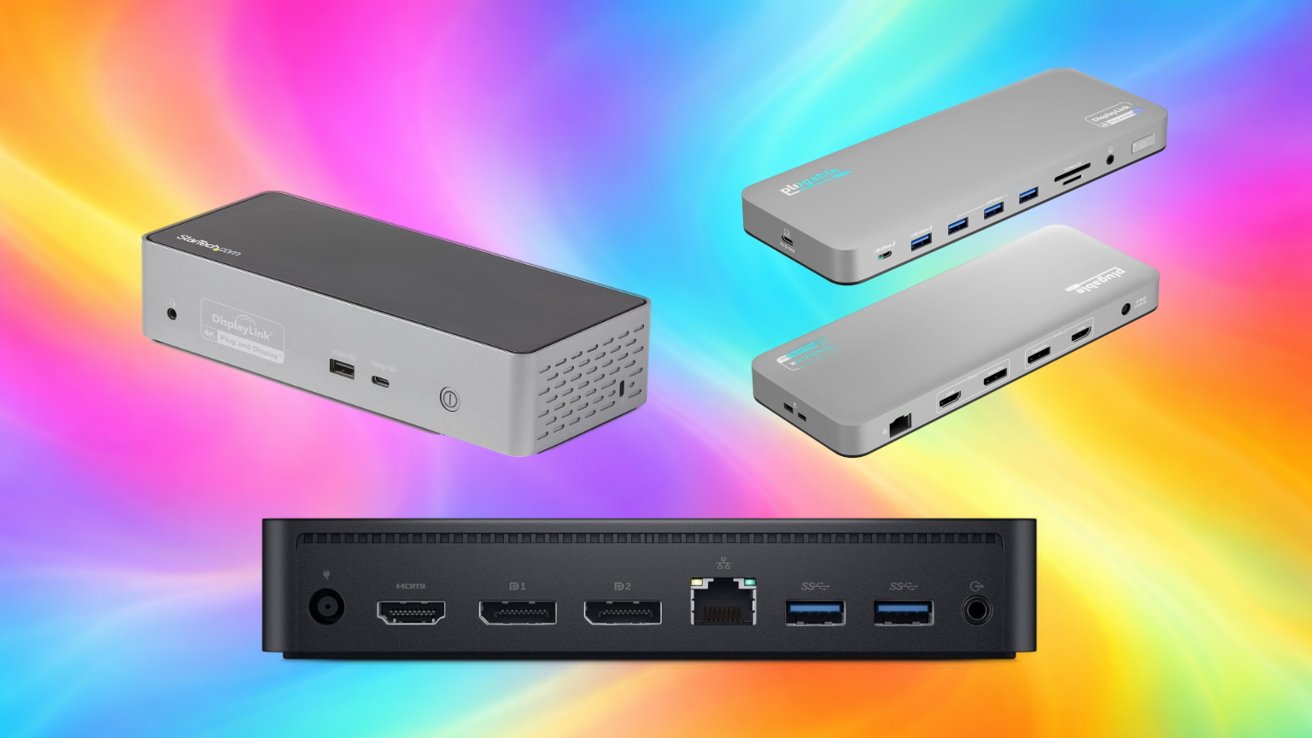
1. Plugable UD-6950PDH USB-C DisplayLink Dock
The Plugable UD-6950PDH is tailored for users seeking to expand their display setup. It supports dual 4K displays at 60Hz via HDMI or DisplayPort connections, eliminating the need for additional adapters. Beyond display capabilities, the dock offers:
– Two HDMI ports
– Two DisplayPort connections
– One USB-C host connection
– One front-facing USB-C port for charging or peripherals
– Four USB-A 5Gbps ports
– Gigabit Ethernet
– 3.5mm headset jack
Additionally, it delivers up to 100W of charging power. The Plugable UD-6950PDH is typically priced around $179.95, though prices may vary based on availability and promotions.
2. Dell D6000 Universal Dock
The Dell D6000 Universal Dock is renowned for its versatility, supporting up to three 4K displays. However, it’s important to note that while two monitors can run at 4K 60Hz, the third is limited to 4K at 30Hz. The dock also supports a single 5K display configuration when both DisplayPort outputs are utilized. Key features include:
– Two DisplayPort connections
– One HDMI port
– Four USB-A 3.0 ports
– USB-C host cable
– Gigabit Ethernet
– 3.5mm audio jack
It provides up to 65W of power delivery for charging connected laptops. The Dell D6000 Universal Dock is generally available for approximately $114.99.
3. StarTech DK31C4DPPD USB-C Quad Monitor Dock
For users requiring extensive display setups, the StarTech DK31C4DPPD offers support for up to four 4K displays at 60Hz. This dock utilizes DisplayLink technology to enable multiple extended monitors on systems that typically support only one external display. Features include:
– Four HDMI or DisplayPort video outputs (any combination)
– One USB-C host connection
– One USB-C 10Gbps port
– Three USB-A 5Gbps ports
– Gigabit Ethernet
– 3.5mm headset jack
It also offers 100W USB-C power delivery for charging connected laptops. The StarTech DK31C4DPPD is priced around $236.
4. Wavlink USB-C Dual 4K Docking Station
The Wavlink USB-C Dual 4K Docking Station is designed to connect multiple external monitors through a single USB port. It supports dual 4K displays at 60Hz using a combination of HDMI and DisplayPort connections. Additional features include:
– Two HDMI ports
– Two DisplayPort connections
– Six USB-A 3.0 ports
– USB-C host connection
– Gigabit Ethernet
The dock provides up to 65W of USB-C power for charging connected laptops. The Wavlink USB-C Dual 4K Docking Station is typically available for about $148.99.
Considerations When Choosing a Dock
When selecting a docking station for your MacBook Neo, consider the following:
– Number of Displays: Determine how many external monitors you need and ensure the dock supports that number.
– Port Availability: Assess the types and numbers of ports required for your peripherals, such as USB-A, USB-C, Ethernet, and audio jacks.
– Power Delivery: Ensure the dock provides sufficient power delivery to charge your MacBook Neo and connected devices.
– Compatibility: Verify that the dock is compatible with macOS and supports DisplayLink technology.
Installation and Setup
To utilize multiple external monitors with your MacBook Neo:
1. Install DisplayLink Drivers: Download and install the latest DisplayLink drivers from the manufacturer’s website to ensure compatibility and optimal performance.
2. Connect the Dock: Use the provided USB-C cable to connect the docking station to your MacBook Neo.
3. Attach Monitors and Peripherals: Connect your external monitors and any additional peripherals to the dock’s respective ports.
4. Configure Displays: Access the Displays section in System Preferences on your MacBook Neo to arrange and configure the external monitors according to your preferences.
Conclusion
While the MacBook Neo’s native support for external displays is limited, leveraging DisplayLink technology through compatible docking stations can significantly enhance your workspace by enabling multiple external monitors. By selecting the appropriate dock and following the necessary setup steps, you can transform your MacBook Neo into a powerful multi-display workstation tailored to your productivity needs.