Apple Releases iOS and macOS Tahoe 26.3.1 Updates to Support New Studio Displays
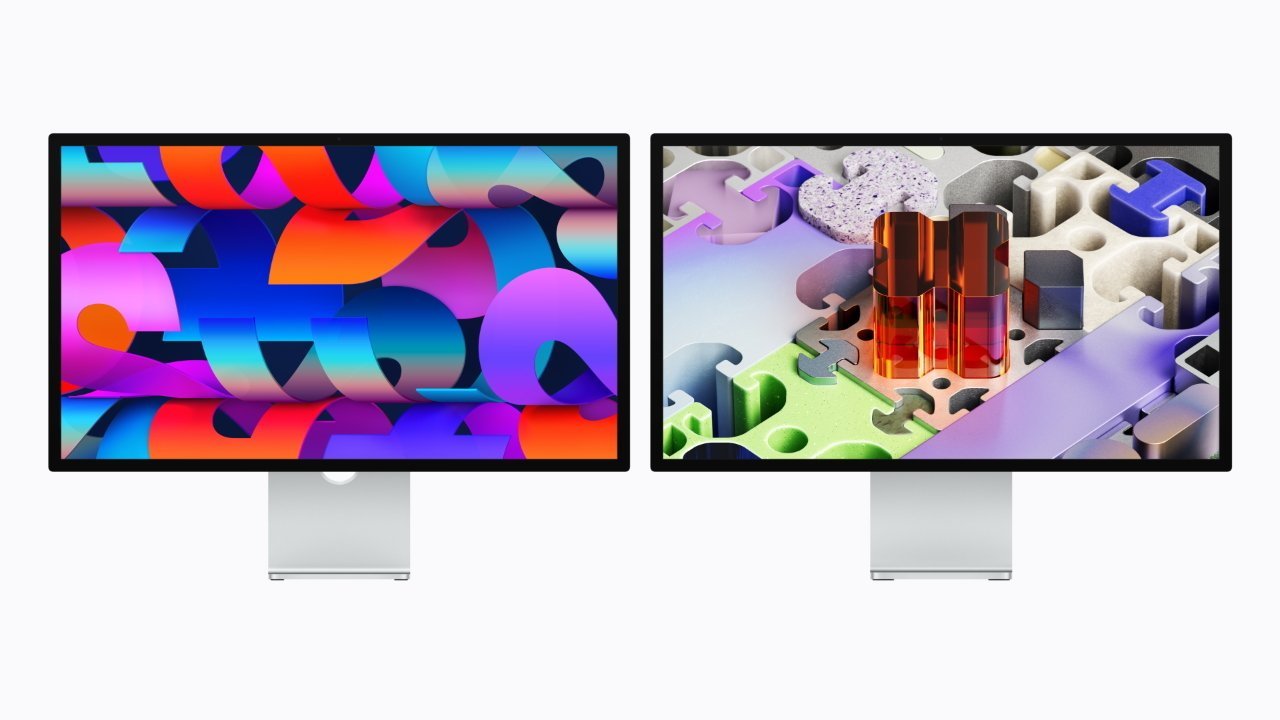
In a swift follow-up to its recent product announcements, Apple has unveiled updates for its operating systems, including iOS 26.3.1, iPadOS 26.3.1, visionOS 26.3.1, and macOS Tahoe 26.3.1. These updates are designed to enhance compatibility with the latest iterations of Apple’s Studio Display and the newly introduced Studio Display XDR.
Enhancing Compatibility with New Studio Displays
Apple’s commitment to seamless integration between hardware and software is evident in these updates. The release notes highlight not only bug fixes but also expanded support for external displays. This includes the 2026 edition of the Apple Studio Display and the Studio Display XDR, both of which were unveiled earlier this week.
Addressing Previous Display Issues
These updates are particularly significant in light of previous challenges faced by users. In December 2025, reports emerged of a flickering issue affecting some Apple Studio Displays when connected to Macs running macOS Tahoe. Users described intermittent flickering, with no discernible pattern, leading to a less-than-optimal viewing experience. While some speculated that the issue might be related to automatic dimming features, others noted that the problem persisted across different Mac models and even with non-Apple displays. This suggested that the root cause was likely within macOS Tahoe itself.
Apple’s proactive approach to software updates aims to resolve such issues, ensuring that users experience optimal performance with their devices.
How to Update Your Devices
To benefit from these enhancements, users are encouraged to update their devices promptly.
For iOS and iPadOS Devices:
1. Open the Settings app.
2. Navigate to General.
3. Tap on Software Update.
4. If the update is available, select Download and Install.
For those who have enabled Automatic Updates, the new version will install automatically when the device is connected to Wi-Fi and charging.
For macOS Tahoe:
1. Click on the Apple icon in the top-left corner of the screen.
2. Select System Settings.
3. Go to General.
4. Click on Software Update.
5. If the update is available, click Update Now.
Users with Automatic Updates enabled will receive the update without manual intervention.
Looking Ahead
Apple’s dedication to refining user experience through regular software updates underscores its commitment to quality and innovation. By addressing previous issues and enhancing compatibility with new hardware, Apple ensures that its ecosystem remains robust and user-friendly.
As technology continues to evolve, users can anticipate further updates that not only introduce new features but also refine existing functionalities, solidifying Apple’s position at the forefront of the tech industry.