Maximizing Your MacBook Neo: Understanding USB-C Port Functions and Display Connectivity
The MacBook Neo, Apple’s latest addition to its laptop lineup, offers a sleek design and powerful performance tailored for users who primarily operate without external displays. However, for those who occasionally connect to external monitors, it’s crucial to understand the specific functionalities of the device’s USB-C ports to ensure optimal performance and avoid potential issues.
Understanding the USB-C Ports
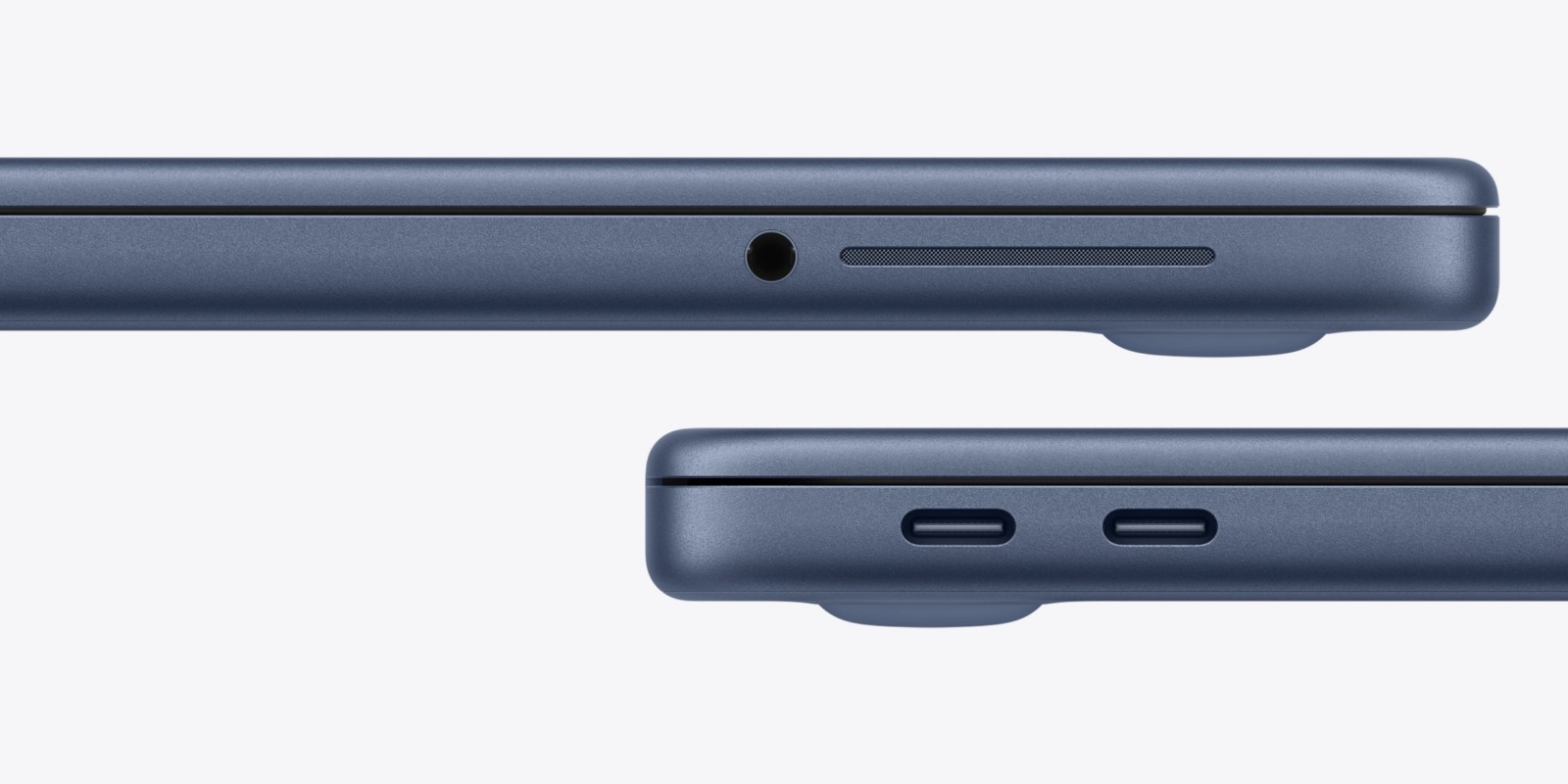
At first glance, the MacBook Neo’s two USB-C ports appear identical, but they serve distinct purposes:
1. Rear USB-C Port: This port supports USB 3 and DisplayPort, offering data transfer speeds up to 10Gb/s. It’s designed to handle both high-speed data transfers and external display connections.
2. Front USB-C Port: This port is limited to USB 2, with data transfer speeds capped at 480Mb/s. Notably, it does not support external display connections.
Both ports can be used for charging and data transfer. However, for efficient workflow, it’s advisable to use the front port for charging and the rear port for data-intensive tasks and display connections. This setup aligns with traditional Apple laptop designs, where the rear-most ports are typically designated for charging.
On-Screen Notifications for Incorrect Display Connections
To assist users in connecting external displays correctly, macOS on the MacBook Neo includes a helpful feature. If you attempt to connect a display to the front USB-C port, which lacks display support, the system will display an on-screen notification advising you to use the rear port instead. This proactive alert aims to prevent user confusion and ensure a seamless experience when setting up external monitors.
External Display Support Limitations
It’s important to note that the MacBook Neo’s support for external displays has certain limitations:
– Resolution and Refresh Rate: The device supports one external display with a native resolution of up to 4K at 60Hz.
– Scaling Considerations: Enabling scaled resolutions higher than the native resolution of the external display may affect the availability of certain refresh rates or HDR modes in display preferences.
These specifications mean that, unlike the MacBook Air, the MacBook Neo cannot fully utilize 5K monitors like the Apple Studio Display. For users seeking a 5K experience, alternative options such as BenQ’s new glossy 5K 27-inch monitor, priced at $999, may be considered.
Historical Context and USB-C Port Evolution
Apple’s approach to USB-C ports has evolved over the years to enhance user experience and device functionality:
– macOS Ventura’s Accessory Security Feature: Introduced in 2022, this feature requires user approval before an external USB or Thunderbolt accessory can communicate with macOS. This security measure aims to protect users from potential issues arising from non-compliant accessories. ([9to5mac.com](https://9to5mac.com/2022/06/06/macos-ventura-usb-security/?utm_source=openai))
– Liquid Detection in USB-C Ports: In 2023, Apple implemented a system daemon named liquiddetectiond in macOS Sonoma 14.1. This feature detects when the computer has been exposed to liquids through the USB-C ports, providing valuable data for technicians to assess potential damage. ([9to5mac.com](https://9to5mac.com/2023/11/03/macs-liquids-detected-in-usb-c-ports/?utm_source=openai))
– USB-C Cable Alert Feature: Google’s Chrome OS introduced a feature that alerts users when a connected USB-C cable doesn’t support certain features or isn’t performing optimally. This proactive approach helps users identify and replace suboptimal cables, ensuring better device performance. ([9to5mac.com](https://9to5mac.com/2022/05/27/usb-c-alert-feature-apple-mac/?utm_source=openai))
Practical Tips for MacBook Neo Users
To maximize your MacBook Neo’s capabilities and ensure a smooth experience when connecting external displays, consider the following tips:
1. Use the Correct Port for Displays: Always connect external displays to the rear USB-C port to ensure compatibility and optimal performance.
2. Monitor On-Screen Notifications: Pay attention to any system notifications regarding port usage to prevent connectivity issues.
3. Be Aware of Display Limitations: Understand the device’s support limitations for external displays, especially if you plan to use high-resolution monitors.
4. Stay Updated: Regularly update your macOS to benefit from the latest features and security enhancements related to USB-C connectivity.
By understanding the specific functionalities of the MacBook Neo’s USB-C ports and adhering to best practices for external display connections, users can ensure a seamless and efficient computing experience.