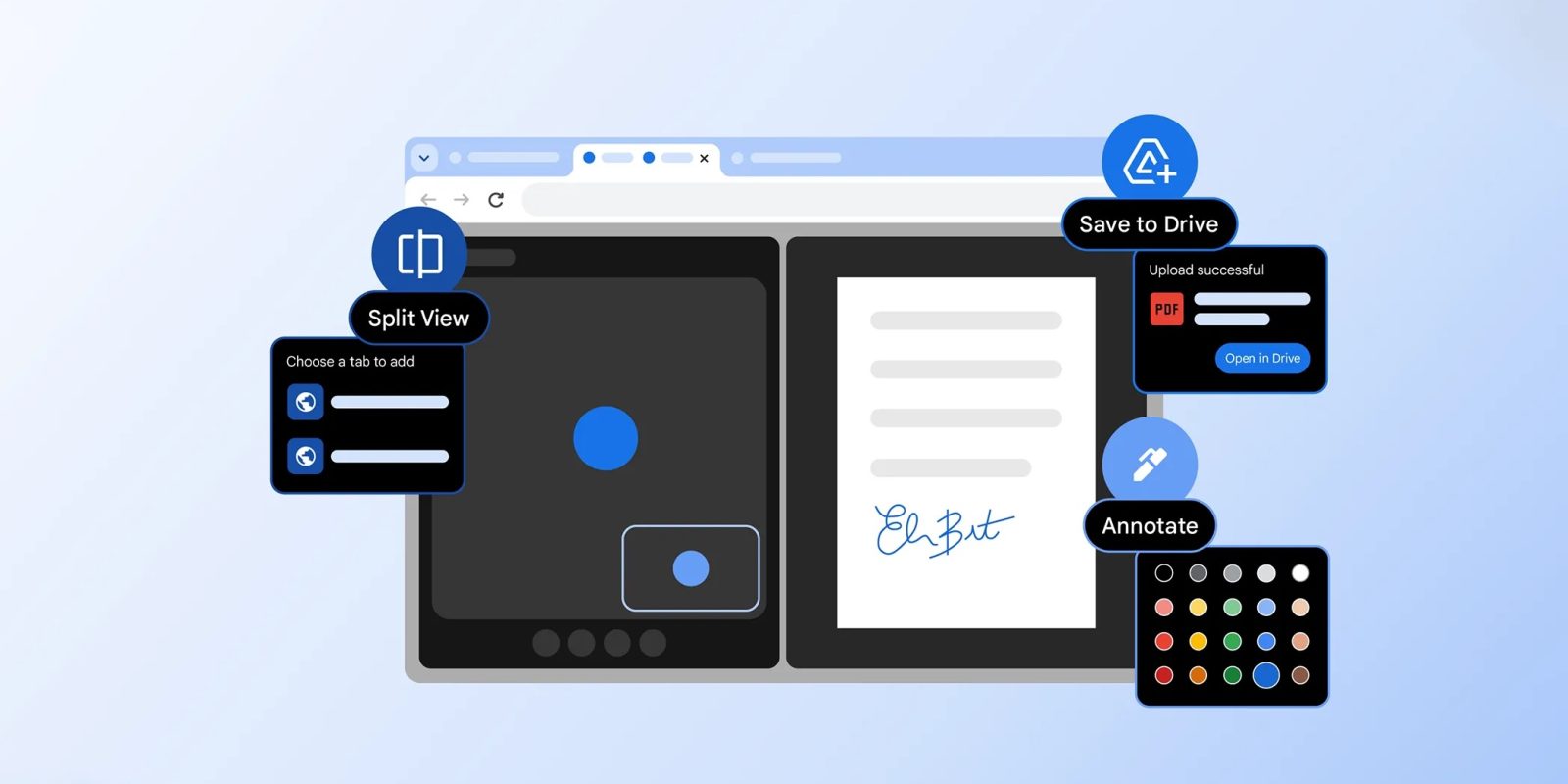
Google Chrome has unveiled a suite of new features aimed at enhancing user productivity and streamlining workflows. The latest update introduces Split View for side-by-side tab management, PDF annotation capabilities, and seamless integration with Google Drive for saving documents directly from the browser.
Split View: Enhancing Multitasking Efficiency
The new Split View feature addresses the common challenge of managing multiple tabs by allowing users to open two tabs side-by-side within a single window. This functionality is particularly beneficial for tasks that require simultaneous reference to multiple sources, such as watching a video while taking notes or participating in a virtual meeting with a document open for reference.
To activate Split View:
1. Right-click on a link and select Open Link in Split View from the context menu.
2. The browser will display a dual-pane interface beneath the address bar, with each pane functioning as an independent tab.
3. A new Split View icon appears to the left of the address bar, offering options to separate, close, or reverse the panes.
4. Users can adjust the width of each pane by dragging the divider, allowing for a customized viewing experience.
This feature aims to reduce the fatigue associated with constantly switching between tabs, thereby enhancing productivity and user experience.
PDF Annotation: Streamlining Document Review
Chrome’s built-in PDF Viewer now includes annotation tools, enabling users to highlight text and add notes directly within the browser. This eliminates the need to download PDFs and use separate applications for annotations, simplifying the document review process.
To utilize the annotation feature:
1. Open a PDF in Chrome’s PDF Viewer.
2. Click on the squiggle icon in the top toolbar to access annotation tools.
3. A panel on the right side provides options to adjust the size and color of the annotations.
4. Users can highlight text, add notes, and even insert quick signatures directly into the document.
This functionality is particularly useful for professionals and students who frequently review and mark up documents, offering a more integrated and efficient workflow.
Save to Google Drive: Seamless Cloud Integration
In addition to annotation capabilities, Chrome’s PDF Viewer now features a Save to Google Drive option, allowing users to upload PDFs directly to their Drive accounts without leaving the browser.
To save a PDF to Google Drive:
1. Open the PDF in Chrome’s PDF Viewer.
2. Click on the Save to Google Drive button located in the top toolbar.
3. Select the Google account to which you want to save the document.
4. The PDF will be automatically uploaded to a Saved from Chrome folder in your Google Drive.
This integration facilitates easy access and sharing of documents across devices, enhancing collaboration and productivity.
Broader Context: Chrome’s Ongoing Enhancements
These new features are part of Chrome’s continuous efforts to improve user experience and productivity. In recent years, Chrome has introduced several updates to its PDF handling capabilities:
– Offline Access to PDFs and Office Files: In 2021, Google Drive’s offline mode was expanded to support PDFs, Microsoft Office files, and images, allowing users to access important documents without an internet connection. ([9to5google.com](https://9to5google.com/2021/09/02/google-drive-offline-access-pdf/?utm_source=openai))
– Text Recognition in Scanned PDFs: In 2025, Chrome added the ability to copy and search text within scanned PDFs, enhancing the utility of the browser’s PDF viewer. ([9to5google.com](https://9to5google.com/2025/06/03/chrome-lets-users-copy-and-search-text-from-scanned-pdfs/?utm_source=openai))
– Two-Page View for PDFs: Chrome introduced a two-page view option in its PDF viewer, providing a book-like reading experience that is particularly beneficial for large-screen devices. ([9to5google.com](https://9to5google.com/2020/03/12/google-chrome-two-page-pdf-viewer/?utm_source=openai))
These enhancements reflect Chrome’s commitment to providing a comprehensive and user-friendly browsing experience, catering to the evolving needs of its diverse user base.
Conclusion
The introduction of Split View, PDF annotation, and Save to Google Drive features in Chrome 145 marks a significant step forward in enhancing user productivity and streamlining workflows. By integrating these tools directly into the browser, Chrome continues to evolve as a versatile platform that meets the demands of modern users.