Enhance Your MacBook’s Battery Life with macOS Tahoe 26.4’s New Charge Limit Slider
Apple’s latest update, macOS Tahoe 26.4, introduces a significant feature aimed at extending the lifespan of your MacBook’s battery: the Charge Limit Slider. This addition allows users to set a maximum charge percentage, thereby reducing battery wear over time.
Understanding the Charge Limit Slider
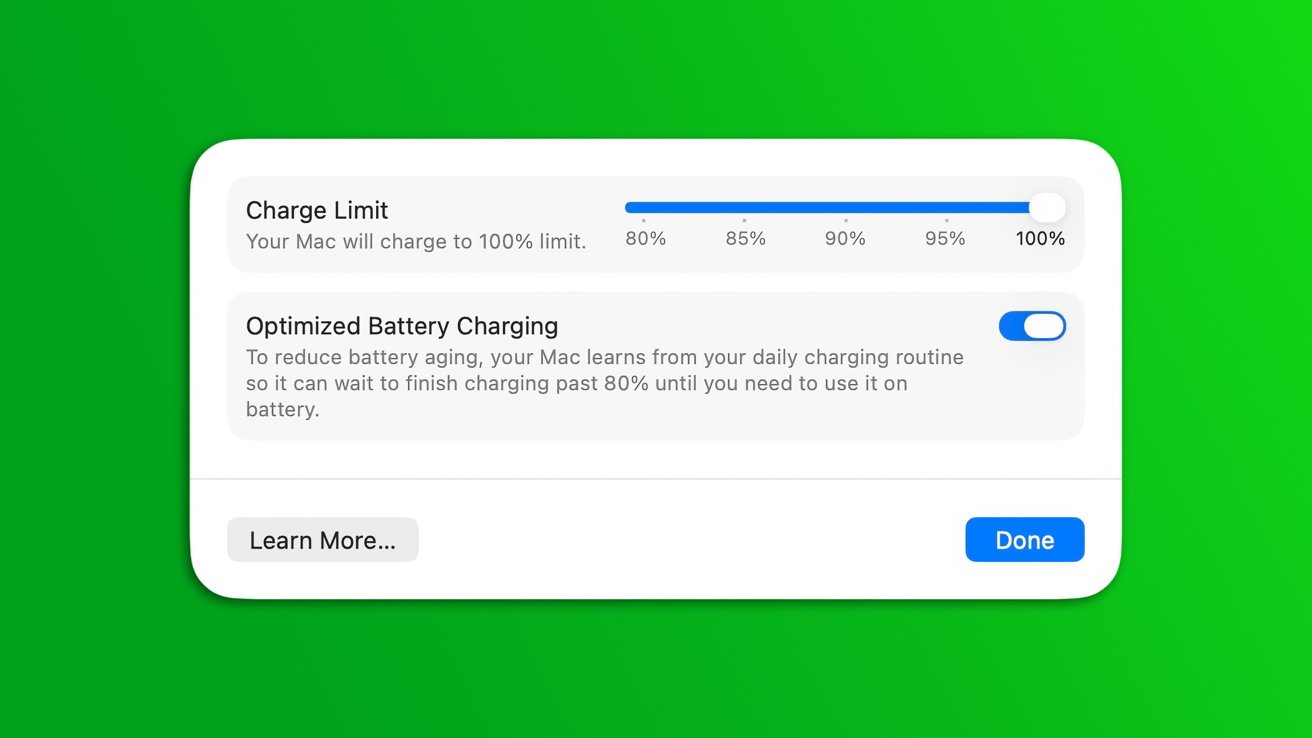
The Charge Limit Slider is a user-friendly tool that lets you determine the maximum charge level for your MacBook’s battery. By capping the charge at a specific percentage, such as 80%, you can minimize the stress on the battery cells, which is known to prolong battery health.
Activating the Charge Limit Feature
To enable this feature:
1. Open System Settings on your MacBook.
2. Navigate to the Battery section.
3. Click on the information symbol next to the Charging option.
4. Adjust the slider to set your desired maximum charge percentage.
This customization empowers users to tailor their charging habits to their specific needs, balancing between battery longevity and daily usage requirements.
Integration with Shortcuts for Enhanced Control
Beyond manual adjustments, macOS Tahoe 26.4 integrates the Charge Limit feature with the built-in Shortcuts app. This integration allows for automated control over charging limits based on various conditions, such as time of day or battery usage patterns. For instance, you can create a shortcut that sets the charge limit to 80% during work hours and allows a full charge overnight, optimizing battery health without compromising on availability.
The Rationale Behind Charging Limits
Lithium-ion batteries, like those in MacBooks, degrade over time due to factors like charge cycles and high voltage exposure. By limiting the maximum charge, you reduce the time the battery spends at high voltage, thereby slowing down the degradation process. This practice is particularly beneficial for users who keep their MacBooks plugged in for extended periods, as it prevents the battery from remaining at a full charge state, which can accelerate wear.
Considerations for Different User Habits
The utility of the Charge Limit Slider varies based on individual usage patterns:
– Stationary Users: If you primarily use your MacBook at a desk, connected to power, setting a lower charge limit can significantly extend battery lifespan.
– Mobile Users: For those who rely on their MacBook’s battery throughout the day, a higher charge limit may be necessary to ensure sufficient battery life between charges.
It’s essential to assess your daily routines and adjust the charge limit accordingly to strike a balance between battery health and operational needs.
A Step Towards Sustainable Technology
Apple’s introduction of the Charge Limit Slider aligns with a broader commitment to sustainability and device longevity. By providing users with tools to manage battery health proactively, Apple not only enhances user experience but also contributes to reducing electronic waste by extending the usable life of its devices.
Looking Ahead
As technology evolves, features like the Charge Limit Slider represent a shift towards more user-centric and environmentally conscious design. Users are encouraged to explore this new feature, understand its benefits, and incorporate it into their daily routines to maximize the lifespan and performance of their MacBook batteries.