Maximizing Visual Learning with iPad and iPhone: Effective Strategies
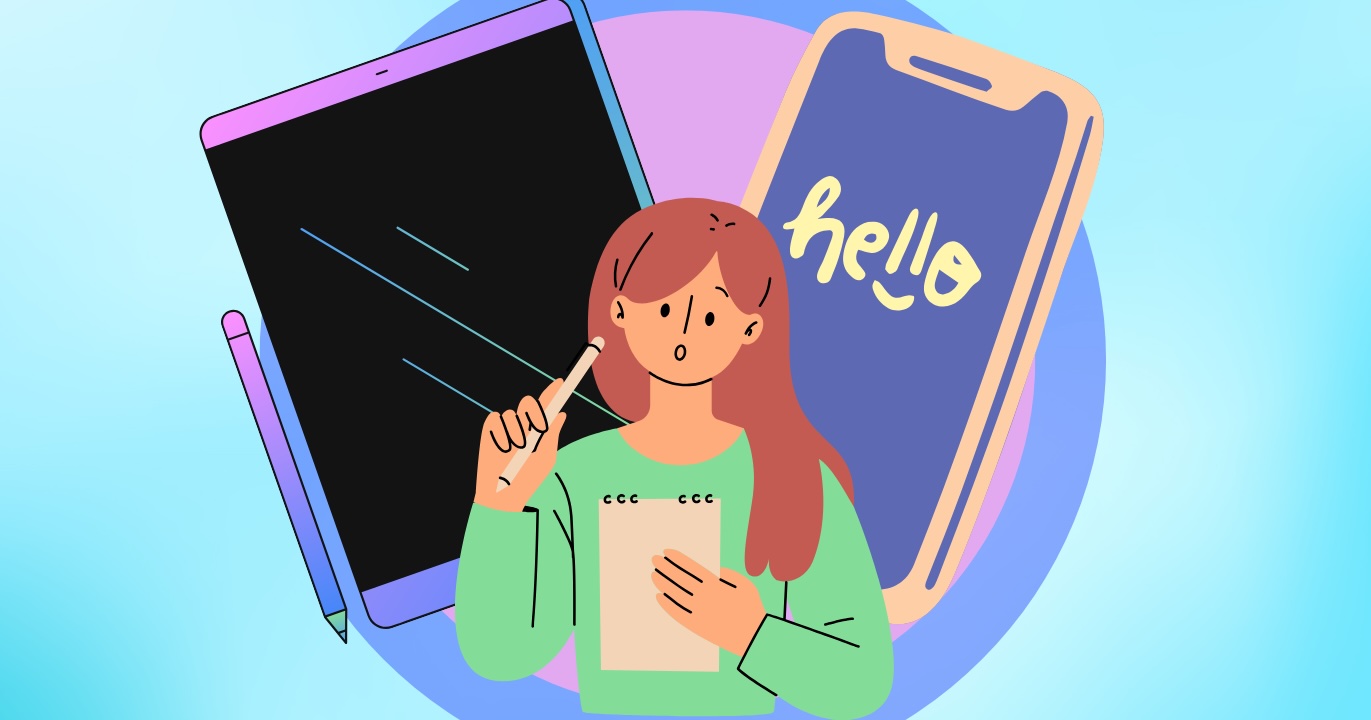
Visual learning, which prioritizes images and spatial understanding over auditory information, has gained significant traction in educational methodologies. Apple’s iPad and iPhone, with their advanced hardware and software capabilities, have become indispensable tools for visual learners. This article explores how to harness these devices to enhance visual-first learning experiences.
The Superiority of iPad and iPhone for Visual Learning
Apple’s design philosophy emphasizes user-friendly interfaces and high-quality displays, making their devices particularly suited for visual learning:
– High-Resolution Displays: iPads feature Liquid Retina screens with at least 264 pixels per inch (ppi), while iPhone 15 Pro and 16 models boast over 450 ppi with ProMotion technology. This ensures crisp, clear visuals essential for detailed diagrams and text.
– Responsive Stylus Input: The Apple Pencil offers low-latency input, with hover features and a 9 ms response time, facilitating precise note-taking and sketching.
– Advanced Sensors and Haptics: Devices equipped with LiDAR and the Taptic Engine enable immersive augmented reality (AR) experiences and provide tactile feedback, enhancing interactive learning.
– Seamless Hardware-Software Integration: Features like iPadOS’s Freeform whiteboard and iOS’s Live Text allow for efficient capture and organization of visual information without cumbersome processes.
For instance, when learning sign language, the expansive display accommodates clear hand-shape videos, and the front-facing camera allows learners to monitor their own signing, creating an effective learning environment.
Built-in Features Enhancing Visual Learning
Apple’s commitment to accessibility translates into features that benefit all learners:
– Live Text & Visual Lookup: Introduced in iOS 15 and enhanced in subsequent updates, Live Text recognizes handwritten or printed words in multiple languages offline. Visual Lookup identifies plants, diagrams, and textbook illustrations, allowing users to capture and label information efficiently.
– Freeform with Apple Pencil Hover: The Freeform app offers an infinite canvas for brainstorming and organizing ideas spatially. Apple Pencil’s hover feature previews strokes before application, reducing errors and improving the digital sketching experience.
– Eye-Tracking and Point-and-Speak: System-level eye-tracking and the upgraded Magnifier mode, Point-and-Speak, enable users to interact with on-screen elements through gaze and have text read aloud by pointing the camera, supporting learners with motor challenges or those who benefit from auditory reinforcement.
– Display & Text Adjustments: Customizable settings allow users to adjust text size, contrast, and color schemes, catering to individual visual preferences and needs.
Third-Party Apps Complementing Visual Learning
Beyond built-in features, several third-party applications enhance the visual learning experience:
– Duolingo: This language-learning app employs gamified lessons with visual cues, making language acquisition engaging and effective.
– CollaNote: A free note-taking app offering a variety of pens and brushes, along with collaboration features for group study sessions.
– Notion: A versatile tool for organizing notes, projects, and databases, utilizing visual elements to structure information.
– GoodLinks: A bookmarking app that presents saved articles in a reader-friendly format, allowing offline access and synchronization across devices.
– QuickScan: A scanning app that converts physical documents into digital formats with text recognition, facilitating easy storage and retrieval.
Practical Applications for Different Learners
The versatility of iPads and iPhones supports various learning scenarios:
– For Educators: Teachers can use Freeform to create interactive lessons, employ Live Text to digitize handwritten notes, and utilize AR apps to bring abstract concepts to life.
– For Students: Learners can organize study materials in Notion, practice languages with Duolingo, and scan and annotate documents using QuickScan and CollaNote.
– For Parents Supporting Neurodivergent Learners: Customizable display settings, eye-tracking, and Point-and-Speak features provide tailored support for children with diverse learning needs.
Conclusion
Apple’s iPad and iPhone, equipped with high-quality displays, responsive input methods, and a suite of built-in and third-party applications, offer a robust platform for visual-first learning. By leveraging these tools, learners can create personalized, engaging, and effective educational experiences that cater to their unique preferences and needs.