Unlocking Hidden iPhone Features: 10 Tips to Enhance Your Experience
Your iPhone is a powerful device packed with features that can streamline your daily tasks and enhance your user experience. Beyond the commonly known functionalities, there are several hidden gems that can make your iPhone usage more efficient and enjoyable. Here are ten lesser-known tips and tricks to help you get the most out of your iPhone:
1. Set Alarms for Reminders
Transform your reminders into actionable alerts by setting alarms. Instead of receiving a standard notification, you can configure a reminder to trigger a pop-up that requires you to snooze or dismiss it, ensuring you don’t overlook important tasks. To do this, open the Reminders app, create a new reminder or select an existing one, tap on the i icon, enable Remind me on a day, set the desired date and time, and toggle on Alarm.
2. Utilize Adaptive Power Mode
Adaptive Power Mode leverages artificial intelligence to learn your iPhone usage patterns and adjust settings accordingly to conserve battery life. On days when you’re consuming more battery, this feature can modify background app refresh and other processes to ensure your device lasts throughout the day. To activate Adaptive Power Mode, go to Settings > Battery > Adaptive Power Mode and toggle it on. Please note that this feature is available on newer iPhone models.
3. Link to Specific Text in Safari
When sharing web content, you can direct recipients to a specific section of a webpage using Safari’s Copy Link with Highlight feature. This ensures that the person you’re sharing with lands directly on the relevant part of the page. To use this, highlight the desired text on a webpage, tap the share icon, and select Copy Link with Highlight.
4. Customize the Action Button Menu
The Action Button on your iPhone can be tailored to perform multiple functions through the Shortcuts app. By setting the Action Button to trigger a Shortcut, you can create a customizable menu that provides quick access to various actions. To set this up, open the Shortcuts app, create a new shortcut with the desired actions, and assign it to the Action Button in Settings > Action Button.
5. Enhance Text Message Search
Finding specific messages in the Messages app can be challenging. By using a Messages Shortcut, you can add parameters like date and organize results with the latest messages first, making your search more efficient. To create this shortcut, open the Shortcuts app, tap the + icon to create a new shortcut, add the Find Messages action, set your desired parameters, and save the shortcut for future use.
6. Use AirPods as a Camera Remote
If you own AirPods Pro 2, AirPods Pro 3, or AirPods 4, you can use them as a remote control for your iPhone’s camera. This feature is particularly useful for group photos where everyone wants to be included. To use this function, connect your AirPods to your iPhone, open the Camera app, position your iPhone, and press the button on your AirPods to capture the photo.
7. Customize Alarm Snooze Duration
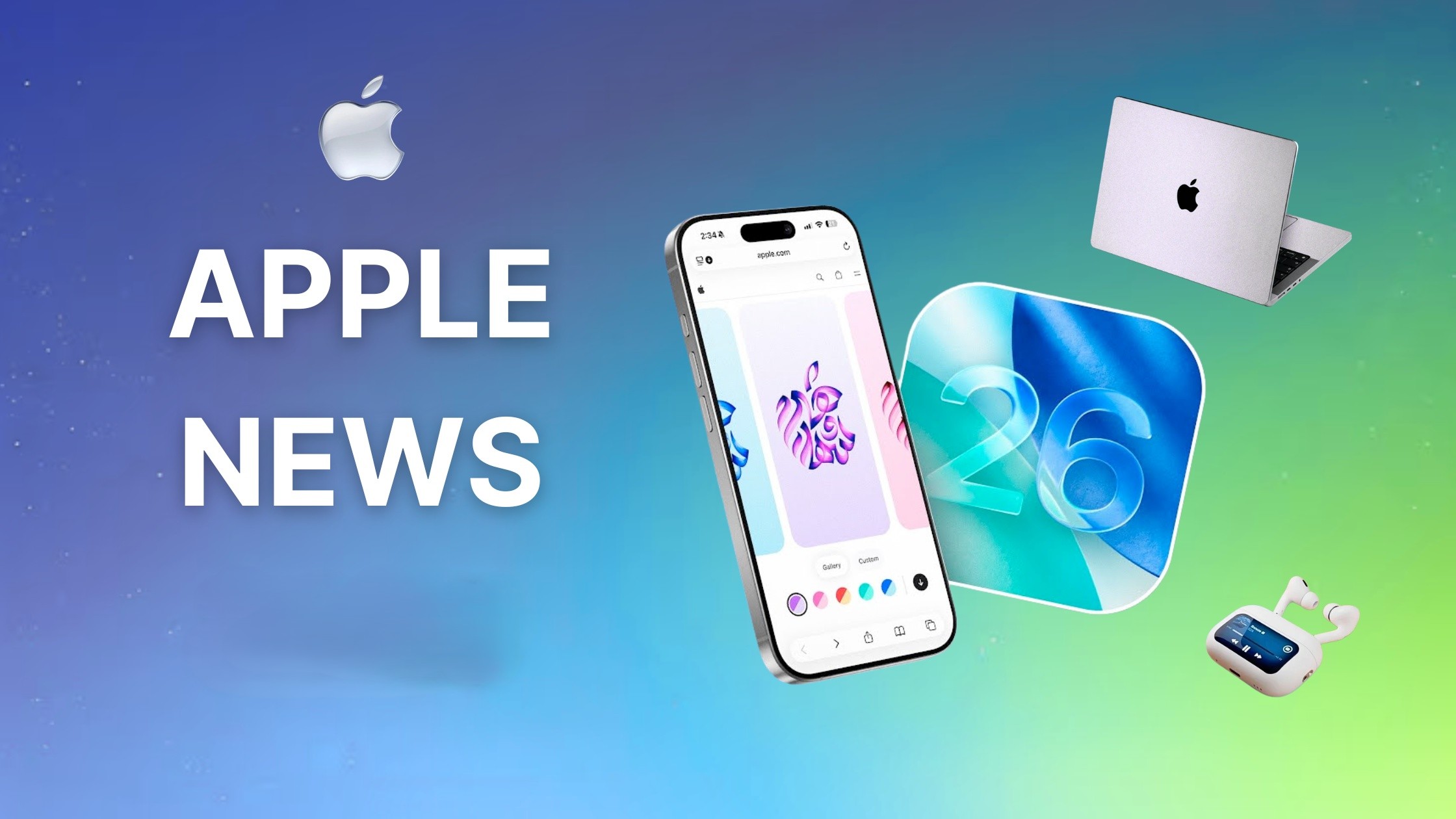
With iOS 26, you’re no longer limited to the default 9-minute snooze duration for alarms. You can now set a custom snooze length to better fit your sleep habits. To adjust this, open the Clock app, tap on the alarm you want to modify, select Snooze, and set your preferred duration.
8. Personalize Podcast Settings
For podcast enthusiasts, the Podcasts app allows you to create per-show settings for features like Enhance Dialogue and playback speed. This means you can tailor the listening experience for each podcast without affecting others. To customize these settings, open the Podcasts app, select a show, tap on the three-dot menu, choose Settings, and adjust the options as desired.
9. Snooze Notifications Directly from the Lock Screen
Managing notifications is more convenient with the ability to snooze them directly from the Lock Screen. For apps like Calendar and Reminders, you can long-press on a notification and choose to snooze it for a few minutes, an hour, or a custom length of time. This helps you address notifications at a more appropriate time without dismissing them entirely.
10. Simplify Screenshot Previews
If you find the full-screen previews of screenshots intrusive, you can revert to the previous method where screenshots are saved directly to the Photos app without displaying a preview. To disable screenshot previews, go to Settings > Screenshots and toggle off Show Preview.
By incorporating these tips into your daily routine, you can unlock new functionalities and enhance your overall iPhone experience. Exploring these features not only makes your device more personalized but also more efficient in catering to your needs.