Seamlessly Transfer Your Safari Data to Chrome on iPhone with Google’s New Guided Import Feature
Google has introduced a new Safari import feature in Chrome for iPhone, simplifying the process of transferring your browsing data from Safari to Chrome. This enhancement ensures a smooth transition for users switching browsers on their mobile devices.
Understanding the Safari Import Feature
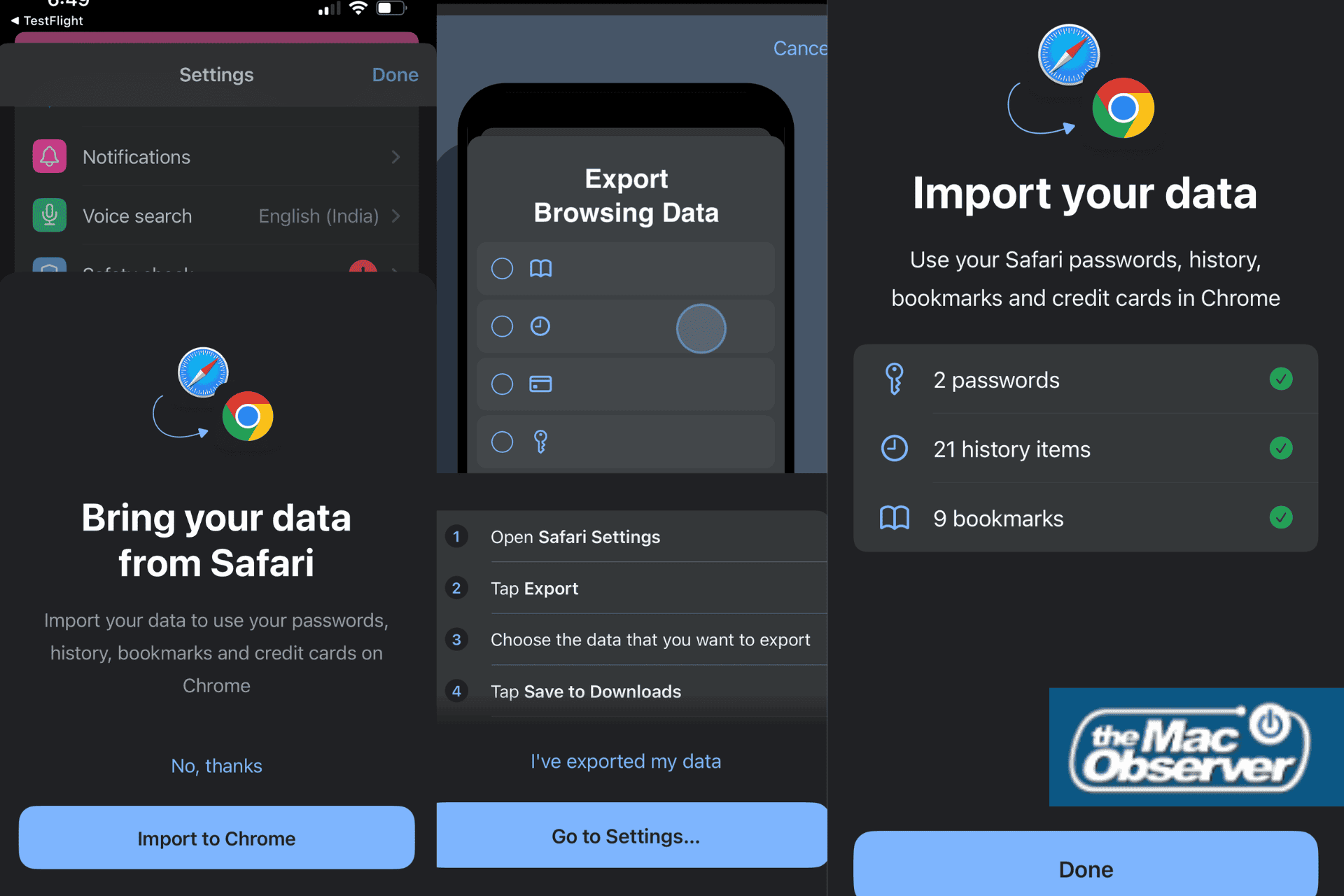
The Safari import option is accessible within Chrome’s settings under Safari import. Unlike a simple import button, Chrome provides a comprehensive, step-by-step guide to assist users through the data transfer process.
Why Is This Feature Necessary?
Due to Apple’s stringent security measures, Safari’s browsing data is protected, preventing direct access by third-party applications like Chrome. Therefore, users must first export their Safari data before importing it into Chrome.
Step-by-Step Guide to Export and Import Safari Data
1. Exporting Data from Safari:
– Open the Settings app on your iPhone.
– Scroll down and select Safari.
– Tap on Export Browsing Data.
– Save the resulting ZIP file to iCloud Drive or the Downloads folder.
2. Importing Data into Chrome:
– Open the Chrome app on your iPhone.
– Navigate to Settings and select Safari import.
– Follow the on-screen instructions to locate and select the previously saved ZIP file.
– Chrome will display a summary of the data to be imported, including bookmarks, browsing history, and saved passwords.
– Confirm the import by tapping Import.
Post-Import Security Measures
After completing the import, Chrome alerts users that the exported ZIP file contains sensitive information. To maintain privacy and security, Chrome offers an option to delete the ZIP file immediately, reducing the risk of unauthorized access to personal data.
Significance of the Guided Import Feature
Previously, transferring data from Safari to Chrome on an iPhone was cumbersome, often requiring a computer or manual input of information. The introduction of this guided import feature in Chrome version 145 beta streamlines the process, allowing users to migrate their data directly on their mobile devices without hassle.
Anticipated Rollout
Currently available in the Chrome 145 beta, this feature is expected to be included in the stable release of Chrome 145. Users can look forward to a more integrated browsing experience as Google continues to enhance Chrome’s functionality on iOS devices.
Conclusion
Google’s new guided Safari import feature in Chrome for iPhone marks a significant improvement in user experience, facilitating a seamless transition for those moving from Safari to Chrome. By providing clear instructions and prioritizing user security, Chrome ensures that users can confidently transfer their browsing data with ease.