Seamlessly Transfer Your Safari Data to Chrome on iPhone with Google’s New Guided Import Feature
In a significant update, Google has introduced a new Safari import feature in its Chrome browser for iPhone, simplifying the process of transferring data from Safari to Chrome. This enhancement is designed to provide users with a seamless transition between browsers, ensuring that essential information such as bookmarks, browsing history, and passwords are effortlessly migrated.
Understanding the Need for Data Migration
Switching browsers on a mobile device has traditionally been a cumbersome task, often requiring users to manually recreate bookmarks and re-enter passwords. Recognizing this challenge, Google has developed a guided import process that streamlines the migration of data from Safari to Chrome on iOS devices.
Step-by-Step Guide to Using the Safari Import Feature
To utilize this new feature, follow these steps:
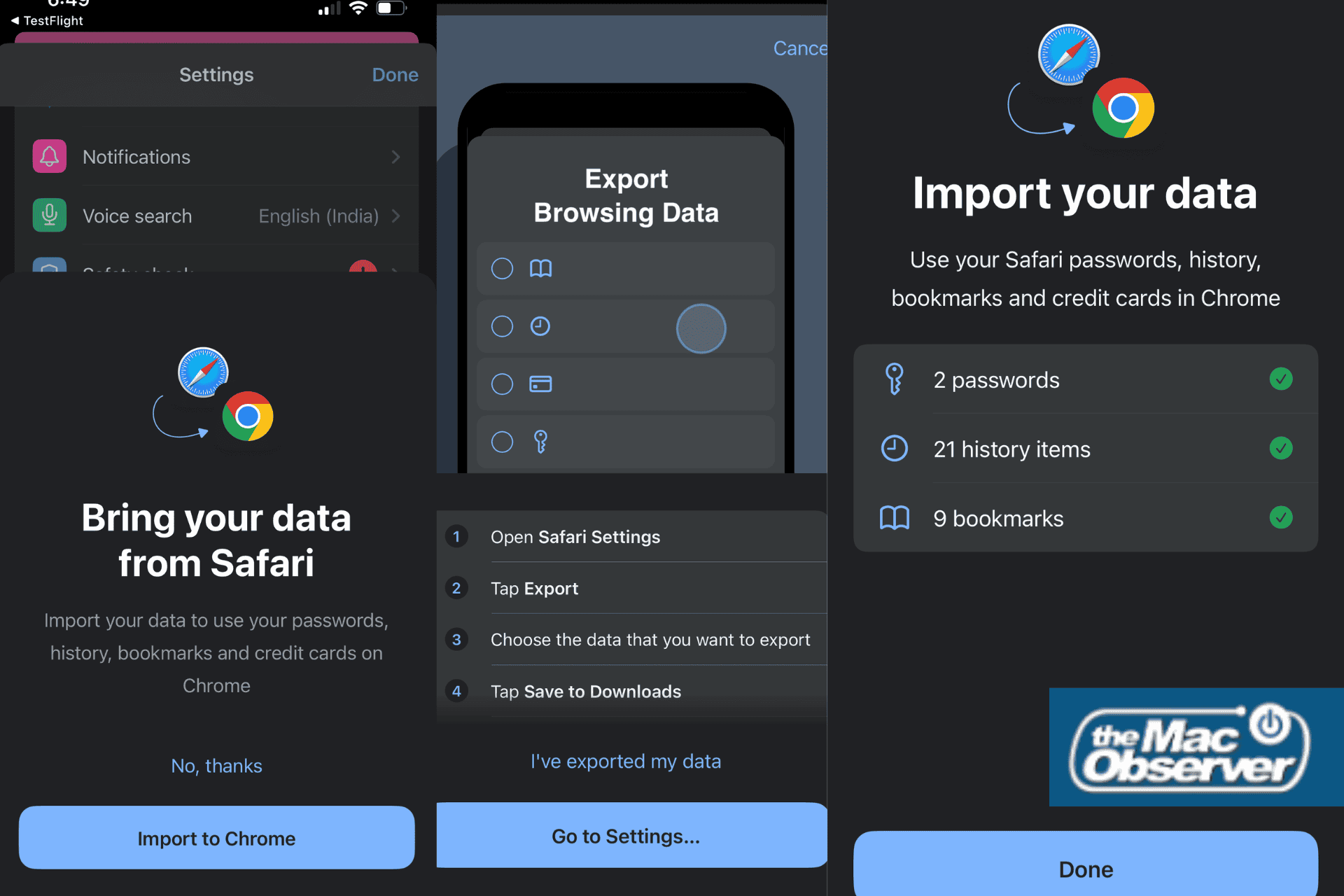
1. Access Chrome Settings: Open the Chrome app on your iPhone and navigate to the settings menu. Within the settings, locate and select the Safari import option.
2. Follow the Guided Instructions: Chrome provides clear, step-by-step instructions to assist you through the data export and import process. This guidance ensures that even users unfamiliar with data migration can complete the process with ease.
3. Export Data from Safari:
– Open the Settings app on your iPhone.
– Scroll down and tap on Safari.
– Select the Export Browsing Data option.
– Save the resulting ZIP file to your iCloud Drive under the Downloads folder.
4. Import Data into Chrome:
– Return to the Chrome app and proceed with the import process.
– Chrome will prompt you to select the previously saved ZIP file from your iCloud Drive.
– Before finalizing the import, Chrome presents a summary of the data to be imported, allowing you to review and confirm the information.
Security Considerations
It’s important to note that the exported ZIP file contains sensitive personal information, including your browsing history and saved passwords. To maintain your privacy and security, Chrome offers an option to delete the ZIP file immediately after the import process is completed. This proactive measure helps prevent unauthorized access to your personal data.
Benefits of the Guided Import Feature
This new feature offers several advantages:
– User-Friendly Experience: The guided instructions make the data migration process straightforward, even for users who may not be tech-savvy.
– Time Efficiency: By automating the transfer of bookmarks, history, and passwords, users save time and effort compared to manual data entry.
– Enhanced Security: The prompt to delete the sensitive ZIP file post-import ensures that personal data does not remain vulnerable on the device.
Availability and Future Updates
Currently, this guided import feature is available in the Chrome 145 beta version. Google plans to roll out this functionality to all users with the official release of Chrome 145. This update signifies Google’s commitment to enhancing user experience and providing seamless integration between different platforms and browsers.
Conclusion
The introduction of the guided Safari import feature in Chrome for iPhone marks a significant improvement in browser interoperability on iOS devices. By simplifying the data migration process, Google empowers users to choose their preferred browser without the hassle of manual data transfer. As this feature becomes widely available, it is expected to encourage more users to explore Chrome’s offerings on their iOS devices.