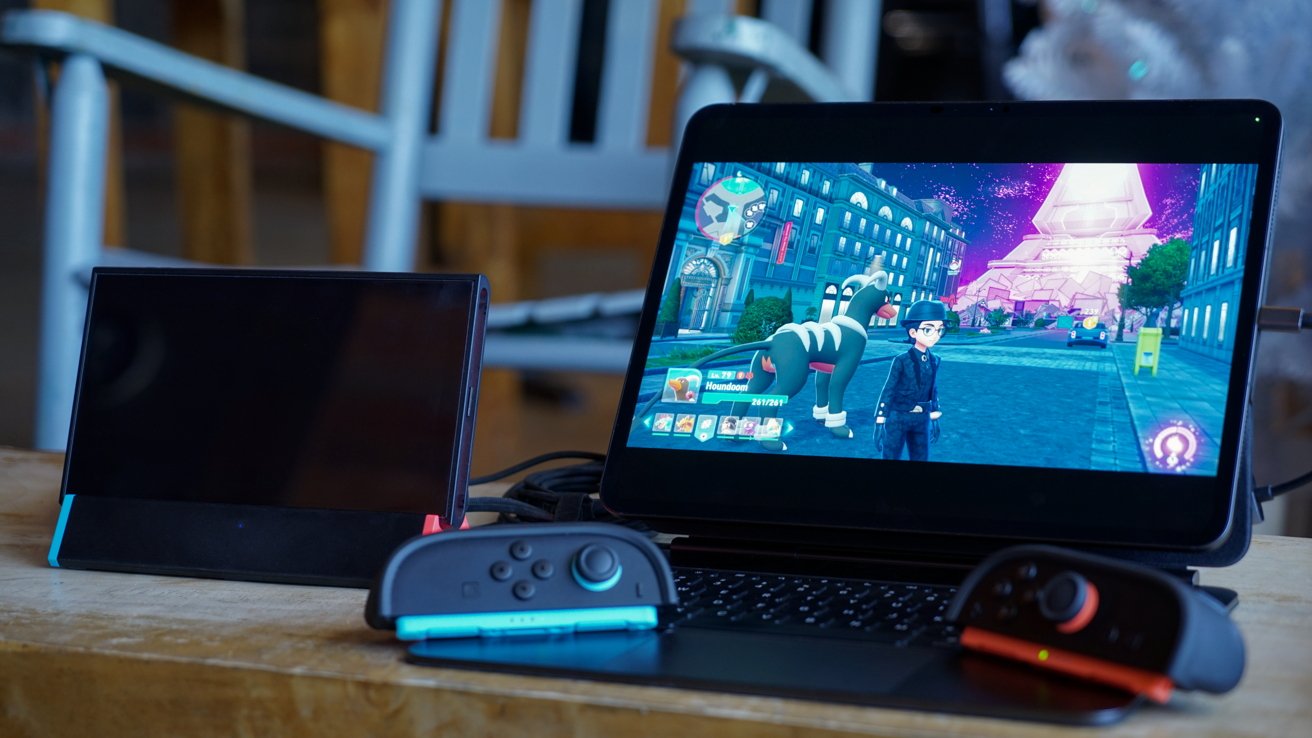
Transform Your iPad Pro into a Nintendo Switch 2 Display with a Portable Dock
The Nintendo Switch 2, while offering an immersive gaming experience, often requires a bulky official dock for connectivity. However, with the advent of portable solutions like the Antank dock, gamers can now seamlessly integrate their Nintendo Switch 2 with an iPad Pro, creating a versatile and compact gaming setup.
Understanding the Compatibility
Apple’s iPadOS 17 introduced support for connecting devices such as capture cards via USB-C, paving the way for innovative integrations. This advancement allows the iPad Pro to function as a portable display for the Nintendo Switch 2. However, due to specific operational requirements of the Nintendo Switch 2, a compatible dock is essential for this setup.
Introducing the Antank Dock
The Antank dock emerges as a compact and efficient alternative to the official Nintendo dock. Priced at $40 with a LAN port and $36 without, it offers affordability without compromising functionality. Key features include:
– 4K Output Support: Ensures high-definition gaming visuals.
– Dual USB-A Ports: Facilitates accessory charging.
Its diminutive size makes it ideal for both desk setups and on-the-go gaming sessions.
Setting Up Your iPad Pro as a Nintendo Switch 2 Display
To transform your iPad Pro into a display for the Nintendo Switch 2, follow these steps:
1. Update Your iPad: Ensure your iPad is running the latest iPadOS version and possesses a USB-C port.
2. Install a Video Capture App: Applications like Camo Studio are recommended for capturing and displaying video input.
3. Power the Antank Dock: Connect the dock to a reliable power source. Portable power banks, such as the Chargeasap Flash Pro Ultra, capable of outputting 100W or 60W, are suitable for this purpose.
4. Connect the Nintendo Switch 2 to the Dock: Insert the console into the Antank dock securely.
5. Establish HDMI Connection: Link an HDMI cable from the dock to a USB-C to HDMI capture card or dongle.
6. Connect to iPad Pro: Attach the capture card or dongle to the iPad Pro’s USB-C port.
7. Launch the Video Capture App: Open the installed app on your iPad to prepare for incoming video signals.
8. Power On the Nintendo Switch 2: Activate the console using its controller or Joy-Con.
Upon completion, the Nintendo Switch 2’s output should be visible on your iPad Pro through the video capture app.
Enhancing the Experience
For those aiming to stream gameplay or require additional functionalities:
– Streaming Considerations: While apps like Camo Studio facilitate streaming, be aware of potential audio control limitations inherent in iPadOS.
– Audio Management: The iPad may default to the most recently connected microphone for audio input. Ensure your preferred audio source is correctly configured.
– Alternative Capture Cards: For stationary setups, consider using desktop capture cards like the ASUS TUF 4K for enhanced performance.
Alternative Docking Solutions
Beyond the Antank dock, other docking solutions can enhance the iPad Pro and Nintendo Switch 2 integration:
– Kensington StudioDock: This docking station offers a range of ports and wireless charging capabilities, providing a comprehensive solution for iPad Pro users.
– Genki Covert Dock: A compact adapter that functions as both a charger and a video output solution, ideal for USB-C devices like the iPad Pro and Nintendo Switch.
– HyperDrive USB-C Hub: Specifically designed for the iPad Pro, this hub offers multiple ports, including HDMI, USB-A, and SD card slots, enhancing connectivity options.
Conclusion
By leveraging portable docks like the Antank, gamers can effectively use their iPad Pro as a display for the Nintendo Switch 2. This setup not only offers a larger screen for gaming but also provides the flexibility of a portable and efficient gaming station. As technology continues to evolve, such integrations highlight the potential for versatile and compact gaming solutions.