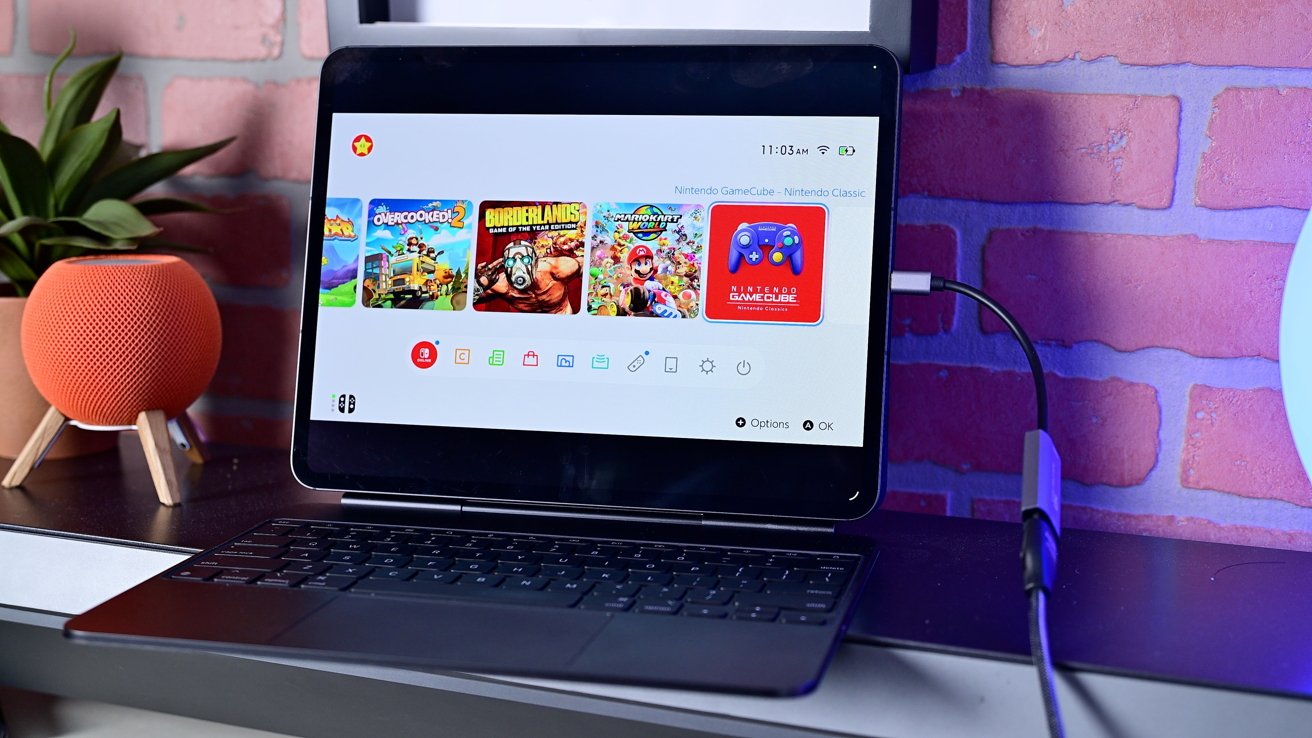
The Nintendo Switch 2 has captivated gamers worldwide with its portability and diverse game library. However, its compact screen can sometimes limit the immersive experience. Fortunately, if you own a USB-C-equipped iPad running iPadOS 17 or later, you can repurpose it as an external display for your Switch 2, enhancing your gaming sessions with a larger screen.
Understanding the Compatibility
Apple’s iPadOS 17 introduced support for external webcams and capture devices, enabling iPads with USB-C ports to function as displays for HDMI sources. This feature allows devices like the Nintendo Switch 2 to connect seamlessly to an iPad, transforming it into a portable monitor.
Essential Equipment
To set up your iPad as a display for the Nintendo Switch 2, you’ll need the following:
1. USB-C iPad: Compatible models include:
– iPad Pro 12.9-inch (3rd generation and later)
– iPad Pro 11-inch (1st generation and later)
– iPad Air (4th generation and later)
– iPad (10th generation)
2. Nintendo Switch 2: Ensure your console is updated to the latest firmware.
3. HDMI to USB-C Capture Card: This device captures the HDMI output from the Switch 2 and transmits it to the iPad via USB-C. Affordable options are available online.
4. HDMI Cable: Connects the Switch 2 to the capture card.
5. Orion App: A free application available on the App Store that facilitates the video feed from the capture card to the iPad.
Step-by-Step Setup Guide
1. Connect the Hardware:
– Plug the HDMI cable into the HDMI output port of the Nintendo Switch 2 dock.
– Connect the other end of the HDMI cable to the HDMI input of the USB-C capture card.
– Insert the USB-C end of the capture card into your iPad’s USB-C port.
2. Launch the Orion App:
– Download and install the Orion app from the App Store.
– Open the app on your iPad.
3. Power Up the Nintendo Switch 2:
– Place the Switch 2 into its dock and turn it on.
– The Orion app should automatically detect the video feed from the Switch 2.
Optimizing the Experience
– Audio Management: The Orion app captures both video and audio. Ensure your iPad’s volume is adjusted to a comfortable level.
– Power Considerations: To prevent your iPad from running out of battery during extended gaming sessions, consider using a multi-port adapter that allows simultaneous charging and data transfer.
– Display Settings: The Orion app offers various settings to enhance your viewing experience, including aspect ratio adjustments and video filters. Explore these options to tailor the display to your preferences.
Alternative Applications
While the Orion app is a popular choice, other applications like Camo Studio and Video Assist also support video capture from external devices. These apps may offer additional features such as recording capabilities and advanced video settings.
Limitations and Considerations
– Controller Compatibility: As of now, Nintendo Switch 2 Joy-Cons cannot be paired directly with Apple devices. Therefore, you’ll need to use the Joy-Cons connected to the Switch 2 or a compatible controller.
– Latency: While the setup generally provides a smooth experience, some users may notice minimal input lag. This can vary based on the quality of the capture card and the processing power of the iPad.
– App Limitations: Some applications may have restrictions on audio capture or may require in-app purchases to unlock certain features. Review the app’s capabilities to ensure it meets your needs.
Conclusion
Transforming your iPad into a display for the Nintendo Switch 2 is a practical solution for gamers seeking a larger screen without investing in additional monitors. With the right equipment and setup, you can enjoy an enhanced gaming experience wherever you go.